Configure a 2D light in URP
Control the properties of a Light 2D component to change the appearance and behavior of light in a 2D Universal Render PipelineA series of operations that take the contents of a Scene, and displays them on a screen. Unity lets you choose from pre-built render pipelines, or write your own. More info
See in Glossary (URP) project.
Configure which lights affect which GameObjects
By default, a 2D light affects all 2D GameObjectsThe fundamental object in Unity scenes, which can represent characters, props, scenery, cameras, waypoints, and more. A GameObject’s functionality is defined by the Components attached to it. More info
See in Glossary in the sceneA Scene contains the environments and menus of your game. Think of each unique Scene file as a unique level. In each Scene, you place your environments, obstacles, and decorations, essentially designing and building your game in pieces. More info
See in Glossary. To specify which GameObjects a light affects, follow these steps:
- Assign the GameObjects you want the light to affect to a single sorting layer. For more information, refer to Sprites sorting order.
- Select the 2D light in the Hierarchy window.
- In the InspectorA Unity window that displays information about the currently selected GameObject, asset or project settings, allowing you to inspect and edit the values. More info
See in Glossary window, in the Light 2D component, set Target Sorting Layers to the sorting layer.
Add volumetric lighting
All 2D lights can create volumetric light, which is visible light in empty space. Follow these steps:
- In the Inspector window of the 2D light, enable Volumetric.
- Set Volume Intensity to a value above zero. The higher the value, the more visible the volumetric light is.
Blend overlapping lights
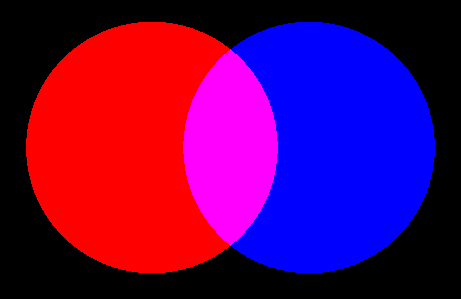
By default, when lights overlap, Unity blends them together by adding the colors together.
To change the amount of blending, set Overlap Operation to Alpha Blend and use the alpha value of the Color property to set the blend amount.
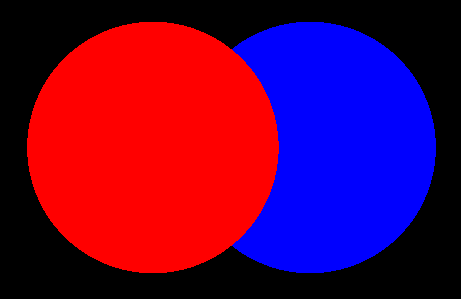
If you set the alpha value to 0, Unity doesn’t blend the lights, so one completely overlaps the other. To control which light appears in front, use the Light Order property.