Create a 2D light in URP
Create a 2D light in the Universal Render Pipeline (URP). 2D lights illuminate compatible 2D GameObjects in your scene.
Follow these steps:
- Right-click in the Hierarchy window, then select Light.
- Select one of the built-in 2D light types. If you create a custom 2D light type, the custom light type also appears in the list.
By default, sprites and tiles you drag into the Scene view use the Sprite-Lit-Default shader, which is compatible with 2D lights.
You don’t need to move 2D lights forward or backward. 2D lights and shadows affect all GameObjects regardless of the distance between the light and the GameObject.
Note: 2D materials from the Built-In Render Pipeline don’t react to 2D lights. To upgrade materials from the Built-In Render Pipeline to the Universal Render Pipeline, refer to Migrate from the Built-in Render Pipeline to URP workflow.
If you use the Scriptable Render Pipeline (SRP) Batcher, set the Mode property of tilemaps to either Individual or SRP Batch to improve performance. Chunk mode is incompatible with the SRP Batcher. For more information about the Mode property, refer to Add 3D height to an isometric tilemap.
Configure which lights affect which GameObjects
By default, a 2D light affects all 2D GameObjects in the scene. To specify which GameObjects a light affects, follow these steps:
-
Assign the GameObjects you want the light to affect to a single sorting layer or rendering layer.
For more information, refer to the following:
-
If you used a rendering layer in step 1, open the URP asset, then in the Inspector window enable Use Rendering Layers.
Note: Enabling Use Rendering Layers might slightly reduce GPU performance.
Select the 2D light in the Hierarchy window.
In the Inspector window, in the Filtering section, set Target Sorting Layers to the sorting layer or Rendering Layers to the rendering layer.
Note: Global 2D lights and volumetric lights always affect all rendering layers.
When lights affect different sorting layers, performance can decrease because Unity renders more light and shadow textures. For more information, refer to Optimize 2D lights.
Add volumetric lighting
All 2D lights can create volumetric light, which is visible light in empty space. Follow these steps:
- In the Inspector window of the 2D light, enable Volumetric.
- Set Volume Intensity to a value above zero. The higher the value, the more visible the volumetric light is.
Avoid self-intersection in Freeform lights
If you create a Freeform Light 2D, the light might not appear in areas where the light overlaps with itself.
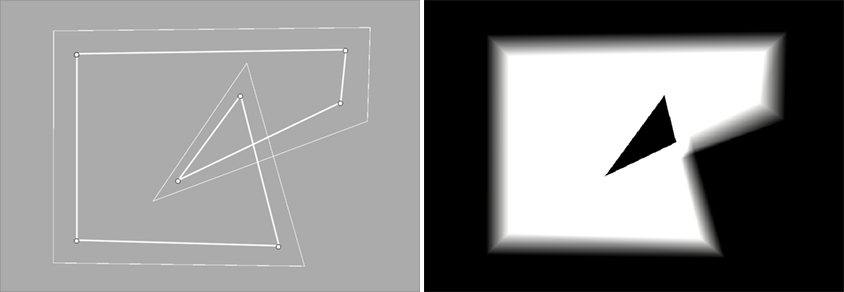
To avoid this, do the following:
- Make sure the edges of the shape don’t cross over each other.
- Set the Falloff properties of the light to ensure the light doesn’t overlap itself.