Use audio effects
You can modify the output of Audio Mixer components by applying Audio Effects. These can filter the frequency ranges of the sound or apply reverb and other effects.
Add audio effects to your mixer
To add an audio effect to your Audio Mixer, in the component, select Add Effect. Unity shows you a list of the following effects you can add to your mixer:
- LowPass
- HighPass
- Echo
- Flange
- Distortion
- Normalize
- Param EQ
- Pitch Shifter
- Chorus
- Compressor
- SFX Reverb
- LowPass Simple
- HighPass Simple
Profile your audio effects
Though highly optimized, some filters are still CPU intensive. You can monitor audio CPU usage in the profilerA window that helps you to optimize your game. It shows how much time is spent in the various areas of your game. For example, it can report the percentage of time spent rendering, animating, or in your game logic. More info
See in Glossary under the Audio tab.
Reorder audio effects
The ordering of the components is important, since it reflects the order in which the effects will be applied to the source audio. For example, in the image below, the Music section of an Audio Mixer is modified first by a Lowpass effect and then a compressor Effect, Flange Effect and so on.
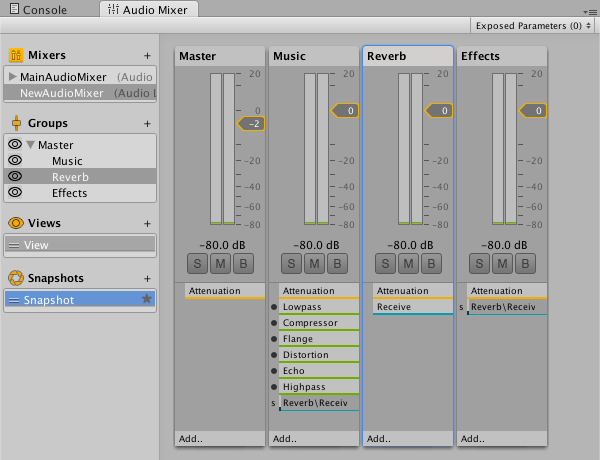
To change the order of these and any other components, open a context menu in the inspector and select the Move Up or Move Down commands.
AudioEffectMixer