Troubleshooting no baked global illumination in the scene
Important: The Built-In Render Pipeline is deprecated and will be made obsolete in a future release.
It remains supported, including bug fixes and maintenance, through the full Unity 6.7 LTS lifecycle.
For more information on migration, refer to Migrating from the Built-In Render Pipeline to the Universal Render Pipeline and Render pipeline feature comparison.
Fix issues that cause baked global illumination in the scene to fail.
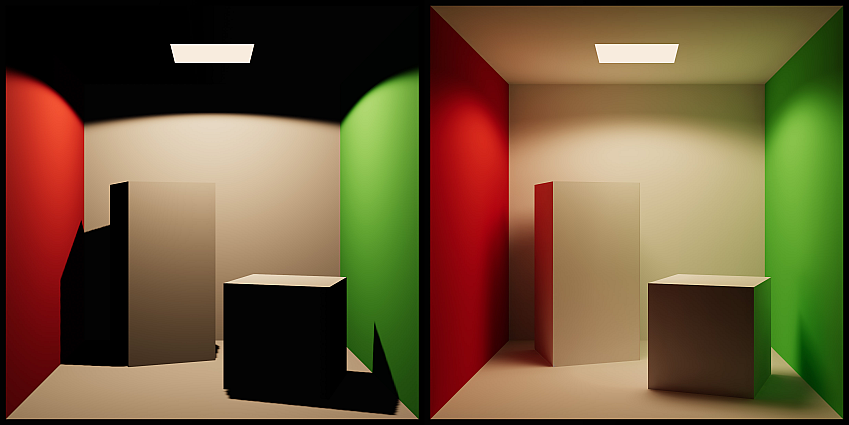
Symptoms
Baked global illumination fails to render in the scene, resulting in less lights in the scene and making shadows and overall image appear darker then intended.
Cause
If some prerequisites are not met, Progressive Lightmapper might fail to generate lighting in your scene. These commonly include, but are not limited to:
- No objects are marked as Global Illumination (GI) Contributors.
- No baked or mixed lights in the scene.
- Issues with the shaders.
Resolution - Mark GameObjects as GI Contributors
To mark objects as GI Contributors, follow these steps:
- Select your GameObject.
- In your GameObject’s Inspector window, go to the Mesh Renderer component.
- Under the Lighting header, enable Contribute to Global Illumination. This also automatically enables the Receive Global Illumination property, ensuring the object can receive baked lighting during lightmap generation.
Receive Global Illumination contains two options:
Lightmaps: Select this option if the GameObject is a static object that should be baked directly into the lightmaps. This is ideal for larger objects or those that are part of the environment (like walls, floors, or large props). The GameObject will receive and contribute Global Illumination (GI) directly to the lightmaps.
Light Probes: Use this option for smaller, dynamic, or detailed objects that don’t need to be baked directly into lightmaps. The GameObject will instead receive GI from nearby Light Probes, while still contributing GI to the surrounding lightmaps. This helps optimize lightmap usage and reduces baking costs for objects like small props or moving items.
When a GameObject is marked as a GI contributor, the object can both receive and bounce light to other surfaces. To ensure the lighting on reflective surfaces are correct, include objects in Reflection Probes to capture this bounced lighting information:
- With the GameObject selected, go to the GameObject header in Inspector window and locate the Static Editor Flags.
- Expand the Static dropdown menu to reveal additional options.
- Enable Reflection Probe Static. This ensures that the GameObject is considered static for reflection probes, meaning it will be included in the cubemap captured by reflection probes.
Resolution - Check scene light properties
Inspect the properties of the your scene lights to check if they are properly set to contribute to global illumination (GI).
Only mixed and baked lights can contribute to baked GI. To ensure the lights in your scene are in the correct mode, select a light and inspect their Light component. Their Mode must be set to either Mixed or Baked.
Check the other properties for other issues that can affect the ability for the scene lights to contribute to GI:
- Color: Dark colors will have low or no GI contribution. Choose bright colors for lights and use the Intensity property to boost or dim them.
- Intensity: The higher the intensity, the brighter the light. Ensure that your lights are bright enough for meaningful GI contribution.
- Indirect Multiplier: This property controls the intensity of the indirect bounce. Make sure that it is not set to zero. Otherwise, the light will have no contribution to GI at all. Note that setting this value above one will make the lighting in your scene non-compliant with the Physically Based Rendering (PBR) standard.
Resolution - Check the Lighting Setting Asset properties
In the Lighting window (Window > Rendering > Lighting), make sure that the Lighting Settings Asset field is not blank. If there is no asset assigned, click on the New Lighting Settings button. This creates and assigns an asset, so you can edit properties in the Lighting window.
Once you have done that, check for the following issues:
- Ensure that Baked Global Illumination checkbox is enabled. This enables baked GI computations. This checkbox will also expose the Lighting Mode dropdown.
- Check that the Max Bounces value is not set to zero. The higher this value, the more the light will bounce around the environment.
- Check that the Indirect Intensity slider is not set to zero. Setting this slider to zero will diminish all indirect lighting in the scene.
Resolution - Inspect shaders and materials
Custom shaders can cause the GI computation to fail. To determine if custom shaders are the cause, use the Editor’s built-in shaders to debug the issue.
Select one of the built-in shaders:
- Standard shader: Available in the built-in render pipeline.
- Lit shader: Available in the Universal Render Pipeline.
- Lit shader: Available in the High-Definition Render Pipeline.
If Unity is able to generate lighting after switching to one of the shaders above, then your custom shaders may be causing the issue. Ensure that your surface shaders contain the LIGHTMAP_ON shader keyword before checking GI computation again.
For more information on how to customize the baked GI output using shaders, refer to Customize how shaders contribute lightmap data in the Built-In Render Pipeline.
Resolution - Other potential fixes
If the previous steps didn’t solve the problem, please follow the additional steps and tips:
- Make sure that the lights are not placed inside scene geometry.
- Enable Mixed Lighting in the Universal Render Pipeline asset.
- Select a different lightmapping backend in the Lighting window. If lighting fails to bake when using the Progressive GPU, but succeeds when baking with the Progressive CPU, this might be a result of a hardware or driver problem.
- Update the GPU drivers. Refer to the GPU manufacturer’s page for the correct drivers for your system. For Linux machines, refer to the Linux driver setup instructions.
- Ensure that your GPU meets the minimum requirements, refer to this discussion for further details.
- Clear the GI Cache. To clear it, navigate to Preferences > GI Cache and select the Clean Cache button. Note: This will delete all lighting data present in the scene, requiring you to regenerate the lighting.