New Hierarchy window
The new Hierarchy window displays extra information about the GameObjects in your scene, such as their layersLayers in Unity can be used to selectively opt groups of GameObjects in or out of certain processes or calculations. This includes camera rendering, lighting, physics collisions, or custom calculations in your own code. More info
See in Glossary and tags
See in Glossary, and optionally highlights each alternate row for easier navigation of items.
Note: The New Hierarchy setting is in preview and might change in future versions of Unity.
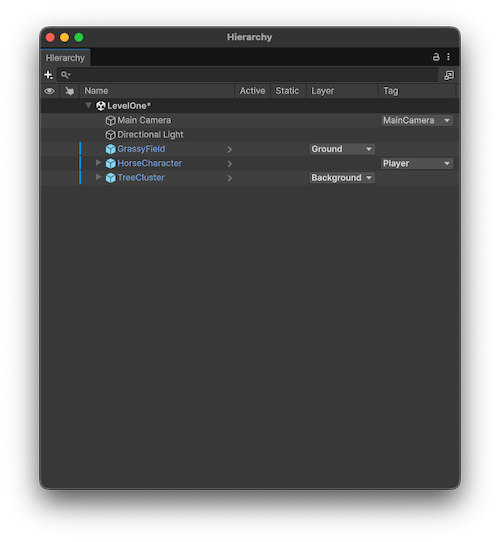
Enable new Hierarchy window
To enable the New Hierarchy window, go to Edit > Preferences (macOS: Unity > Settings), select the General tab, and enable Use new Hierarchy window.
You can also display items that aren’t GameObjects, such as UI Toolkit visual elements. To learn more, refer to Enable hierarchy integration.
Customize the new Hierarchy window
Right-click the header row of the Hierarchy window to customize the information displayed:
| Option | Description |
|---|---|
| Resize to Fit | Resizes the columns to fit the width of the Hierarchy window. |
| Visibility | Displays a column to control the scene visibility status of the GameObject. |
| Picking | Displays a column to control the scene pickability status of the GameObject. |
| Active | Displays a column to control the active status of the GameObject. |
| Static | Displays a column to control the static status of the GameObject. |
| Layer | Displays a column to view and control the layer assigned to the GameObject. Use the dropdown menu to assign a layer to the GameObject. |
| Tag | Displays a column to view and control the tags assigned to the GameObject. Use the dropdown menu to assign a tag to the GameObject. |
| Reset Columns | Resets the Hierarchy window to the default columns, which are Picking, Active, and Name. |
Unity displays only the values that are different from the default in each column.