Relative and absolute positioning
Version: 6000.5+
This example demonstrates the difference between relative and absolute positioning. This example also demonstrates how to use C# and UXML/USS to add and style UI controls.
Example overview
The example uses the automatic layout system to add boxes to an Editor and a runtime UI. One box demonstrates a relative offset of 25 px, while another box demonstrates the absolute position of 25 px, 25 px.
The example structures the Editor UI with C# script and the runtime UI with UXML and CSS.
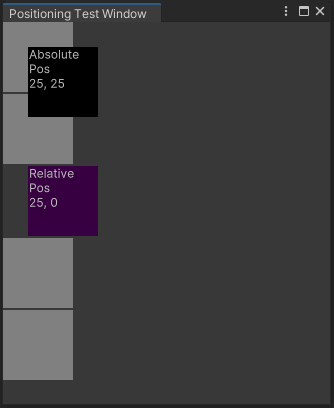
You can find the completed files that this example creates in this GitHub repository.
Prerequisites
This guide is for developers familiar with the Unity Editor, UI Toolkit, and C# scripting. Before you start, get familiar with the following:
Create the example for the Editor UI
To create the example for the Editor UI (four gray boxes for comparison, one black box with absolute positioning, one purple box with relative positioning):
Create a Unity project with any template.
In the Project window, create a folder named
Editor.-
In the
Editorfolder, create a C# file namedPositioningTestWindow.cswith the following content:using UnityEditor; using UnityEngine; using UnityEngine.UIElements; public class PositioningTestWindow : EditorWindow { [MenuItem("UI Toolkit Examples/Positioning Test Window")] public static void ShowExample() { var wnd = GetWindow<PositioningTestWindow>(); wnd.titleContent = new GUIContent("Positioning Test Window"); } public void CreateGUI() { VisualElement root = rootVisualElement; for (int i = 0; i < 2; i++) { var temp = new VisualElement(); temp.style.width = 70; temp.style.height = 70; temp.style.marginBottom = 2; temp.style.backgroundColor = Color.gray; root.Add(temp); } // Relative positioning var relative = new Label("Relative\nPos\n25, 0"); relative.style.width = 70; relative.style.height = 70; relative.style.left = 25; relative.style.marginBottom = 2; relative.style.backgroundColor = new Color(0.2165094f, 0, 0.254717f); root.Add(relative); for (int i = 0; i < 2; i++) { var temp = new VisualElement(); temp.style.width = 70; temp.style.height = 70; temp.style.marginBottom = 2; temp.style.backgroundColor = Color.gray; root.Add(temp); } // Absolute positioning var absolutePositionElement = new Label("Absolute\nPos\n25, 25"); absolutePositionElement.style.position = Position.Absolute; absolutePositionElement.style.top = 25; absolutePositionElement.style.left = 25; absolutePositionElement.style.width = 70; absolutePositionElement.style.height = 70; absolutePositionElement.style.backgroundColor = Color.black; root.Add(absolutePositionElement); } } To test the example, from the menu, select UI Toolkit Examples > Positioning Test Window.
Create the example for the runtime UI
To create the example for the runtime UI:
-
Create a USS file named
PositioningTest.usswith the following content:.box { height: 70px; width: 70px; margin-bottom: 2px; background-color: gray; } #relative{ width: 70px; height: 70px; background-color: purple; left: 25px; margin-bottom: 2px; position:relative; } #absolutePositionElement{ left: 25px; top: 25px; width: 70px; height: 70px; background-color: black; position: absolute; } -
Create a UXML document named
PositioningTest.uxmlwith the following content:<ui:UXML xmlns:xsi="http://www.w3.org/2001/XMLSchema-instance" xmlns:ui="UnityEngine.UIElements" xmlns:uie="UnityEditor.UIElements" noNamespaceSchemaLocation="../../../../UIElementsSchema/UIElements.xsd" editor-extension-mode="False"> <Style src="project://database/Packages/com.unity.documentation-examples/UIToolkit/relative-and-absolute-position/PositioningTest.uss?fileID=7433441132597879392&guid=5431fce9478274238800565a45373e0b&type=3#PositioningTest"/> <ui:VisualElement class="box"/> <ui:VisualElement class="box"/> <ui:Label text="Relative Pos 25, 0" name="relative" triple-click-selects-line="false" display-tooltip-when-elided="false"/> <ui:VisualElement class="box"/> <ui:VisualElement class="box"/> <ui:Label text="Absolute Pos 25, 25" name="absolutePositionElement"/> </ui:UXML> Right-click in the Hierarchy window, and then select UI Toolkit > Panel Renderer.
In the Inspector window of the Panel Renderer, select Panel Renderer > Source Asset > PositioningTest.
Enter Play mode and adjust the resolution as necessary to view the result.