Prevent 2D GameObjects mixing in sorting layers
To keep a group of 2D GameObjectsThe fundamental object in Unity scenes, which can represent characters, props, scenery, cameras, waypoints, and more. A GameObject’s functionality is defined by the Components attached to it. More info
See in Glossary from mixing with another group of objects on the same sorting layers and sublayers, add the GameObjects to a sorting group.
For example, you can use this approach to keep multiple instances of the same prefabAn asset type that allows you to store a GameObject complete with components and properties. The prefab acts as a template from which you can create new object instances in the scene. More info
See in Glossary from mixing with each other, even if they use the same sorting layers and sublayers.
Follow these steps:
- In the Hierarchy window, create your group of 2D GameObjects, and set their Sorting Layer and Order in Layer values to sort them.
- Select the GameObject at the top of the hierarchy of the group.
- In the Inspector window, select Add Component > Rendering > Sorting Group.
- In the Sorting Group component, set the Sorting Layer and Order in Layer values.
The sorting order remains the same, but all the child GameObjects now render on the sorting layer and sublayer of the Sorting Group component.
Note: Unity ignores the Distance to CameraA component which creates an image of a particular viewpoint in your scene. The output is either drawn to the screen or captured as a texture. More info
See in Glossary property of each child GameObject. Unity calculates the distance based on the position of the GameObject that has the Sorting Group component.
Nest sorting groups
You can nest sorting groups. A nested sorting group is sorted first, then sorted as a single item within the parent sorting group.
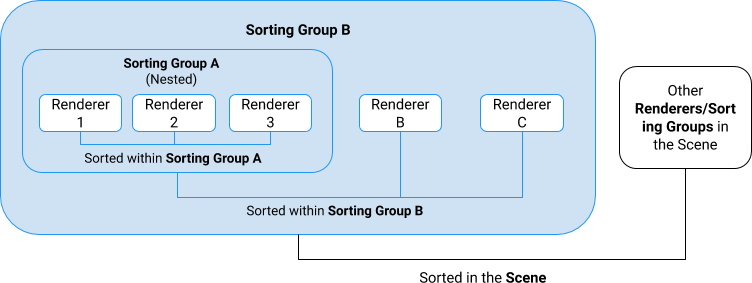
To move a nested sorting group to the top level of the hierarchy without moving it in the Hierarchy window, select the sorting group then set Sorting Type to Sort At Root.
Example
In the following example, the spritesA 2D graphic objects. If you are used to working in 3D, Sprites are essentially just standard textures but there are special techniques for combining and managing sprite textures for efficiency and convenience during development. More info
See in Glossary belong to the same Sorting Layer, but have different Order in Layer values. When you create a prefab from the hierarchy, the sprites from multiple prefab instances are on the same layers and can mix with each other.
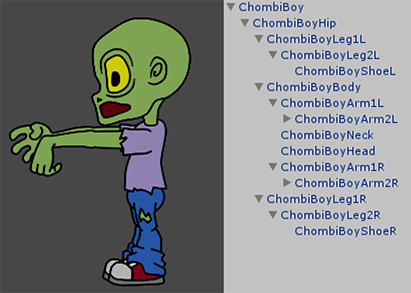
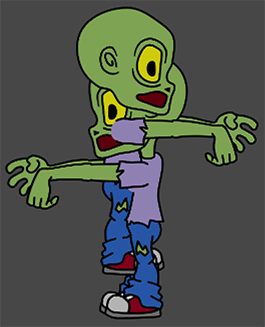
If you add a sorting group, the prefab instances render correctly.
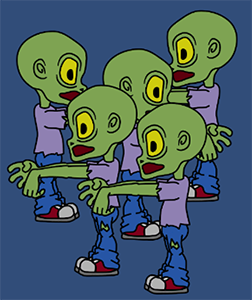
If mixing still occurs, set the Order in Layer value to a different value for each sorting group.