Change the sorting order of 2D GameObjects
To place 2D GameObjectsThe fundamental object in Unity scenes, which can represent characters, props, scenery, cameras, waypoints, and more. A GameObject’s functionality is defined by the Components attached to it. More info
See in Glossary behind or in front of each other in the sceneA Scene contains the environments and menus of your game. Think of each unique Scene file as a unique level. In each Scene, you place your environments, obstacles, and decorations, essentially designing and building your game in pieces. More info
See in Glossary, change their sorting order.
For more information about the criteria Unity uses to order spritesA 2D graphic objects. If you are used to working in 3D, Sprites are essentially just standard textures but there are special techniques for combining and managing sprite textures for efficiency and convenience during development. More info
See in Glossary and other 2D GameObjects, refer to 2D rendering order.
The following applies to sprites, tiles, and sprite shapes.
Arrange 2D GameObjects in layers
You can use layers to represent different depths because they are separate and Unity renders them in order. Use the Sorting Layer and Order in Layer properties of the renderer component of the GameObject.
By default, all 2D GameObjects are on the Default sorting layer and have the same Order in Layer value of 0. To move 2D GameObjects to a different layer, follow these steps:
From the main menu, select Edit > Project Settings > Tags and Layers.
-
In the Sorting Layers section, select the Add (+) button to add a new sorting layer.
By default, Unity adds the new layer at the bottom of the list. Unity renders the layers in order from top to bottom, so the new layer is now the front layer in the scene.
Select the 2D GameObject you want to add to the layer.
In the Additional Settings section of the renderer component, for example the Sprite RendererA component that lets you display images as Sprites for use in both 2D and 3D scenes. More info
See in Glossary component, set the Sorting Layer property to the new layer.
To create sublayers, use the Order in Layer property. Unity renders sublayers in numerical order, so lower values render behind higher values. For example, a sprite with an Order in Layer value of –1 renders behind a sprite with an Order in Layer value of 3.
To avoid groups of sprites mixing on the same layers and sublayers, refer to Prevent 2D GameObjects mixing in sorting layers.
Set the order within a layer and sublayer
To set the order of 2D GameObjects within a sorting layer and sublayer, use either of the following approaches:
- Change the render queue of materials.
- Change how Unity calculates distance.
Change the render queue of materials
To control the order within a sublayer, give GameObjects different materials with different render queue values. By default, 2D materials all have a render queue value of 3000.
To change the render queue, follow these steps:
- Select a GameObject.
- In the InspectorA Unity window that displays information about the currently selected GameObject, asset or project settings, allowing you to inspect and edit the values. More info
See in Glossary window, open the Material Inspector window. - Set Render Queue to a different value. For example, use
3000+1to render this material after default 2D materials.
For more information, refer to Render queues and sorting behaviours.
Change how Unity calculates distance
Within a sorting layer, a sublayer, and a render queue, Unity determines the order of 2D GameObjects by calculating their distance from the camera.
By default, Unity calculates the distance based on the Projection property of the cameraA component which creates an image of a particular viewpoint in your scene. The output is either drawn to the screen or captured as a texture. More info
See in Glossary. Set it to one of the following:
- Orthographic: Unity uses the distance from the camera plane to the center of the GameObject. To control the rendering order, increase or decrease the z position in the Transform component of GameObjects.
- Perspective: Unity uses the distance from the camera point to the center of the GameObject. To control the rendering order, increase or decrease the z position in the Transform component of GameObjects, or move GameObjects away from or towards the corners of the screen.
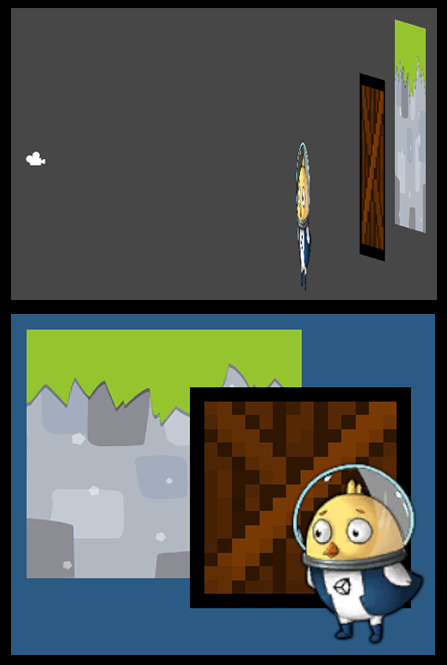
To change the distance calculation without affecting the camera projection, use the Transparency Sort Mode property of the 2D renderer asset.
Note: If you use the Built-in Render PipelineA series of operations that take the contents of a Scene, and displays them on a screen. Unity lets you choose from pre-built render pipelines, or write your own. More info
See in Glossary, the Transparency Sort Mode property is in the Graphics settings window instead.
Use 2D position to calculate distance
To use the 2D position of GameObjects to calculate distance, use a custom axis.
Follow these steps:
- Set Transparency Sort Mode to Custom Axis.
- Set Transparency Sort Axis to the custom axis you want to use.
For example:
- Use a vertical axis (0, 1, 0) so the higher the GameObject in the scene, the further away it is. This is useful for top-down games.
- Use a diagonal axis (1, 1, 0) so the more top-right the GameObject is in the scene, the further away it is. This is useful for isometric games.