Light leak prevention with rendering layer masks
Prevent light leaks by restricting which light probes a renderer can sample with rendering layer masks.
Adaptive Probe Volumes (APVs) yield good results for exterior scenes and dynamic objects. Thin or complex static geometry can still leak light because pixels interpolate between probes in different spaces.
To prevent light from leaking through boundaries such as walls and ceilings, restrict which probes a renderer samples to maintain distinct lighting across adjacent spaces.
Rendering layers and rendering layer masks
A rendering layer defines how Unity applies specific effects across different objects. Rendering layers are selection groups you assign to objects. Rendering layers let lights, decals, shadows, and custom passes include or ignore specific objects.
A rendering layer mask is a bitmask that aggregates multiple rendering layers. Assign one or more rendering layers to an object’s Mesh Renderer. You can also assign layers to effects such as lights, decals, or APVs. This controls how and where Unity applies the effect in the scene.
For example, define the following rendering layers and the following rendering layer mask. For more information, refer to Configure APV rendering layer masks and verify probe assignments.
| Rendering layers | Rendering layer mask |
|---|---|
| Interior | 0 |
| Exterior | 1 |
| Lower | 1 |
| Upper | 0 |
A pixel or vertex preferentially samples light probes in the same rendering layer. For example, a pixel in the Exterior layer preferentially samples probes in that layer. To fine-tune which light probes a pixel or vertex samples, change the leak reduction mode.
APV rendering layer workflow
Unity bakes APV probes based on rendering layers using the following workflow:
- Set which rendering layers APVs must consider.
- Assign rendering layers to key GameObjects in an area.
- Unity automatically associates a rendering layer with each probe.
- At runtime, eight probes surround each pixel. The rendering layer masks prioritize probes that are in the same layer as the pixel.
How rendering layer masks work with APVs
Rendering layer masks restrict which probes a renderer samples based on baked rendering layer regions.
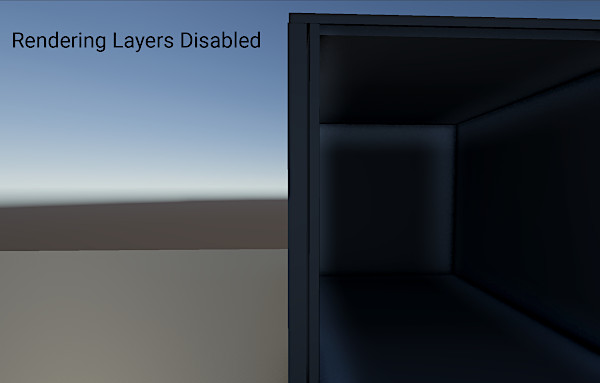
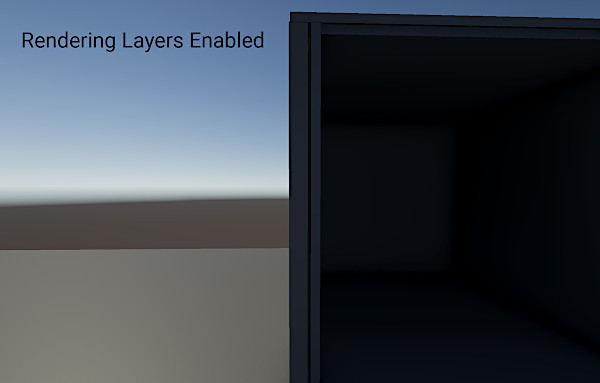
Unity defines up to four rendering layer masks in the baking set and applies them during baking. You can set local exceptions via a Probe Adjustment Volume.
If a renderer’s mask doesn’t match any of the rendering layer masks in the baking set, the APV samples all valid probes.
Note: Rendering layer masks increase bake time and memory usage.