Draw a debug visualization of LowLevelPhysics2D API objects
Note: This documentation is about writing C# scripts using the LowLevelPhysics2D API. To use 2D physics in the Unity Editor using components like the Rigidbody 2D component, refer to 2D physics instead.
To help you visualize 2D physics objects during development, Unity automatically draws the shapes you create with the LowLevelPhysics2D API.
Unity draws the shapes automatically in the Unity Editor. You can also enable Unity drawing the shapes in development builds.
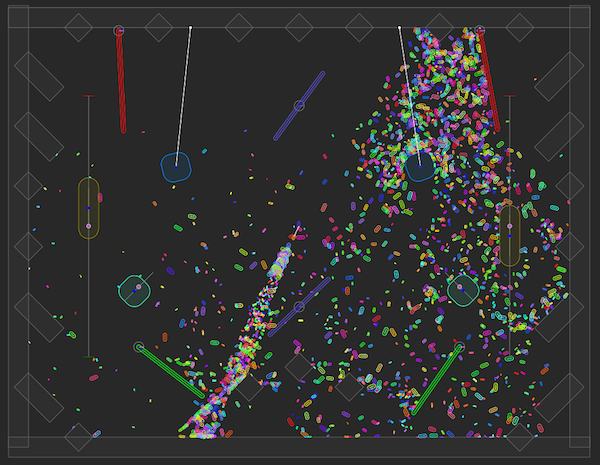
Configure debug drawing
Unity draws your shapes automatically in the Scene view, the Game view, and when you enter Play mode.
To configure debug drawing, follow these steps:
- Select the GameObject with a public
PhysicsWorldDefinitioncomponent. For more information, refer to Create a physics world. - In the Inspector window, configure the properties that start with
Draw. For exampleDraw Optionsselects which features to draw, andDraw Colorssets the colors Unity uses.
To set a different color for a specific shape, follow these steps:
- Select a GameObject with a public
PhysicsShapeDefinitioncomponent. For more information, refer to Create a physics object. - In the Inspector window, set Custom Color.
To configure the properties in your C# script instead, adjust the similarly named properties of your PhysicsWorldDefinition, PhysicsBodyDefinition, or PhysicsShapeDefinition objects.
Enable debug drawing in a development build
To draw in a Player build, follow these steps:
- Make sure your target build platform supports compute shaders.
- Create a Physics Low Level Settings 2D asset. For more information, refer to Configure global 2D physics settings.
- In the Inspector window of the asset, enable Draw In Build.
Draw your own shapes
To draw your own shapes, use the Draw methods of the world object. For example:
// Get the main physics world.
PhysicsWorld world = PhysicsWorld.defaultWorld;

// Draw a line from the origin to (30, 40) in "cornflower blue".
world.DrawLine(Vector2.zero, new Vector2(30f, 40f), Color.cornflowerBlue);

// Draw a circle from the origin to (30, 40) in "forest green".
world.DrawCircle(new Vector2(30f, 40f), 2f, Color.forestGreen);

// Draw a point with a 3 pixel radius at (-5, 10) in "gold".
world.DrawPoint(new Vector2(-5f, 10f), 3f, Color.gold);
Shapes only last for one frame. To draw them for longer, use the lifetime property.
// Set lifetime as 5 seconds.
const float lifeTime = 5f;

// Draw a circle at a specific position in blue for 5 seconds.
world.DrawGeometry(circleGeometry, physicsTransform, Color.cornflowerBlue, lifeTime);