Convert assets using the Render Pipeline Converter
The Render Pipeline Converter converts assets made for a Built-In Render Pipeline project to assets compatible with URP.
Note: The conversion process makes irreversible changes to the project. Back up your project before the conversion.
Convert only selected materials
To convert only selected materials, select materials that display the magenta shader error, and select Edit > Rendering > Materials > Convert Selected Materials to URP.
Conversion types and converters
The Render Pipeline Converter let’s you select one of the following conversion types:
Built-In Render Pipeline to URP
Built-In Render Pipeline 2D to URP 2D
Upgrade 2D URP Assets
When you select on of the conversion types, the tool shows you the available converters.
The following sections describe the converters available for each conversion type.
Built-In Render Pipeline to URP
This conversion type converts project elements from the Built-In Render Pipeline to URP. It enables the following options:
Rendering Settings: Creates the URP asset and Universal Renderer asset, then converts the settings in the Built-In Render Pipeline project to equivalent properties in the URP assets.
Material Upgrade: Converts prebuilt materials to URP materials. This converter doesn’t support materials with custom shaders.
Read-only Material Converter: Converts prebuilt read-only materials that aren’t in the Assets folder of your project, for example Default-Diffuse and Default-Line. This converter audits the project and creates a temporary
.indexfile, which might take a significant amount of time.Animation Clip Converter: Converts animation clips after the Material Upgrade converter finishes. This converter is available only if the project contains animations that affect the properties of materials, or Post-Processing Stack v2 properties.
Post-Processing Stack v2 Converter: Converts Post-Processing Stack v2 volumes, profiles, and layers to URP volumes, profiles, and cameras. This converter audits the project and creates a temporary
.indexfile, which might take a significant amount of time. This converter is available only if the Post-Processing Stack v2 package is installed.
Built-In Render Pipeline 2D to URP 2D
This conversion type converts elements of a project from Built-In Render Pipeline 2D to URP 2D.
Available converters:
-
Material and Material Reference Upgrade
This converter converts all Materials and Material references from Built-In Render Pipeline 2D to URP 2D.
Upgrade 2D URP Assets
This conversion type upgrades assets of a 2D project from an earlier URP version to the current URP version.
Available converters:
-
Parametric to Freeform Light Upgrade
This converter converts all parametric lights to freeform lights.
How to use the Render Pipeline Converter
To convert project assets:
-
Select Window > Rendering > Render Pipeline Converter. Unity opens the Render Pipeline Converter window.
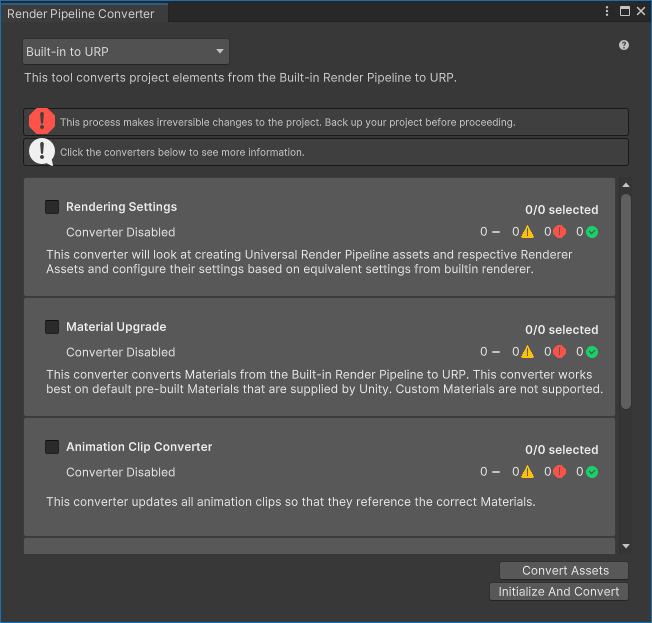
Render Pipeline Converter dialog -
Select the conversion type.
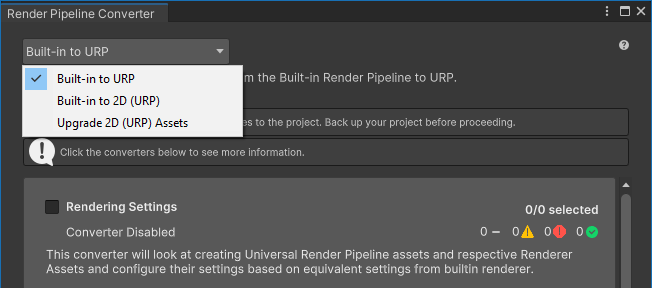
Conversion type -
Depending on the conversion type, the dialog shows the available converters. Select or clear the check boxes next to converter names to enable or disable the converters.
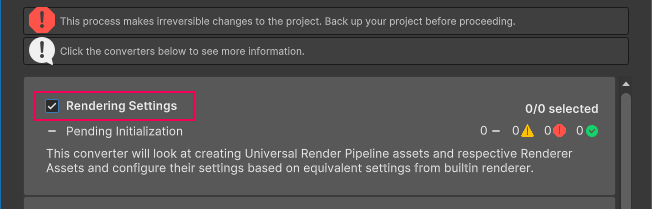
Select converters For the list of available converters, refer to the section Converters.
-
Click Initialize Converters. The Render Pipeline Converter preprocesses the assets in the project and shows the list of elements to convert. Select or clear check boxes next to assets to include or exclude them from the conversion process.
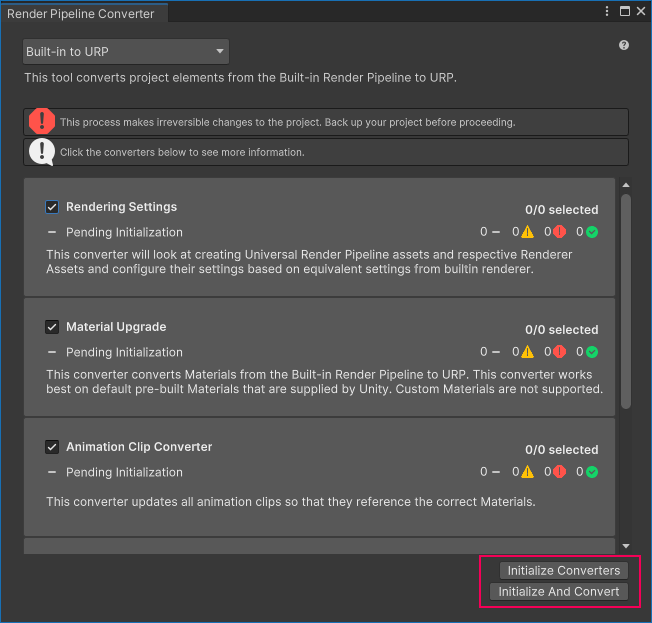
Initialize converters The following illustration shows initialized converters.
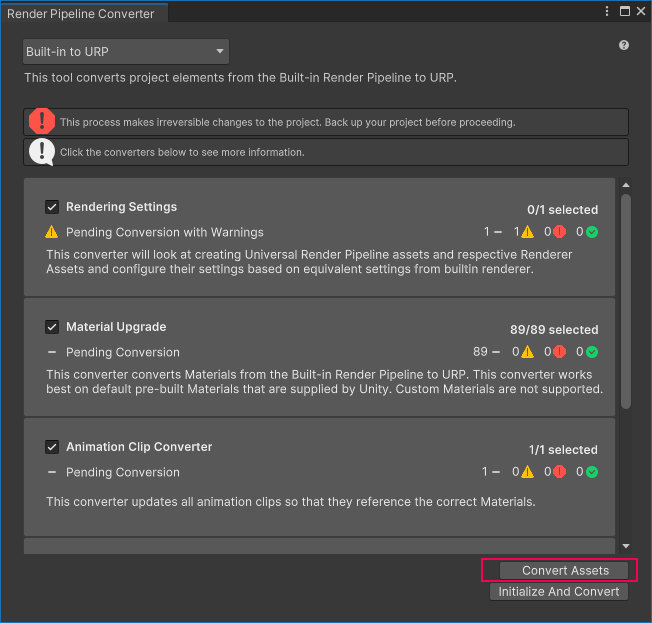
Initialized converters Click a converter to check the list of items that a converter is about to convert.
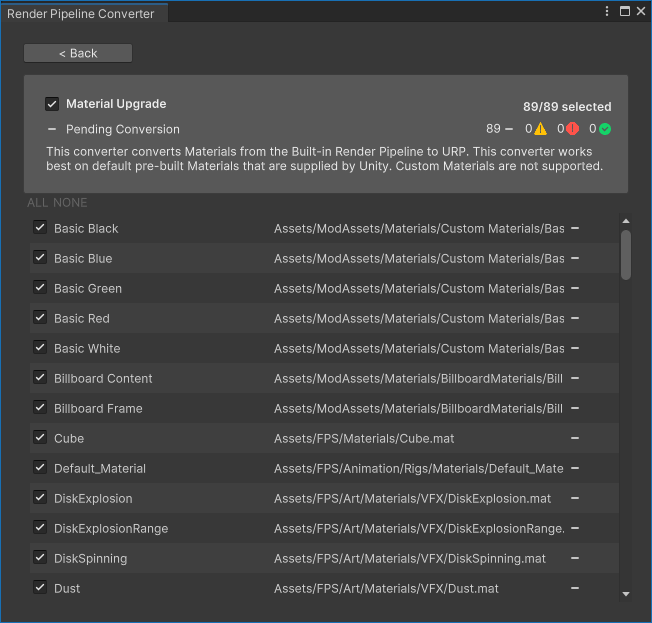
Converter detailed view Yellow icon: a yellow icon next to an element indicates that a user action might be required to run the conversion. Hover the mouse pointer over the icon to check the description of the issue.
-
Click Convert Assets to start the conversion process.
Note: The conversion process makes irreversible changes to the project. Back up your project before the conversion.
When the conversion process finishes, the window shows the status of each converter.

Conversion finished Green check mark: the conversion went without issues.
Yellow icon: the conversion finished with warnings and might require user action.
Red icon: the conversion failed.
-
Click a converter to check the list of processed items in that converter.
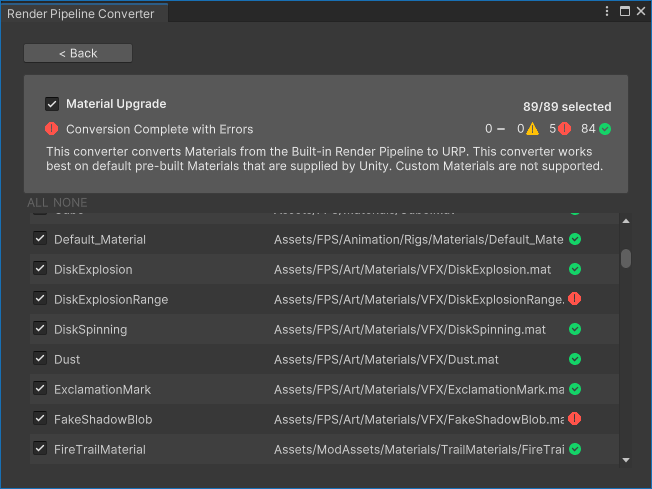
Conversion finished. Detailed view of a converter After reviewing the converted project, close the Render Pipeline Converter window.
Run conversion using API or CLI
The Render Pipeline Converter implements the Converters class with RunInBatchMode methods that let you run the conversion process from a command line.
For example, the following script initializes and executes the converters Material Upgrade, and Read-only Material Converter.
using System.Collections;
using System.Collections.Generic;
using UnityEditor;
using UnityEditor.Rendering.Universal;
using UnityEngine;

public class MyUpgradeScript : MonoBehaviour
{
    public static void ConvertBuiltinToURPMaterials()
    {
        Converters.RunInBatchMode(
            ConverterContainerId.BuiltInToURP
            , new List<ConverterId> {
                ConverterId.Material,
                ConverterId.ReadonlyMaterial
            }
            , ConverterFilter.Inclusive
        );
        EditorApplication.Exit(0);
    }
}
To run the example conversion from the command line, use the following command:
"<path to Unity application> -projectPath <project path> -batchmode -executeMethod MyUpgradeScript.ConvertBuiltinToURPMaterials
Also check: Unity Editor command line arguments.