Scripts in the Inspector window
You can access fields from your script and assign values to them in the Inspector window. You can change the value of a script’s fields in the Editor while running in Play mode. This shows the effects of changes directly without having to stop and restart. However, when you exit Play mode, the values of the fields reset to what they were before you entered Play mode.
Script assets in the Inspector window
When you select a script asset in the Project window, the Inspector window displays some basic information. You can view the name of the script assembly and a preview of the contents of the script.
Note: Although the Inspector window displays the contents of the script, you can’t edit the contents in the Inspector window.
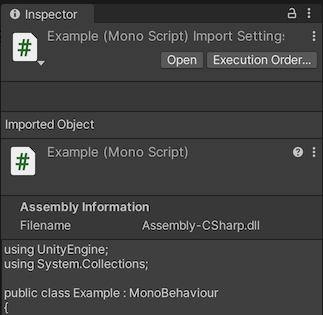
The script Inspector window also displays two buttons:
| Button | Description |
|---|---|
| Open | Same as double-clicking the script in the Project window, which opens the script in the currently configured external script editor. You can configure which external editor Unity uses to open your scripts in the External Tools section of the Preferences window. |
| Execution Order | Opens the Script Execution Order section of the Project Settings window where you can configure the order in which Unity executes your scripts. |
Script components in the Inspector window
You can use any MonoBehaviour script as a componentA functional part of a GameObject. A GameObject can contain any number of components. Unity has many built-in components, and you can create your own by writing scripts that inherit from MonoBehaviour. More info
See in Glossary, which means you can:
- Attach the script to GameObjectsThe fundamental object in Unity scenes, which can represent characters, props, scenery, cameras, waypoints, and more. A GameObject’s functionality is defined by the Components attached to it. More info
See in Glossary. - Edit the script’s properties and values in the Inspector window.
The following example code declares a public field called myName. When you add this script to a GameObject in your scene, the field becomes visible in the Inspector window as a field labeled My Name. The default value of none declared in the script becomes the default value in the Inspector window, which you can change by typing into the field.
using UnityEngine;

public class MainPlayer : MonoBehaviour
{
    public string myName = "none";

    void Start()
    {
        Debug.Log("I am alive and my name is " + myName);
    }
}
Each GameObject you attach your script component to can have a distinct value for the field.

Field names are converted to Inspector window labels according to the rules described in Field name to label conversion. These changes affect only the label displayed in the Inspector window. In your code, always use the field name.
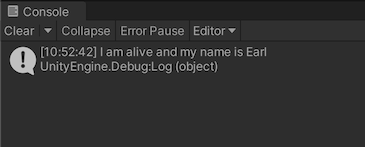
If you edit the My Name value in the Inspector window and then enter Play mode, the message in the Console window includes the text that you entered.
Public and private fields
All public fields are editable in the Inspector window by default. To prevent a public field from being displayed in the Inspector window, add the HideInInspector attribute to it. To make a private field editable in the Inspector window, add the SerializeField attribute to it.
Object reference fields
In addition to simple types such as bool, string, and int, you can make any field whose type inherits from UnityEngine.Object editable in the Inspector window. This includes all built-in component types (such as Transform, AudioSource, CameraA component which creates an image of a particular viewpoint in your scene. The output is either drawn to the screen or captured as a texture. More info
See in Glossary, Light), your own MonoBehaviour script types, and many asset types. For information about which field types Unity can serialize and display in the Inspector window, refer to Serialization rules.
You can drag objects into fields of script components in the Inspector window to assign references to objects. For example, if you create a public Transform field in your script and add the script to one GameObject, you can drag another GameObject into that field from the Inspector window. You can then access the GameObject at runtime in your script.
The following Follow script makes one GameObject follow another:
using UnityEngine;

public class Follow : MonoBehaviour
{
    public Transform objectToFollow;
    public float followSpeed = 1;

    void Update()
    {
        // Calculate the distance to the target object and move a small portion of it each frame.
        var delta = objectToFollow.position - transform.position;
        transform.position += delta * Time.deltaTime * followSpeed;
    }
}
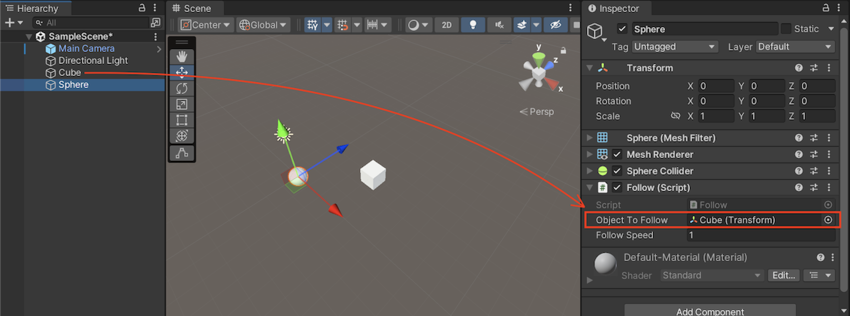
The script has a public field of type Transform which appears in the Editor as an assignable field. You can drag a different GameObject from the Hierarchy window into this field, and the Editor assigns a reference to the Transform component attached to that GameObject.
In the following screenshot, the script is on the Sphere GameObject, and the Cube GameObject is assigned to the Object To Follow field through the Inspector window.
Default object references
If you define public Object fields that can be assigned in the Editor in your MonoBehaviour script, you can set up default references for these fields. The default reference fields are visible in the Inspector window when you select the script asset in the Project window.
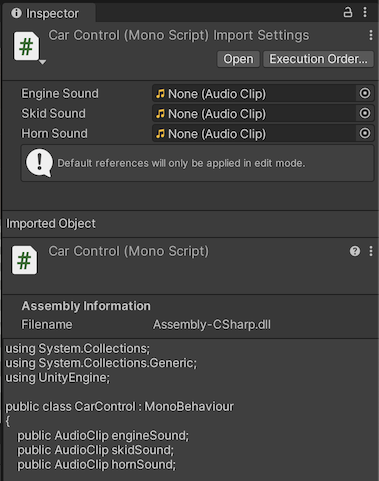
In the previous example, there are three public AudioClip fields without default references assigned. You can assign an AudioClip to each of these default reference fields.
If you assign default references, Unity applies them when you add your MonoBehaviour as a component to a GameObject, or when you reset an existing instance of your MonoBehaviour on a GameObject to its default values.
Note: There’s no ongoing link between the default references and the references on MonoBehaviour instances on GameObjects. If you change the default references, Unity doesn’t update the references on existing GameObjects.
Other types of fields that are editable in the Inspector window and that don’t inherit from UnityEngine.Object (for example, public string or int fields) don’t have default reference fields in the Inspector window. Instead, they take their default values from the script itself.
Unassigned reference exceptions
If your code uses a member of a UnityEngine.Object field that’s not assigned in the Inspector window, Unity throws an exception. In the Editor, Unity throws an UnassignedReferenceException with a message that names the field and the script that contains it. In a built player, Unity throws a NullReferenceException.
UnassignedReferenceException doesn’t derive from NullReferenceException, so a catch (NullReferenceException) block doesn’t catch it in the Editor. To handle an unassigned field, check whether the field is null before you use it, as shown in the following example:
using UnityEngine;

public class LightColorSetter : MonoBehaviour
{
    // Assign this field in the Inspector window.
    public Light myLight;
    void Start()
    {
        if (myLight == null)
        {
            Debug.Log("myLight isn't set in the Inspector window.");
            return;
        }
        myLight.color = Color.yellow;
    }
}
In this example, myLight is a Light field that you need to set in the Inspector window. If you don’t set it, the null check is true, and the code logs a message that reminds you to set the field instead of throwing an exception.
Field name to label conversion
Unity converts C# field names to labels in the Inspector window according to a set of rules. For example, Unity converts the field names in the previous examples from myName to My Name, and from objectToFollow to Object To Follow. The rules are as follows:
- Remove an
m_or_prefix. - Remove a
kprefix if an uppercase letter follows it, for examplekMaxSpeed. - Capitalize the first letter.
- Add a space between lowercase and uppercase characters.
- Add a space between an acronym and an uppercase character at the beginning of the next word.
Unity doesn’t apply these rules to some special cases, such as iPad or x64.