Introduction to prefabs
You can use prefabs to reuse GameObject configurations in multiple places in a scene or across different scenes in your project. The prefab system keeps all copies of a GameObject in sync, so when you make changes to a prefab asset, Unity updates all instances of that prefab automatically. This allows you to update multiple GameObjects without needing to edit each copy individually.
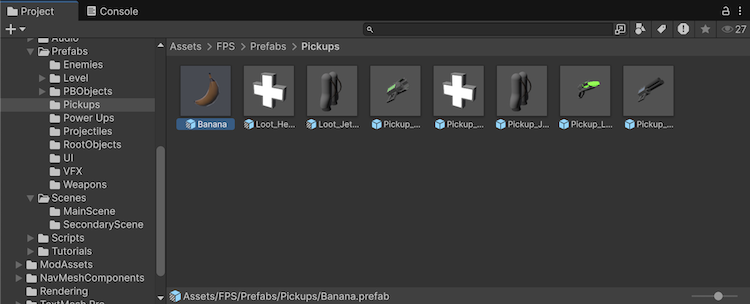
Common uses for prefabs include:
- Environmental assets: For example, a specific type of tree used multiple times in a level.
- Non-player characters (NPCs): For example, a robot that appears in multiple levels, with differences (using overrides) such as movement speed or sound.
- Projectiles: For example, a pirate ship’s cannon instantiates a cannonball prefab each time it’s fired.
- Main playable character: The character prefab can be placed at the starting point in each scene of your game.
Prefabs are also useful when you want to instantiate GameObjects at runtime that don’t exist in your scene at the start. For example, you might spawn in-game items, special effects, projectiles, or NPCs during gameplay.
Working with prefabs
To work with prefabs, you create a prefab asset, which you then use to create prefab instances within a scene.
You can nest prefabs inside other prefabs to create complex hierarchies of objects that you can edit at multiple levels. However, not all prefab instances need to be identical. You can override settings on individual prefab instances if you want some to differ from others. You can also create prefab variants to group a set of overrides into different variations of a prefab.
If you override prefabs it’s useful to understand the difference between the prefab’s source, and its original source, so you can determine what parts of a prefab are overridden:
- Source: The nearest prefab asset in the inheritence chain that defines the object.
- Original source: The root prefab asset that originally introduced the object.
For example, if you create a prefab asset named Light and used it in a scene, the corresponding sources are as follows:
| Prefab type | Source | Original source |
|---|---|---|
| Prefab instance | Original Light prefab asset. |
Original Light prefab asset. |
| Prefab variant | Variant of Light prefab asset. |
Original Light prefab asset. |
| Nested prefab | The nested Light prefab asset. |
The nested Light prefab asset. |
You can use the PrefabUtility.GetCorrespondingObjectFromSource method to get the source of a prefab, and GetCorrespondingObjectFromOriginalSource to get the original source of the prefab.
Prefab Inspector previews
When you select a prefab, its Inspector window contains an Asset Preview pane which displays a preview of the prefab. If the prefab is smaller than 8 MB, the preview is interactive, and you can rotate the prefab in the pane.
If the prefab is larger than 8 MB, the Asset Preview displays a static image by default. To view an interactive preview for larger prefabs, click anywhere inside the Asset Preview pane.