Cache Server Project Settings reference
You can adjust how Unity Accelerator works with the Cache Server Project Settings. To open the Cache Server settings go to Edit > Project Settings > Editor > Cache Server
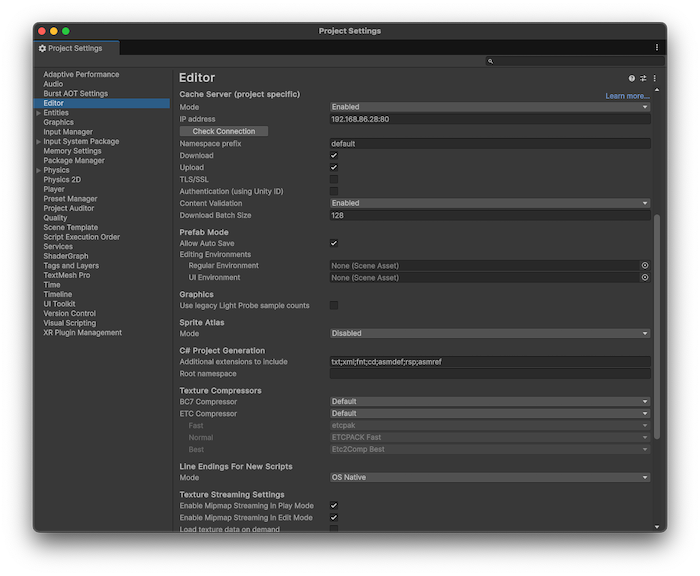
| Setting | Description |
|---|---|
| Mode | Choose whether to use the cache server. Choose from the following options:
|
| IP Address | Input the accelerator’s IP address and port. |
| Check Connection | Select Check Connection to test the connectivity of the accelerator. |
| Namespace prefix | Set a custom namespace for the server. |
| Download | Enable downloads from the cache server. |
| Upload | Enable uploads from the cache server. |
| TLS/SSL | Enable encryption on the cache server. |
| Authentication (Using Unity ID) | Enable authentication for the cache server using Unity ID. |
| Content Validation | Select the level of content validation: Disabled, Upload Only, Enabled, Required. |
| Download Batch Size | Set the size of download. |