Configure OpenXR project settings
Configure your project settings for OpenXR Spatial Entities.
Enable OpenXR features
Unity OpenXR: Spatial Entities functions as both an OpenXR Feature Group and an AR Foundation provider plug-in, so each AR Foundation feature is powered by an OpenXR Feature that must be enabled in project settings.
To enable AR Foundation to use OpenXR Spatial Entities on your target platform(s):
- Go to Edit > Project Settings > XR Plug-in Management. If you don't already have it installed, click Install XR Plug-in Management.
- In either the Android or Standalone tabs, under Plug-in Providers, enable OpenXR and Spatial Entities feature group.
- Optionally, while still in the Project Settings window, go to XR Plug-in Management > OpenXR.
- To enable only the features relevant to your project, click on the Spatial Entities feature group, and select or deselect any combination of features relevant to your app.
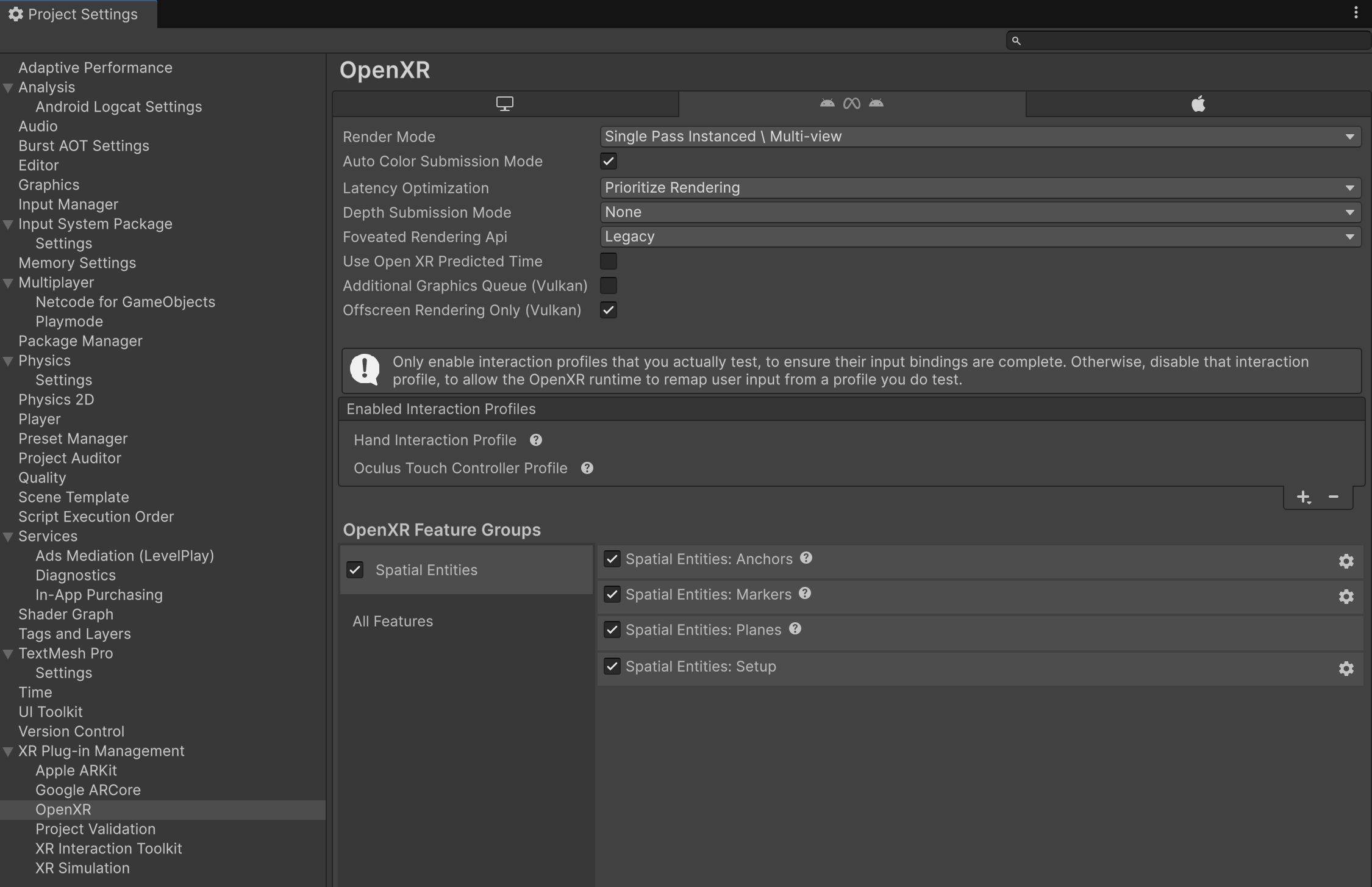
The Spatial Entities OpenXR feature group, shown with all features enabled.
Note
XR Plug-in Management supports only one enabled plug-in provider at a time per build target. If your project also targets ARCore using the Google ARCore XR Plug-in, to avoid errors you should disable the Google ARCore plug-in provider in the Android tab of Project Settings > XR Plug-in Management before you build an APK for OpenXR devices. Likewise, you should disable OpenXR before you build for ARCore.
Choose one provider per AR feature
This package implements AR Foundation using the OpenXR Spatial Entities Extensions (Khronos). OpenXR Spatial Entities extensions are cross-platform extensions that provide spatial computing features on multiple OpenXR runtimes, including Meta Horizon OS and Android XR. This package is compatible with vendor-specific packages such as Unity OpenXR: Meta and Unity OpenXR: Android XR, but AR Foundation only supports one plug-in implementation per AR feature.
For example, you can safely enable both Spatial Entities: Anchors and Meta Quest: Planes, but you can't enable both Spatial Entities: Anchors and Meta Quest: Anchors at the same time, because AR Foundation supports only one enabled implementation of its anchor subsystem at a time.
In general, the OpenXR Spatial Entities extensions are more widely supported across OpenXR runtimes than single-vendor extensions. Enabling a feature from Unity OpenXR: Spatial Entities makes your app more easily portable to more devices than enabling a similar feature from a vendor-specific package. Unity recommends that you use Spatial Entities implementations of AR Foundation where they are available, but you should test your app on your target platform(s) to inform your decision.
Configure Android App Manifest
Some OpenXR runtimes require your app to obtain Android system permissions before you can access spatial data. The required permissions vary per runtime, and each permission requires changes to your app's Android App Manifest. OpenXR Spatial Entities includes support for Meta Horizon OS and Android XR by default. However, for other OpenXR runtimes, you might need to configure additional permissions in your project's Android App Manifest.
To learn about the default Android App Manifest entries for OpenXR Spatial entities and how to customize them for your project, refer to Configure Android App Manifest.