Spatial Entities Anchors feature
Learn how to use anchors with OpenXR Spatial Entities.
This page is a supplement to the AR Foundation Anchors manual. The following sections only contain information about APIs where OpenXR Spatial Entities exhibit unique platform-specific behavior.
Tip
When developing an AR app, refer to both the AR Foundation documentation as well as the required packages for each platform you support.
Enable Spatial Entities Anchors
To enable Spatial Entities Anchors in your app:
- Go to Project Settings > XR Plug-in Management > OpenXR.
- Select either Windows, Mac, Linux settings or Android, Meta Quest, Android XR settings.
- Under the OpenXR Feature Groups heading, select the Spatial Entities feature group.
- If disabled, enable the Spatial Entities: Anchors OpenXR feature.
- Optionally, click the gear icon (⚙) next to Spatial Entities: Anchors to open the Spatial Entities: Anchors window, and configure Spatial Entities Anchors properties.
Resolve subsystem conflicts
AR Foundation supports only one enabled anchor provider at a time. If your project also uses other AR Foundation provider plug-ins such as Unity OpenXR: Meta or Unity OpenXR: Android XR, you must disable anchor features among these packages to ensure that only one anchor provider is enabled at a time.
Refer to the following table to understand the expected behavior of Spatial Entities Anchors relative to other OpenXR-based AR Foundation providers:
| Runtime | Behavior of Spatial Entities Anchors feature |
|---|---|
| Android XR | Parity with Android XR Anchors feature |
| Meta Horizon OS | Adds support for TryGetSavedAnchorIdsAsync, but has no API for shared anchors |
The Spatial Entities Anchors feature offers a reliable multi-vendor anchors implementation, so Unity generally recommends Spatial Entities for best portability across multiple OpenXR runtimes. However, note that OpenXR doesn't currently have an API for sharing anchors between multiple colocated devices. If your app requires anchor sharing, consider the Meta Quest Anchors feature, which is likely better suited to meet this requirement.
Feature reference
Understand the configurable properties of the Spatial Entities Anchors feature.
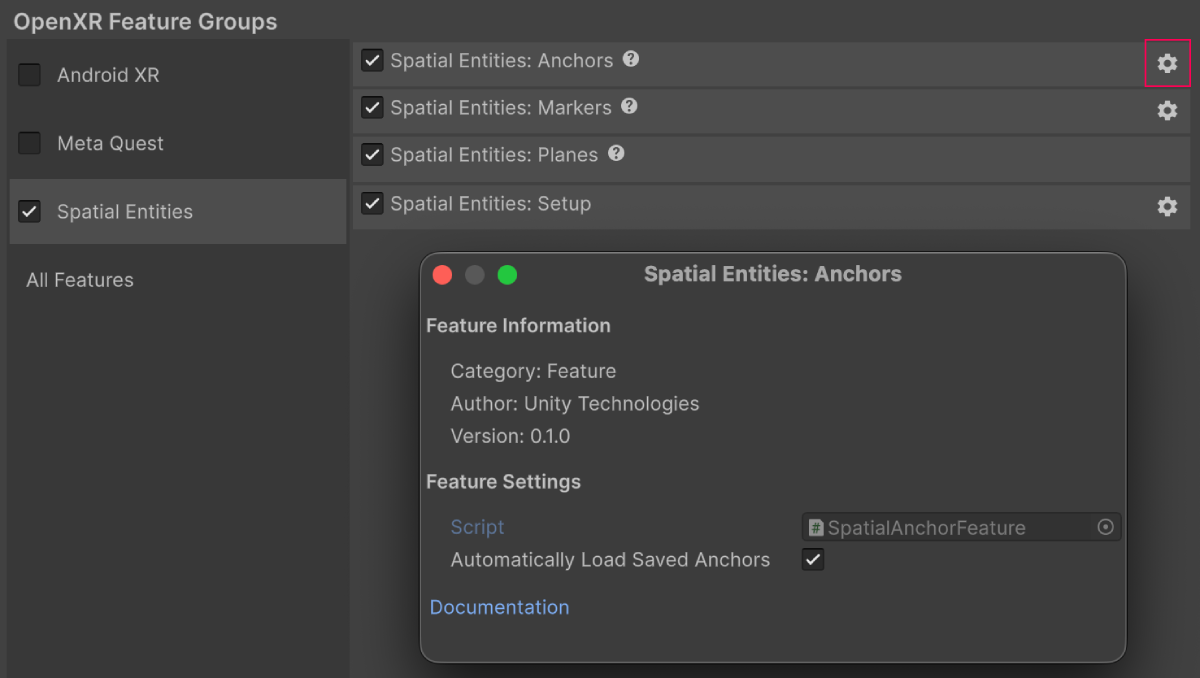
Spatial Entities Anchors feature shown in Project Settings.
The Spatial Entities Anchors feature contains the following configurable properties:
| Property | Description |
|---|---|
| Automatically Load Saved Anchors | If enabled, the Spatial Entities Anchors feature will attempt to load all saved anchors as the runtime is able to track them. |
Permissions
Your app can't access any spatial data until the user grants the necessary permissions on their device. Refer to Permissions for more information.
Platform-specific success and error codes
On OpenXR platforms, the XRResultStatus.nativeStatusCode returned by AR Foundation APIs (such as ARAnchorManager.TryAddAnchorAsync) is a wrapper around OpenXR's XrResult.
You can use the XRResultStatus.nativeStatusCode property to access the underlying XrResult value, as shown in the following example:
async void AddAnchorAndLogNativeResult(ARAnchorManager mgr)
{
    // Create an anchor at an arbitrary pose.
    // You could modify this code to use the position of a raycast hit instead.
    var pose = new Pose(Vector3.zero, Quaternion.identity);
    var result = await mgr.TryAddAnchorAsync(pose);

    if (result.status.HasNativeStatusCode())
    {
        // To access OpenXR status codes, use the nativeStatusCode property.
        // Cast to XrResult
        var xrResult = (XrResult)result.status.nativeStatusCode;

        // Prints the error or success code associated with this operation
        Debug.Log(xrResult);
    }
    else
    {
        // If a native status code isn't present, you don't need to typecast
        // any values to read all debuggable information.
        Debug.Log(result.status);
    }
}