Use the SRP foveation API
Configure the scriptable render pipeline (SRP) foveation method in the OpenXR settings, then set the foveation level at runtime.
The SRP foveation API works on every platform that supports foveated rendering, so you can share code across device types. Configuring the setting on its own has no effect: you must also set the foveation level at runtime, because Unity sets that level to 0 by default.
Prerequisites
Before you begin, make sure your project meets the conditions in Foveated rendering requirements reference.
Configure the SRP foveation method
To configure foveated rendering with the SRP foveation API in Unity 6 or later:
- Open the Project Settings window.
- Under XR Plug-in Management, select the OpenXR settings.
- Select the tab for the platform you want to configure.
- In the list of OpenXR Feature Groups, select All Features.
- Under OpenXR Feature Groups, enable the Foveated Rendering feature.
- Under OpenXR Feature Groups, select the gear icon next to the Foveated Rendering feature.
- Set the Foveated Rendering Method option to the SRP foveation option. Unity names this option Foveated rendering (SRP API) on Android, and SRP Foveation on other platforms.
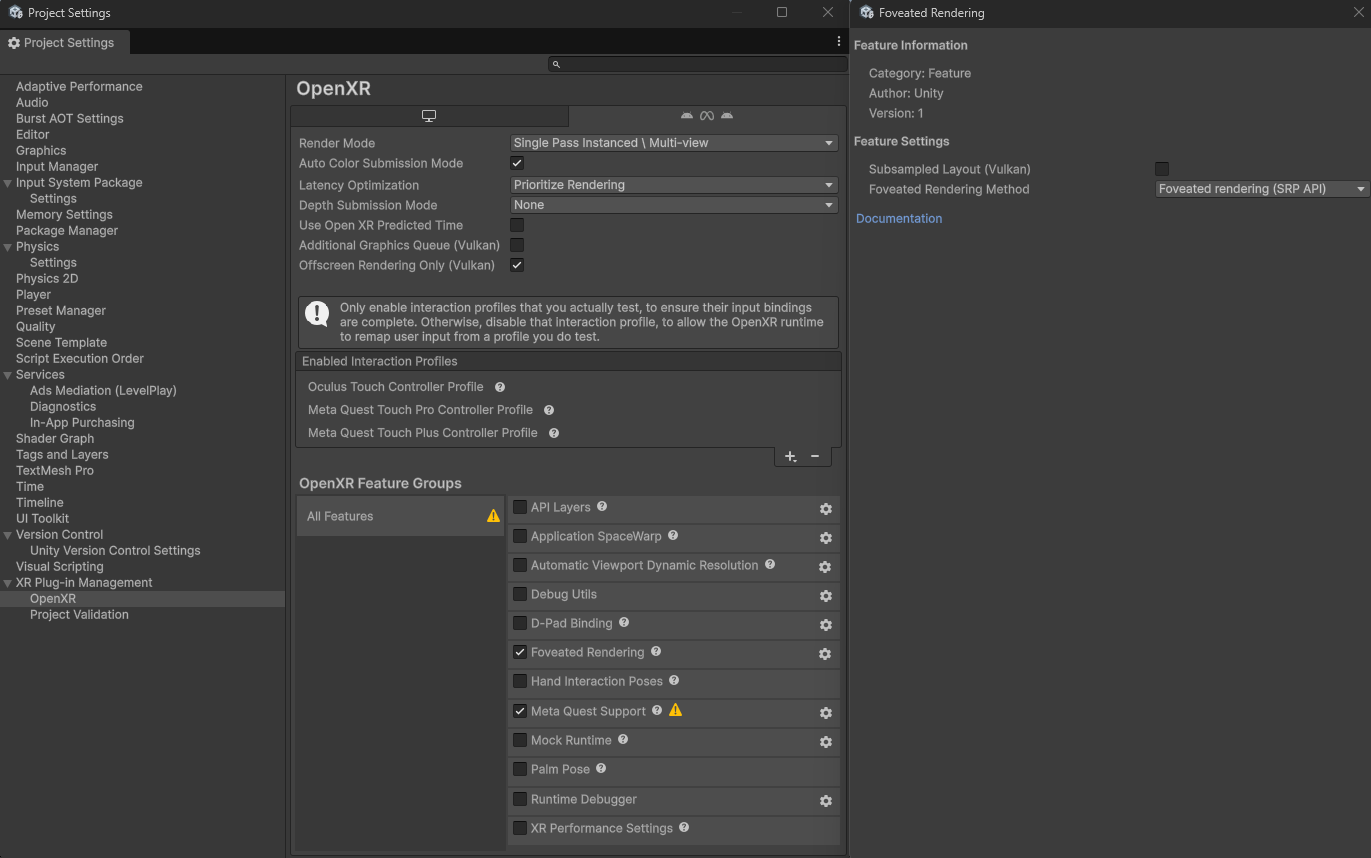
SRP foveation API settings.
After you apply these settings, the SRP foveation API is available in your project. Next, set the foveation level at runtime.
Set the foveation level
To specify the amount of the foveation effect, assign a value between 0 and 1 to the XRDisplaySubsystem.foveatedRenderingLevel property. The default value of 0 disables foveation, and 1 is the maximum level. Different device types can interpret this value in the way that best suits their platform-specific APIs.
Meta Quest devices, for example, have discrete foveation levels. If you assign 0.5 to foveatedRenderingLevel, the provider plug-in sets the device's Medium level.
To use gaze-based foveated rendering, set XRDisplaySubsystem.foveatedRenderingFlags to FoveatedRenderingFlags.GazeAllowed.
The device uses fixed foveated rendering in any of the following cases:
- You don't set this flag.
- The device doesn't support gaze-based foveated rendering.
- The user denies or revokes eye-tracking permission.
To set either of these properties, you must first get a reference to the active XRDisplaySubsystem from the Unity SubsystemManager. Unity supports multiple subsystems of the same type, and returns a list when you get the subsystems of a given type. Ordinarily, only one XRDisplaySubsystem exists. Use the single entry in the list that SubsystemManager.GetSubsystems returns.
The following code example sets foveated rendering to the maximum level and enables gaze-based foveation, after getting the instance of the active XRDisplaySubsystem:
using System.Collections.Generic;
using UnityEngine;
using UnityEngine.XR;

namespace UnityEngine.XR.OpenXR.CodeSamples.Editor.Tests
{
    // Requires Unity 6.0.0 or newer.
    public class FoveationStarter : MonoBehaviour
    {
        List<XRDisplaySubsystem> xrDisplays = new List<XRDisplaySubsystem>();

        void Start()
        {
            SubsystemManager.GetSubsystems(xrDisplays);
            if (xrDisplays.Count == 1)
            {
                xrDisplays[0].foveatedRenderingLevel = 1.0f; // Full strength
                xrDisplays[0].foveatedRenderingFlags =
                    XRDisplaySubsystem.FoveatedRenderingFlags.GazeAllowed;
            }
        }
    }
}
Note
This code example relies on methods available in Unity 6 or later. It doesn't compile in earlier versions.