Quad views
The Quad Views feature improves rendering performance by rendering two views per eye at different resolutions. In one view, the whole scene is rendered at a lower resolution. In the other view, a smaller area is rendered at a full resolution near the middle of the display. Because the periphery of the user's field of view is rendered at lower resolution, the time needed to render the scene is reduced. At the same time, the full-resolution inset where the user is most likely to focus their attention maintains perceived visual quality.
The quad views extension is a form of foveated rendering, but uses a different rendering approach. In some cases, quad views might render faster, while in others, foveated rendering might perform better. In addition, some headsets might not support both extensions. Refer to Compare quad views and foveated rendering for more information.
To use the Quad Views feature in your application, you only need to turn the feature on as described in Enable Quad Views feature. No other settings or configuration are needed.
Quad views is compatible with multiple render passes. If you use quad views with single-pass instanced rendering enabled, the renderer performs two render passes, each rendering two views.
Quad views is compatible with On-tile post-processing effects, which are recommended for untethered XR devices. Using any post-processing effects that are not in the list of Supported post-processing techniques may result in visual artifacts or decreased performance. Refer to Optimize for untethered XR devices in URP for more details.
Prerequisites
To use quad views, your Unity project must use:
- Unity 6.5+
- OpenXR 1.17+ package
- Meta Quest
In addition, to use quad views at runtime, the headset must support OpenXR API 1.0+. The XR runtime must be version 1.1.
Note
If you are using a custom Scriptable Render Pipeline, it must handle two XRRenderPass calls and render correctly to each view.
Important
Quad Views is only supported when you set the OpenXR Render Mode to Single Pass Instanced \ Multi-view. Quad Views is not supported when you set the OpenXR Render Mode to Multi-pass, as performing four separate rendering passes does not achieve any performance improvement goals.
Enable the Quad Views feature
To enable quad views:
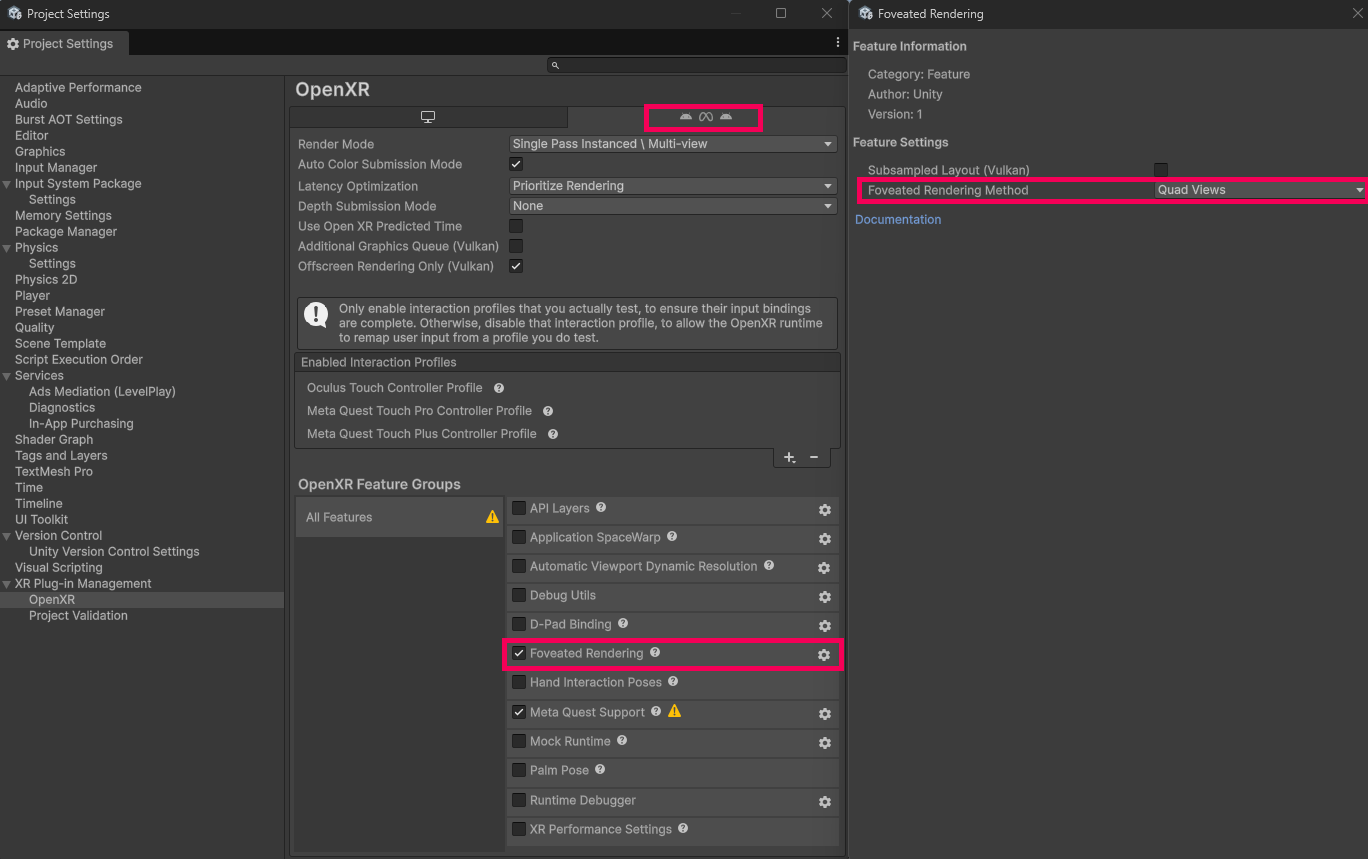
Open the Project Settings window (menu: Edit > Project Settings).
Select the OpenXR settings page under XR Plug-in Management.
Select the Android, Meta Quest, Android XR tab.
Under OpenXR Feature Groups, select All Features.
Enable the Foveated Rendering feature.
Click the gear to open the Foveated Rendering feature sub-options.
On the Foveated Rendering sub-option window, select Quad Views for Foveated Rendering Method
Note
The quad views implementation for a device determines the size, position, and resolution of the quad views. No additional options or runtime APIs for controlling quad views are available.
Compare quad views and foveated rendering
Both quad views and foveated rendering optimize scene rendering by rendering a central portion of the user's field of view at a higher resolution than the periphery. They use different rendering techniques that might make one more appropriate or perform better in your project than the other.
Use quad views when:
- you are using post-processing types that can't be used with foveated rendering
- the GPU is the predominate performance bottleneck of your app (GPU bound)
Use the foveated rendering when:
- the CPU is the predominate performance bottleneck of your app (CPU bound)
- eye tracking and gaze-based foveated rendering are available on the target device
You should always benchmark your app to confirm which technique performs better for your content, configuration, and target devices.