XR Simple Interactable
An XR Simple Interactable dispatches the appropriate Interactable Events when hovered, selected, activated, and focused by an interactor, but takes no other action in response.
Tip
Use XR Grab Interactable to create interactables that the user can pick up and move.
Supporting components
You can use the following additional components with a simple interactable:
- XR Interactable Snap Volume: Snaps ray-based interactors to the interactable when their ray intersects the defined volume. The interactor must be configured as described in Supporting XR Interactable Snap Volume. Note that the Gaze Assistance feature temporarily adds a snap volume to an interactable if one isn't already present.
- Collider: A Unity physics object that defines the shape of an object for determining collisions and calculating distance between the interactable and an interactor. Mesh Colliders must be convex. Required for all interactables.
Base properties
The XR simple interactable has many properties that you can set to modify how the interactable behaves. Some of these properties are organized into sections and don't appear in the Inspector window until you enable another property or expand a section.
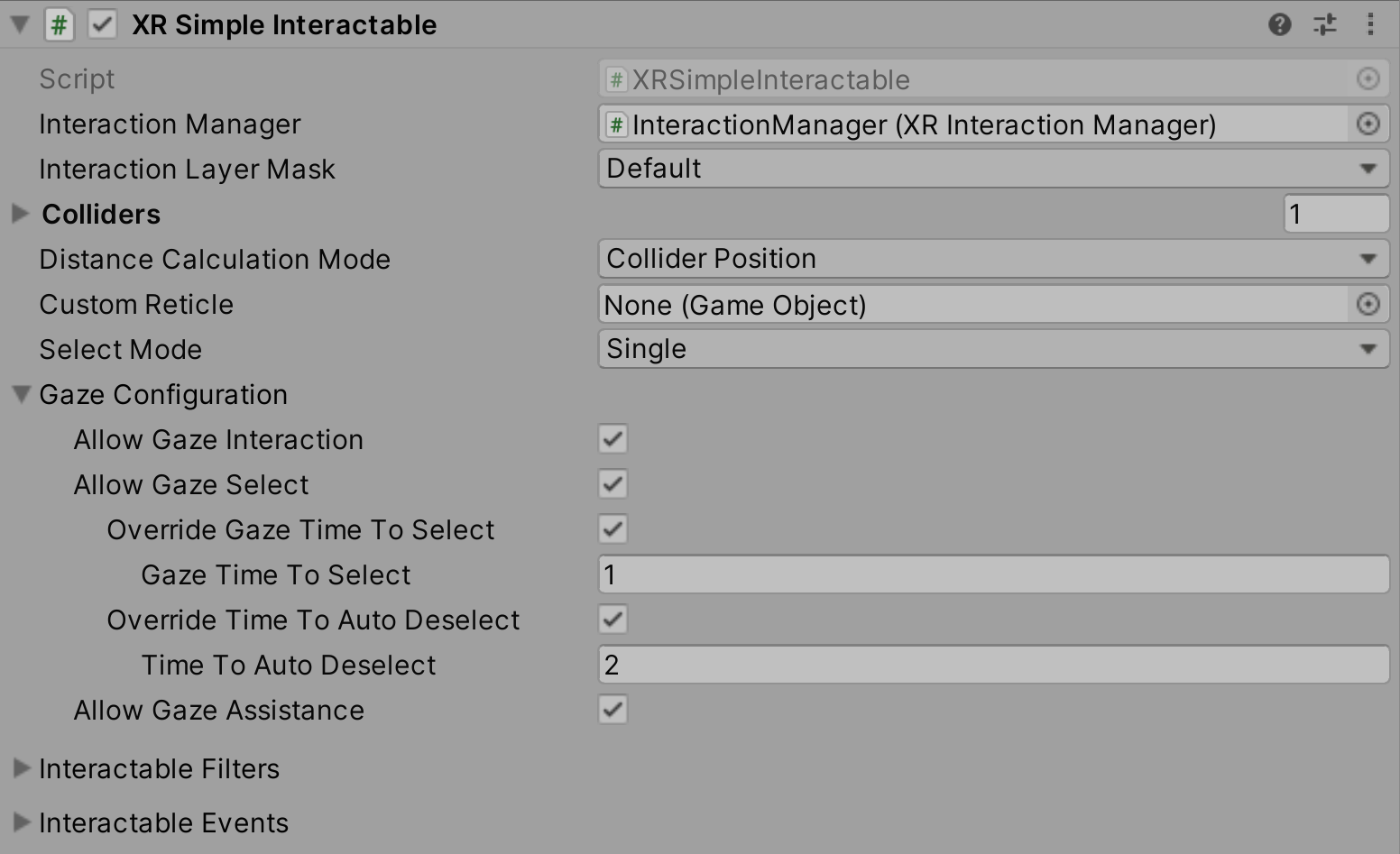
| Property | Description |
|---|---|
| Interaction Manager | The XRInteractionManager that this interactable will communicate with (will find one if None). |
| Interaction Layer Mask | Allows interaction with interactors whose Interaction Layer Mask overlaps with any Layer in this Interaction Layer Mask. |
| Colliders | Colliders to use for interaction with this interactable (if empty, will use any child Colliders). |
| Parent Interactable | Assign a reference to another interactable object when you need it to be updated before this interactable. Parents are processed by the interaction manager before their children. |
| Auto Find Parent Interactable | Automatically find a parent interactable in this GameObject's parent or other ancestor in the scene hierarchy. Ignored if you assign an interactable object to Parent Interactable. |
| Custom Reticle | A reticle used when this object is interacted with. Overrides a reticle supplied by an interactor. |
| Select Mode | How many interactors can select this interactable. |
| Focus Mode | How many interaction groups can focus this interactable. Set to None to disallow focus on this interactable. |
| Gaze configuration | Options for gaze selection and assistance. |
| Interactable Filters | Interactable filters can override the normal hover, select, and interaction strength behavior. |
| Interactable Events | Events dispatched by an interactable during an interaction. |
Parent interactable
A parent interactable is processed before any of its children. When you have a specific order in which you need a set of interactables to be processed by the interaction manager, you can assign a hierarchy using the Parent Interactable fields of these interactables.
At the end of the interaction update loop, the interaction manager calls the ProcessInteractable method of the interactable objects in the scene. An interactable implementation can use this method to update its internal state. For example, the grab interactable implementation applies any needed transform changes while it is selected by an interactor in its ProcessInteractable method. The order in which interactables are processed by the manager defaults to the order in which the interactable objects register themselves with the manager. You can alter the processing order by establishing a parent-child relationship between interactables.
Set Auto Find Parent Interactable to true to use GetComponentInParent to find and assign an interactable parent. Inactive GameObjects are included in the search. Using this option has a small startup performance cost compared to explicitly assigning a parent.
Note
You can also use the RegisterParentRelationship and UnregisterParentRelationship methods on the XRInteractionManager in a script to establish a parent-child processing hierarchy.
Gaze configuration
Gaze can affect interactions in two distinct ways:
- Direct selection by gaze: the interactable becomes selected if the user looks at it long enough.
- Gaze assistance: looking at the interactable helps other interactors target and select it.
Enable Allow Gaze Interaction to allow either type of gaze interaction and then enable Allow Gaze Select, Allow Gaze Assistance, or both.
Tip
Gaze interaction requires an active XR Gaze Interactor component in the scene. The gaze interactor and the interactable must be registered with the same XR Interaction Manager. Refer to Scene management considerations for more information about how interactions are managed.
Gaze select options
Enable Allow Gaze Select to let the user select an interactable by looking at it.
Note
You must also enable the Hover To Select property of the XR Gaze Interactor component.
By default, the XR Gaze Interactor properties are used to determine how long the user must hold their gaze on an interactable to select it and how long after the user looks away that the interactable will be deselected.
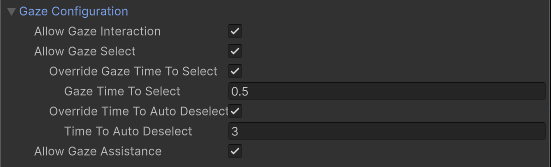
You can override these properties for specific objects using the settings in this section.
| Property | Description |
|---|---|
| Override Gaze Time To Select | Enables this interactable to override the Hover To Select time on the XR Gaze Interactor. |
| Gaze Time To Select | Number of seconds an XR Gaze Interactor must hover this interactable to select it if Hover To Select is enabled on the XR Gaze Interactor. |
| Override Time To Auto Deselect | Enables this interactable to override the auto deselect time on the XR Gaze Interactor. |
| Time To Auto Deselect | Number of seconds this interactable will be selected by an XR Gaze Interactor before being automatically deselected if Auto Deselect is enabled on the XR Gaze Interactor. |
Gaze assistance
You can enable gaze assistance to make it easier for the user to select the interactable they are looking at. In this case, the selection is made with a different interactor rather than the gaze interactor itself.
When you enable Allow Gaze Assistance, an XR Gaze Interactor will place an XR Interactable Snap Volume at this interactable to allow a properly configured XR Ray Interactor to snap to this interactable. See the XR Interactable Snap Volume or XR Ray Interactor pages for further information about correctly configuring an XRRayInteractor to support an XRInteractableSnapVolume.
Interactable Filters
Configure the starting set of filters that an interactable uses to determine whether it should be eligible for interaction.

All of these filter properties are optional. If you do not assign them, the interactable uses default behavior. Refer to Interaction filters for more information about implementing filters.
| Property | Description |
|---|---|
| Starting Hover Filters list | Validates hover interactions with this interactable. |
| Starting Select Filters list | Validates select interactions with this interactable. |
| Starting Interaction Strength Filters list | Modify the interaction strength value during an interaction. |
Interactable Events
You can assign listener functions for interaction events in the Inspector window and in a C# class. These events apply to interactables - objects that interactors can interact with.
For detailed code examples showing how to subscribe to events and work with the event arguments, refer to Handle interaction events.
| Property | Description |
|---|---|
| First Hover Entered | The event that is called only when the first interactor begins hovering over this interactable as the sole hovering interactor. Subsequent interactors that begin hovering over this interactable will not cause this event to be invoked as long as any others are still hovering. |
| Last Hover Exited | The event that is called only when the last remaining hovering interactor ends hovering over this interactable. |
| Hover Entered | The event that is called when an interactor begins hovering over this interactable. |
| Hover Exited | The event that is called when an interactor ends hovering over this interactable. |
| First Select Entered | The event that is called only when the first interactor begins selecting this interactable as the sole selecting interactor. Subsequent interactors that begin selecting this interactable will not cause this event to be invoked as long as any others are still selecting. |
| Last Select Exited | The event that is called only when the last remaining selecting interactor ends selecting this interactable. |
| Select Entered | The event that is called when an interactor begins selecting this interactable. |
| Select Exited | The event that is called when an interactor ends selecting this interactable. |
| Activated | The event that is called when the selecting interactor activates this interactable. Not to be confused with activating or deactivating a GameObject with GameObject.SetActive. This is a generic event when an interactor wants to activate an interactable, such as from a trigger pull on a controller. |
| Deactivated | The event that is called when an interactor deactivates this interactable. Not to be confused with activating or deactivating a GameObject with GameObject.SetActive. This is a generic event when an interactor wants to deactivate an interactable, such as from a trigger release on a controller. |
Note
Additional events might be available to listeners you assign in C# code. Refer to the XRBaseInteractable subclass documentation for specific information.