Scene setup
The quickest way to get started with hand tracking is to use the scene included in the HandVisualizer sample. This sample provides a fully functional hand-tracking scene with hand mesh visualization, debug joints, and all required components already configured.
Import the HandVisualizer sample for the XR Hands package using the Package Manager, then open the HandVisualizer scene.
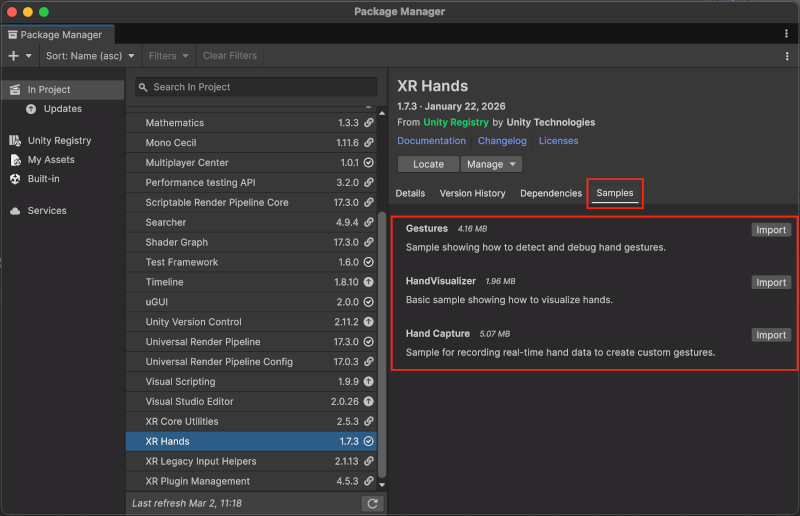
Import the HandVisualizer sample from the Package Manager
Set up a new scene
To add hand tracking to a new scene from scratch, complete the following steps.
Prerequisites
- Install XR Hands.
- Enable XR providers for the devices that you plan to support.
Add an XR Origin
Add an XR Origin to your scene if one doesn't already exist. For VR hand-tracking apps, use the XR Origin (VR) provided by the XR Interaction Toolkit.
Add hand visualization
Import the HandVisualizer sample from XR Hands.
In the Project window, navigate to Assets > Samples > XR Hands > <version> > HandVisualizer > Prefabs.
Drag the Hand Debug Visualizer prefab into the Hierarchy window as a child of the Camera Offset GameObject under the XR Origin.
Select the Hand Debug Visualizer GameObject and make sure its Transform position is (0, 0, 0) in the Inspector.
Important
The Hand Debug Visualizer's local position must be (0, 0, 0) relative to the Camera Offset GameObject. A non-zero offset causes the rendered hands to be misaligned with the user's real hand positions.
After completing the setup, your Hierarchy window should contain the following structure:
- XR Origin
- Camera Offset
- Main Camera
- Hand Debug Visualizer
- Camera Offset

Scene hierarchy with XR Origin and Hand Debug Visualizer
Enable hand tracking
To enable hand tracking with OpenXR, open Project Settings > XR Plug-in Management > OpenXR and enable Hand Tracking Subsystem under OpenXR Feature Groups.
For other provider plug-ins, check the documentation for that plug-in for hand-tracking configuration steps.
Meta Quest support via OpenXR
If building for Meta Quest, you must also enable the Meta Quest Support in the Android tab of Project Settings > XR Plug-in Management > OpenXR.
Then add an Interaction Profile, such as the Oculus Touch Controller Profile, for controller support.
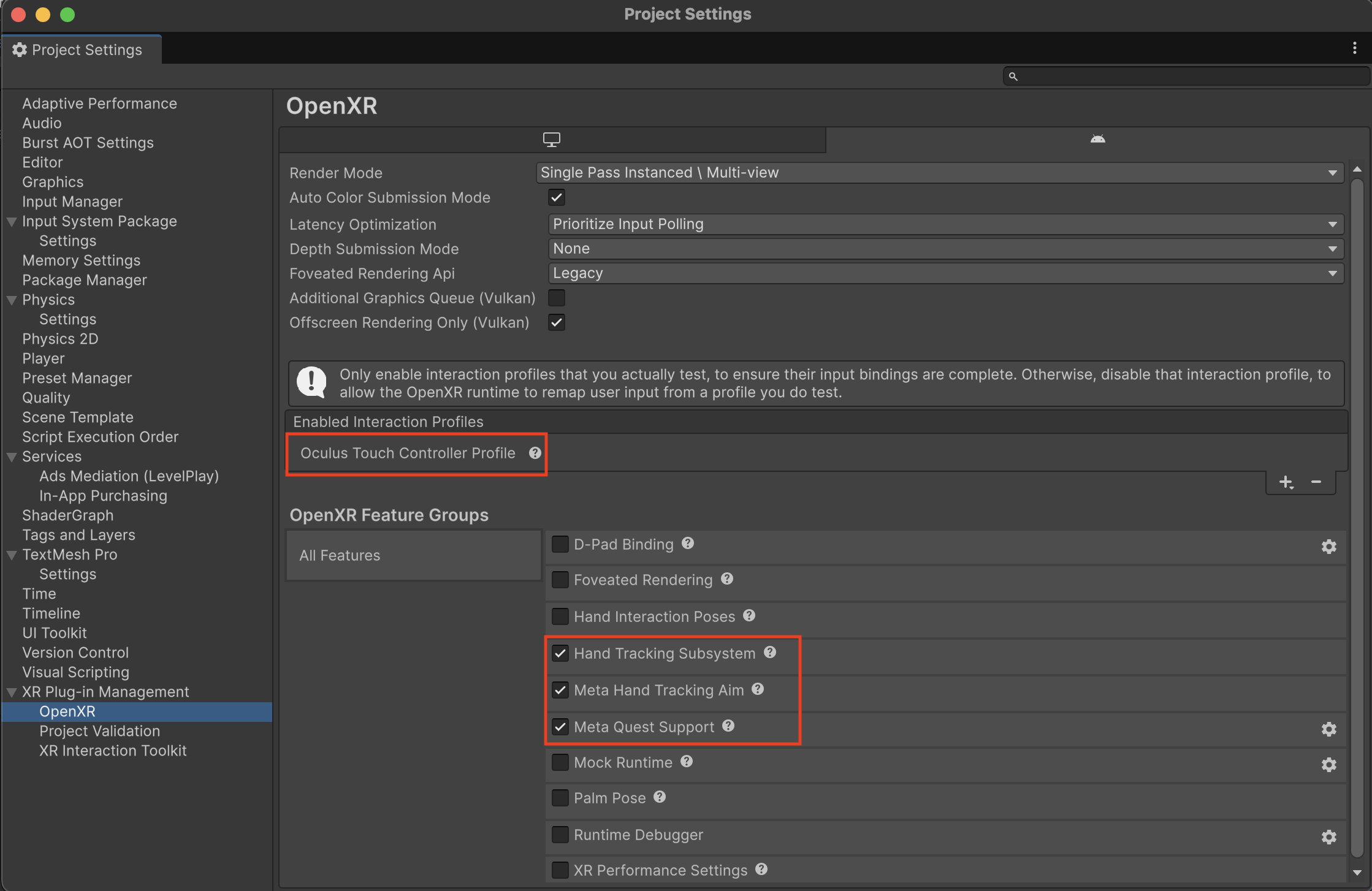
OpenXR project settings configured for Meta Quest with hand tracking
Additional resources
- Hand tracking data: details about accessing and using hand-tracking data.
- Custom gestures: information about creating custom gestures for your project.
- Install XR Hands: setup and installation instructions.