Configure graphics settings
Configure graphics settings to ensure that the composition layers display correctly in the Unity Editor and at runtime.
Depending on your project's render pipeline, Unity configures some graphics settings automatically, while others require manual setup:
- XR Composition Layers Emulation relies on a specific shader that you must add to the Always Include Shaders list for the project.
- If the project uses the Universal Render Pipeline (URP), the Emulation Layer Renderer Feature is automatically added.
- If the project uses the High Definition Render Pipeline (HDRP), the Emulation Layer Custom Pass is automatically added to the global
CustomPassVolume.
The following sections provide more detail on these settings.
Always Include Shaders list
For composition layer emulation, when Unity detects a standalone Win, Mac, Linux build, the Unlit/XRCompositionLayers/Uber and Hidden/XRCompositionLayers/ColorScaleBias shaders are automatically added to the always include shaders list.
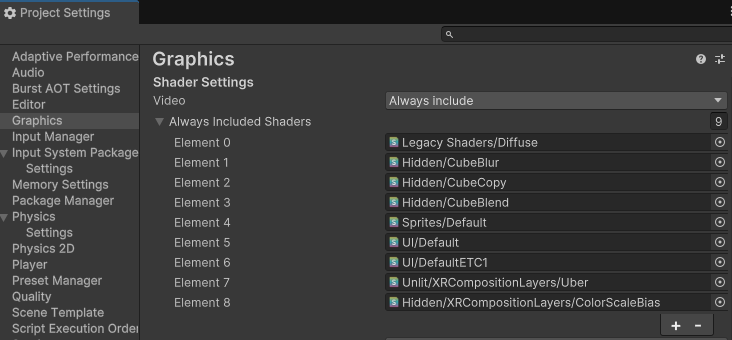
The Always Included Shaders list with the Uber and ColorScaleBias shaders added.
Tip
Ensure you enable the Emulation in Standalone setting as outlined in Enable layer emulation in a standalone build.
Emulation Layer Renderer Feature (URP)
To support layer emulation in projects using the Universal Render Pipeline (URP), the EmulationLayerUniversalScriptableRendererPass (ScriptableRendererPass) is automatically added with ScriptableRenderer.EnqueuePass().
To support Color Scale and Bias emulation in projects using the Universal Render Pipeline (URP), the EmulationColorScaleBiasPass (ScriptableRendererPass) is automatically added with ScriptableRenderer.EnqueuePass() when the Color Scale and Bias component is added to the Default Layer.
Enable compatibility mode for Underlays
Note
If your project uses Underlays with URP in Unity versions 6.0 to 6.3, you must enable Compatibility Mode (Render Graph Disable) to render emulated underlay layers. In Unity 6.4 or later, you don't need to enable Compatibility Mode, as Unity removed URP Compatibility Mode.
To select Compatibility Mode (Render Graph Disable) in Unity 6.2 and earlier:
- Open the Project Settings window (menu: Edit > Project Settings).
- Select the Graphics section.
- Click on the URP tab.
- Under the Render Graph section enable Compatibility Mode (Render Graph Disable).
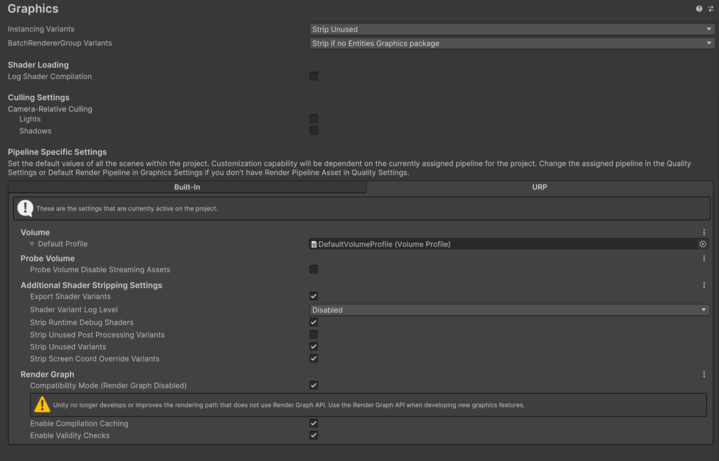
In Unity 6.3, Compatibility Mode (Render Graph Disable) doesn't appear in the Graphics Settings. To enable Compatibility Mode in Unity 6.3, add the URP_COMPATIBILITY_MODE scripting define symbol (Project Settings > Player > Other Settings > Scripting Define Symbols).
Emulation Layer Custom Pass (HDRP)
To support layer emulation in projects using the High Definition Render Pipeline (HDRP), the EmulationLayerHighDefinitionOverlayCustomPass and EmulationLayerHighDefinitionUnderlayCustomPass are automatically added to the global CustomPassVolume.
The GameObject which has CustomPassVolume is hidden in hierarchy.