Color Scale and Bias component
Add a Color Scale and Bias extension component to apply a uniform color treatment to the layer. See Add or remove a composition layer.
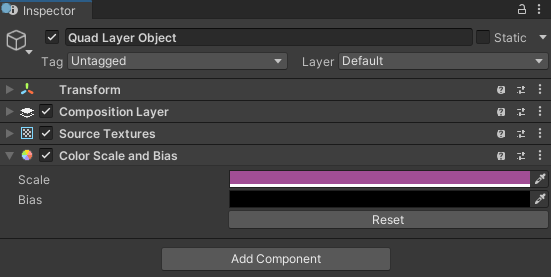
The Color Scale And Bias component Inspector
| Property: | Function: |
|---|---|
| Scale | Multiplies the components of the rendered colors in the layer by the corresponding scale value. Must be a value between 0 and 1 if using RGB 0-1.0 or between 0 and 255 if using RGB 0-255. Setting the R, G, B, A values using Color picker. Setting the value of 1.0 or 255 leaves a channel unaltered. |
| Bias | Adds the corresponding bias value to the components of the rendered colors in the layer. Must be a value between 0 and 1 if using RGB 0-1.0 or between 0 and 255 if using RGB 0-255. Setting the R, G, B, A values using Color picker. Setting the value of 0 leaves a channel unaltered. Bias values are added after scaling is applied. |
| Reset | Click Reset button to reset both Scale and Bias values to the default unaltered values. |
Scale
Scaling compresses the colors in a texture towards 0, which is the minimum luminosity for color channels and completely transparent for the alpha channel:
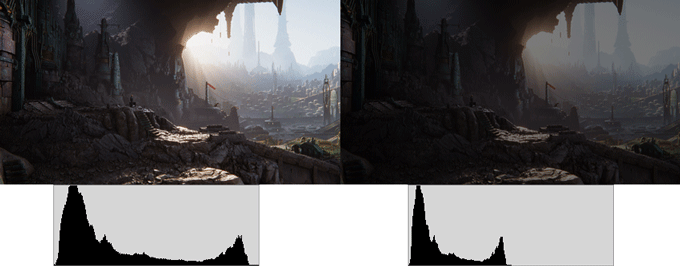
A scale of (.5,.5,.5,1) applied to a texture when using RGB 0-1.0 setting
Bias
Bias shifts the colors in a texture towards 1, which is maximum luminosity for color channels completely opaque for the alpha channel. The result is clipped if it exceeds 1:
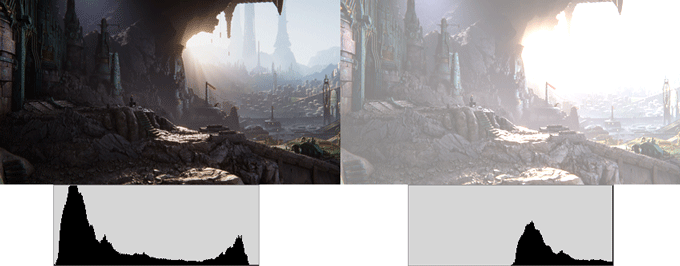
A bias of (.5,.5,.5,1) applied to a texture when using RGB 0-1.0 setting
Scale and Bias
If you specify non-identity values for both scale and bias, scale is applied first:
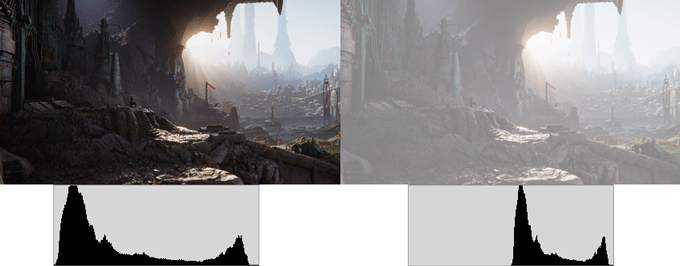
A scale of (.5,.5,.5,1) and a bias of (.5,.5,.5,1) both applied to a texture
Adjust layer transparency with the alpha channel
To fade a layer uniformly, scale the red, green, blue, and alpha channels by the same value. Don't lower the alpha channel on its own.
The XR compositor blends layers with premultiplied alpha, and the runtime applies color scale and bias after it premultiplies the layer. If you reduce only the alpha channel, the color channels stay at full brightness while the alpha value drops. The compositor then blends a full-brightness color over the background, so the layer appears too bright instead of more transparent.
For example, to display a layer at 10% opacity, set Scale to (0.1, 0.1, 0.1, 0.1) instead of (1, 1, 1, 0.1). When you scale all four channels, the color stays correctly premultiplied against the reduced alpha and the layer fades evenly.
Note
Editor emulation uses non-premultiplied blending, so alpha-only scaling can look correct in the Editor but render differently on an XR device. Always verify layer transparency on device. For more information, refer to Composition layer transparency.
Color Scale and Bias scene emulation
Color scale and bias adjustments on the default scene layer can be emulated by the renderer in the Editor's Scene View and Game Veiw along with standalone platform builds. Emulation is only supported for Color Scale and Bias components associated with the default scene layer.
Note
Composition Layers automatically adds the Hidden/XRCompositionLayers/ColorScaleBias shader used for emulation to the Always Include Shader list for standalone builds.
Built-in Render Pipeline
Important
In Unity 6.5 and newer, the Built-In Render Pipeline is deprecated and will be made obsolete in a future release. For more information, refer to Migrating from the Built-In Render Pipeline to URP and Render pipeline feature comparison.
To implement the color and scale bias effect in the Built-in Render Pipeline, Composition Layers automatically adds a EmulatedColorScaleBias component to the main camera when the Color Scale and Bias component is enabled on the default layer.
Universal Render Pipeline (URP)
In URP, color bias and scale emulation is implemented with a Renderer Feature.
The EmulationColorScaleBiasPass (ScriptableRendererPass) is automatically added via the ScriptableRenderer.EnqueuePass() when the Color Scale and Bias component is enabled on the default layer.
High Definition Render Pipeline (HDRP)
The Composition Layers package does not support color scale and bias emulation when using HDRP.