Material Switch User Documentation
Overview
Material Switch provides tools for switching and blending material parameters over a number of renderers simultaneously using Timeline.
Supported Unity Versions
Unity 2021.3.45 or higher.
Dependencies
- Selection Groups.
This is used to specify the set of renderers that have material parameters we want to use in Timeline with a Material Switch clip.
Quick Start
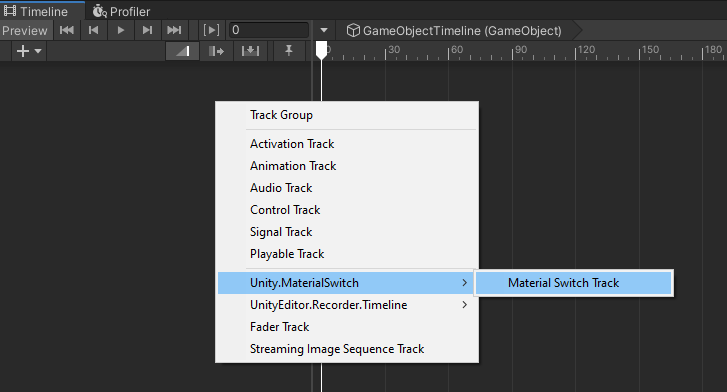
- In the timeline window, add a new Material Switch Track.
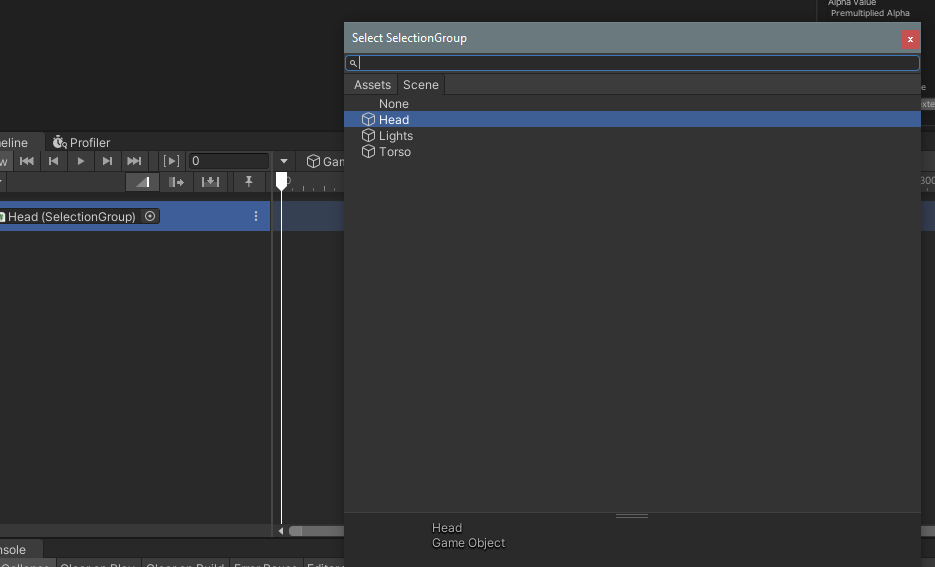
- The new track has an object field which you must change to the Selection Group you want to modify. All renderers and materials in this selection group can be used in the clips you will add to this track. You will manually choose which properties to use per clip in a later step.
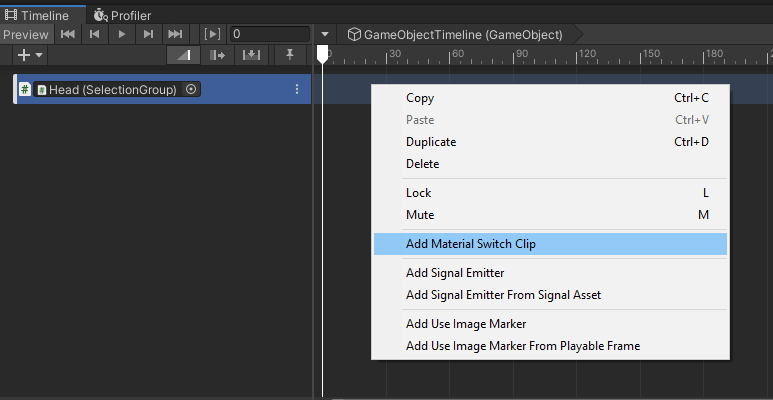
- Add a new material switch clip to the track.
- The inspector window will show a number of options for modifying the clip. You can add values to override texture, color and float properties. The global properties panel allows all properties in all materials in the clip to have share an override value. The per material panels allow property overrides per material, these take precedence over any values in the global property panel. In the next step, we will override a colour property.
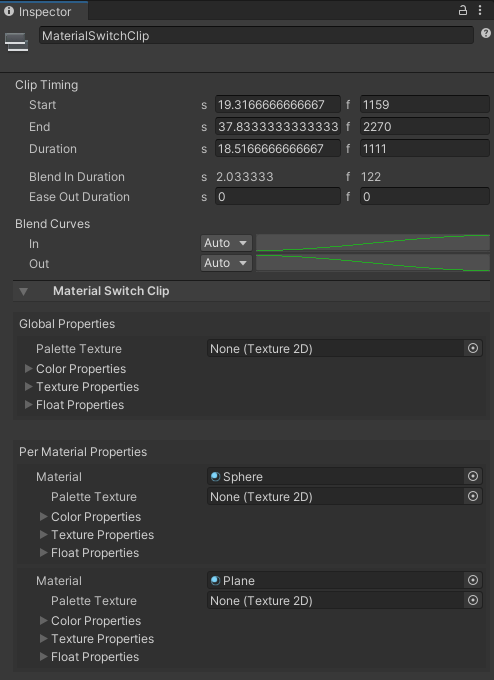
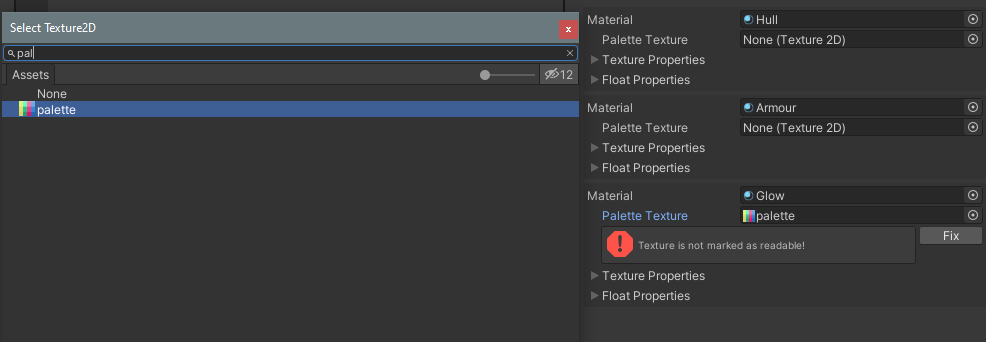
- To enable colour properties on the clip, we can optionally assign a palette texture in the inspector. If the texture is not readable, a warning box will appear giving you the option to fix the texture settings with a single click.
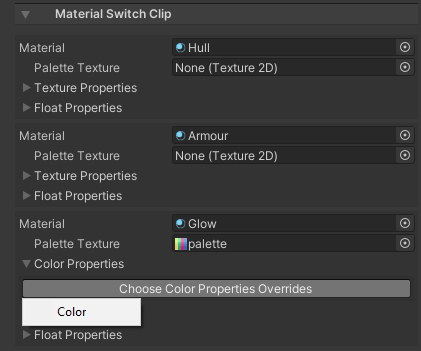
- Click the "Choose Color Properties Overrides" button, and a dropdown will appear with the available colour properties you can override. Choose a colour property.
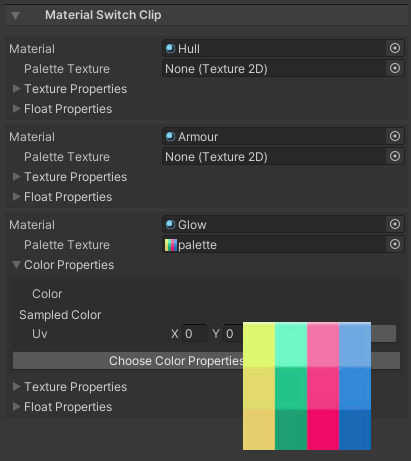
- A new row appears in the foldout, with a "Pick Color" button. If you are using a palette texture, the palette image will appear, allowing you to choose a new colour for the property. If you are not using a palette texture, the standard color picker control is used.
- You can now play the clip, and see your colour changes take effect.