Upgrade guides
Upgrade the Localization package to a new version and migrate your project's content.
Upgrade guide to 2.0.0
Unity 6.7 and later include Localization Runtime, the built-in Localization package. Version 2.0.0 of this package works with it. A project that keeps its package table collections works as before. To move a project to the built-in package, run the upgrade wizard.
For more information about the built-in package, refer to Localization in the Unity Manual.
Move a project to the built-in package
The upgrade wizard converts the package's table collections, locales, and components to their built-in equivalents.
Warning
You can't undo the upgrade. It saves changes to scenes and prefabs, and it can delete package assets. Back up your project or commit it to version control first.
To upgrade a project, follow these steps:
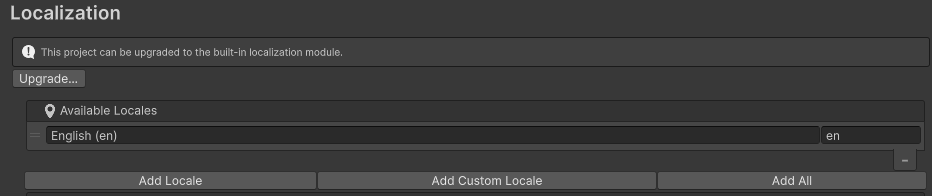
Go to Edit > Project Settings > Localization. The Upgrade… button appears when the project has table collections and you haven't upgraded it yet.
Select Upgrade… to open the Upgrade to Built-in Localization window. The Collections to upgrade list shows each collection the wizard converts. A string table collection and an asset table collection with the same name merge into one collection.
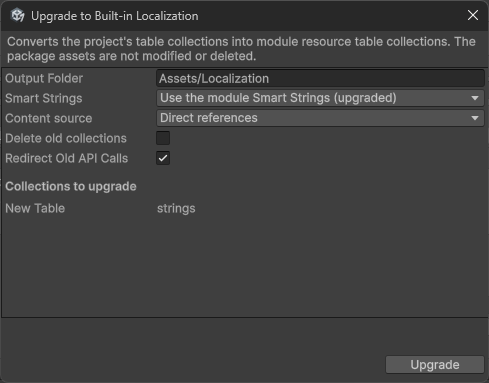
Set the options described in the following table.
Select Upgrade. If open scenes have unsaved changes, Unity asks you to save them first. When the upgrade ends, a dialog shows how many collections the wizard created and how many components it replaced. The Console window shows the full report. Its notes list what the wizard changed and what it couldn't convert.
| Option | Description |
|---|---|
| Output Folder | The folder for the new assets. It must be inside Assets. The default is Assets/Localization. |
| Smart Strings | How to convert entries marked as Smart:
|
| Content source | How the converted collections store and load their content:
|
| Delete old collections | Deletes the converted collections, their shared table data, their tables, and the package's locale assets after the upgrade. The wizard never deletes the assets that entries refer to. Disabled by default. |
| Redirect Old API Calls | Installs a redirect layer so that package API calls, such as GetLocalizedString, read from the converted collections. Enabled by default. |
Understand what the upgrade changes
The wizard makes the following changes:
- Collections: Each collection gets a subfolder in the output folder that holds a Resource Table Collection, its shared data, and a table for each locale. Keys keep their IDs where possible. Key comments carry over, but other metadata doesn't. If a string collection and an asset collection that merge share a key name, the wizard renames the asset key to
<key> (Asset). - Locales: Each locale that has a table becomes a built-in locale with the same code and name. If the built-in settings already have a locale with that code, the wizard uses it and keeps its name. The project locale carries over if it has a table in a converted collection. Fallbacks don't carry over. Pseudo-locales become built-in pseudo-locales, unless the built-in settings already have a locale with the code the pseudo-locale would use. In that case, the wizard skips the pseudo-locale, lists it in the report, and keeps its asset, even if you enabled Delete old collections.
- Settings: If the project has no built-in localization settings or Smart Strings settings, the wizard creates them in the output folder. Project Settings > Localization then shows the built-in settings, and you edit tables in Window > Localization > Resource Tables.
- Components: In every prefab and scene in the
Assetsfolder, including components you added to a prefab instance as an override, the wizard replacesLocalizeStringEvent,LocalizeTextureEvent,LocalizeSpriteEvent,LocalizedGameObjectEvent, andLocalizeStringListEventcomponents with their built-in equivalents. It copies each component's reference and update event listeners, and the local variables ofLocalizeStringEventcomponents. It skips a local variable whose type has no built-in equivalent, such as a customIVariable, and lists it in the report.LocalizeAudioClipEventandGameObjectLocalizercomponents stay and keep working through the redirect layer. - Redirect layer: The redirect layer replaces the string database, the asset database, and the available locales in the package's Localization Settings asset, so scripts and package components that use the package API read from the converted collections. The wizard also turns off the package's Locale Game View Menu preference.
- Upgrade map: The wizard creates a
Localization Upgrade Mapasset in the output folder. The redirect layer uses it to find converted entries.
Complete the upgrade
After the wizard finishes, complete the following tasks:
- Read the notes in the upgrade report.
- Update references to renamed asset keys. References to an asset entry by key name still use the old name, so they resolve to the string entry. Change them to
<key> (Asset). - Set locale fallbacks again.
- Check the built-in project locale. If the old project locale didn't have a table in a converted collection, the built-in project locale can be a different locale.
- Recreate any local variables that the report lists as skipped.
- If you chose Use the module Smart Strings (upgraded), replace any
{{and}}that stand for literal braces with\{and\}. The built-in Smart Strings don't read doubled braces as escapes. The report lists each entry that uses them. - Google Sheets and CSV connections carry over. When a string collection and an asset collection that merge both have the same kind of connection, only the string collection's connection carries over. If you enabled Delete old collections, set up the other connection again. The built-in sync, import, and export use a fixed column layout and ignore the extension's column mappings. Other collection extensions don't carry over.
- The redirect databases keep the old databases' default table, Smart Format settings, and missing-translation message. Set any other database settings again, such as a custom table provider or table postprocessor.
- Reassign event listeners that pointed at a replaced component.
- Keep the
Localization Upgrade Mapasset in the project. The redirect layer needs it. - To preview a locale in the Editor, use the preview locale dropdown in the main toolbar, because the wizard turns off the Locale Game View Menu.
After you complete these tasks, the project runs on the built-in package, and the redirect layer keeps the old API working.
Upgrade Guide to 1.4.2
- This version improves sub-asset support. A new rule has been added to the Asset Table Addressables Analyzer that checks if sub-assets are referenced by name and offers to upgrade them. This will help avoid the wrong asset being returned when referencing an asset that contains multiple sub-assets.
Upgrade Guide to 1.3.0
Locale.GetFallbackhas been replaced withLocale.GetFallbacksin order to support multiple fallbacks per locale. This will now return a list of fallbacks which can then be attempted in order.
Upgrade Guide to 1.1.0
LocalizationEditorSettings.FindSimilarKeyhas been deprecated. In Unity 2021.2 and above, you can use Unity Search as an alternative. See TableEntrySearchData for further details.- To configure your Android and iOS builds correctly, add
App Infoto the Localization Settings for the platform. IfApp Infoisn't included, the Unity Editor might not detect the available languages when attempting to select the system locale. The Editor displays a warning ifApp Infoisn't included.
Upgrade Guide to 1.0.0
LocalizedStringEventarguments have been deprecated. If your project uses this argument, the Inspector displays a warning and offers to upgrade by transferring them into the String Reference Local Variables field. Note the Smart String will need to be updated to use the local variable name. For example{appleCount}would need to be changed to{local-variable-name.appleCount}.GlobalVariablesnamespace has been renamed toPersistentVariablesand associated scripts have also been renamed. The API Updater automatically upgrades relevant scripts.IGlobalVariable/IVariableinterface has changed.object SourceValue { get; }property has been changed into a methodobject GetSourceValue(ISelectorInfo selector);. This will need to be fixed manually. In most cases theselectorvalue can be ignored however it can also be used to provide context to the current format operation to allow for more control over the returned value.- Types marked with
ObsoleteAttributeare no longer shown in dropdown menus.