Preparing a Unity project for Shotgun
Using the Package Manager window, add the Shotgun package which matches your pipeline configuration in the table below:
| tk-config-unity version | com.unity.integrations.shotgun version |
|---|---|
| 1.2.9.1 | 0.9.0 |
Shotgun should automatically initialize on Unity startup if you launched Unity from Shotgun. You should see a progress bar reporting the Shotgun toolkit bootstrap progress:
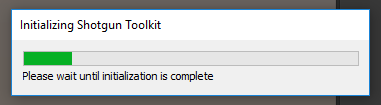
Once the progress bar disappears, you can use the Shotgun menu items.
Notes
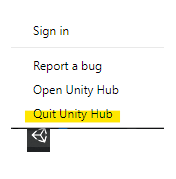
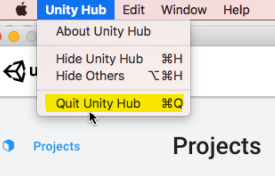
Always quit the Unity Hub between sessions
It is important to quit the Unity Hub between launches of Unity. See the troubleshooting section for more details.
On Windows and CentOS, use the system tray icon:
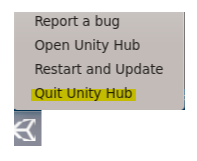
On Mac, use the menu bar:
The Shotgun folder
A Shotgun folder will be created under your Unity project's
Assets folder. This Shotgun folder will automatically be deleted when Unity
exits. Do not use the Assets/Shotgun folder to store your files, and do not
modify its content.
Disable Debug Logging
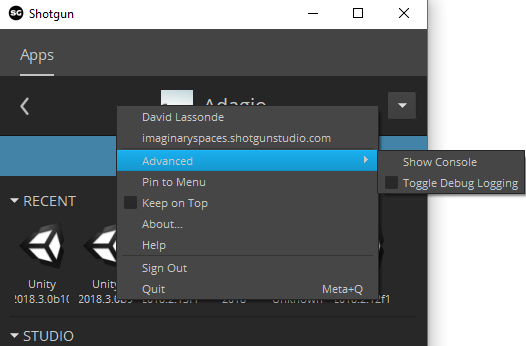
It is recommended to disable Debug Logging in order to get better performance (right-click in a gray area of Shotgun Desktop / Advanced / Toggle Debug Logging):