Edit composite bindings
Assign controls to the parts of a composite binding, change its type, and bind more than one control to a part.
When you add a composite binding to an action, the Input System creates one part for each input that the composite type needs. For example, a 2D Vector composite has four parts: Up, Down, Left, and Right. In the Actions panel, the parts appear under the composite binding. Each part is a simple binding, and displays <No Binding> until you assign a control to it.
Prerequisites
Add a composite binding to an action in the Input Actions Editor window. For more information, refer to Add, duplicate, or delete a binding.
Assign a control to each part
To assign a control to each part of a composite binding:
- In the Actions panel, expand the action and the composite binding to display the composite's parts.
- Select a part.
- In the Binding Properties panel, use the Path property to select a control for the part.
Assign a control to each of the other parts in the same way. The composite binding then responds to input from the controls you assigned to its parts.
Change the type of a composite binding
A composite binding's type determines which parts it has, and what type of value it outputs. To change the type:
- In the Actions panel, expand the action and select the composite binding.
- In the Binding Properties panel, select a different Composite Type.
The composite binding now has the parts of the type you selected. The Input System reuses the existing parts, in order, as the parts of that type, and keeps the controls assigned to them. It then adds any parts that the type needs, and deletes any extra parts, including parts you duplicated. After you change the type, check that each part has the control you expect.
Bind multiple controls to one part
A part can have more than one binding. The part combines the input from all the controls bound to it. For example, a single 2D Vector composite can respond to both the W, A, S, and D keys and the arrow keys.
To bind another control to a part:
- In the Actions panel, expand the action and the composite binding.
- Right-click (macOS: Ctrl+click) the part, then select Duplicate.
- Select the duplicate.
- In the Binding Properties panel, use the Path property to select a different control.
The part now responds to input from both controls.
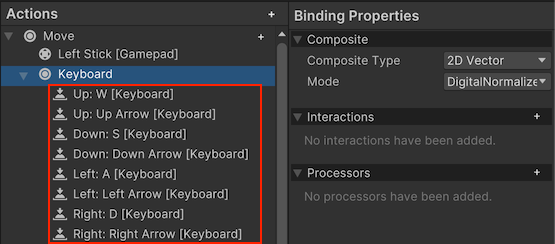
A 2D Vector composite with two bindings on each part: one for the W, A, S, and D keys, and one for the arrow keys.
Move a binding to a different part
To move a binding to a different part:
- In the Actions panel, select the binding.
- In the Binding Properties panel, set Composite Part to the part you want.
Delete a binding from a part
To delete a binding from a part:
- In the Actions panel, right-click the binding.
- Select Delete.