Introduction to bindings
Understand how bindings connect actions to controls, and the difference between simple and composite bindings.
A binding connects an action to one or more controls, which the binding identifies with a control path. For example, a binding can connect the right trigger of a gamepad to an action named Accelerate, so that pulling the right trigger makes a car accelerate in your application. Bindings are either simple or composite, and an action can have several of them.
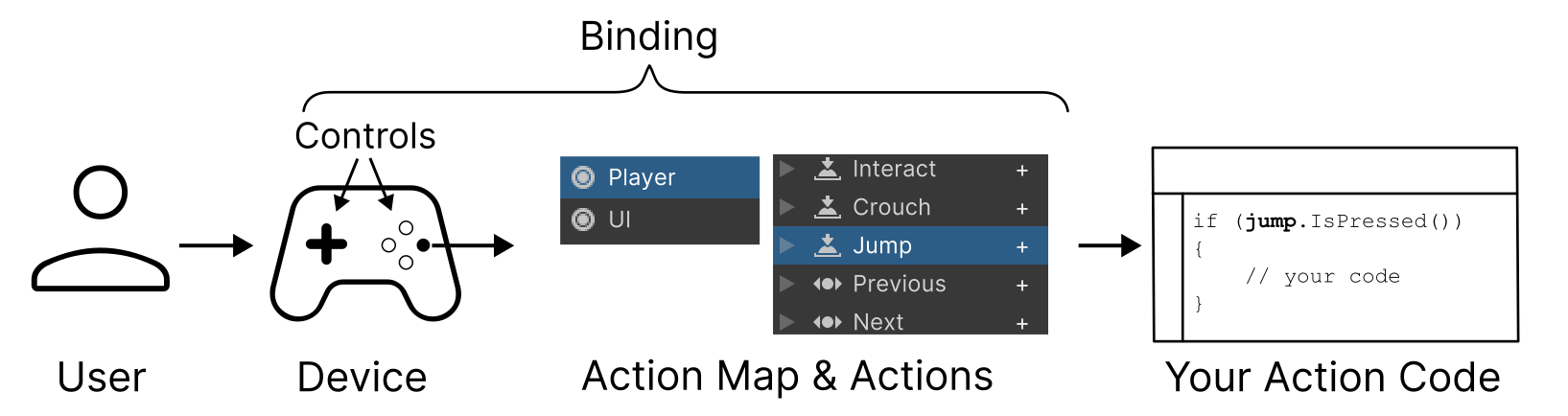
Bindings connect the controls on a device to the actions in an action map.
Simple and composite bindings
The Input System has two types of binding:
- A simple binding connects an action directly to the controls that match its control path. For example, a simple binding can connect a gamepad stick to a
Moveaction, or a gamepad button to aJumpaction. - A composite binding combines several controls into a single value. For example, the W, A, S, and D keys can form a 2D vector for a
Moveaction. A composite binding doesn't bind to controls itself. Instead, each of its parts is a simple binding. For more information, refer to Composite bindings.
Multiple bindings on one action
You can add multiple bindings to an action, so that the action responds to more than one type of input device. For example, in the default actions, the Move action has bindings for the left stick of a gamepad, the W, A, S, and D keys and the arrow keys, an XR controller, and a joystick. Input through any of these bindings performs the action.
You can also bind multiple controls from the same device to an action. For example, you can bind both the left and right triggers of a gamepad to the same action, so that pulling either trigger has the same result in your application.
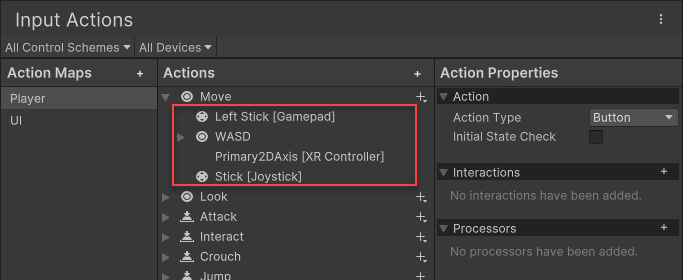
The default Move action in the Input Actions Editor window, with its four bindings.