Select a notification behavior
You can use the Behavior property in the Inspector to determine how a PlayerInput component notifies game code when something related to the player has occurred.
The following options are available:
| Behavior value (UI) | Description | Matching enum value |
|---|---|---|
| Send Messages | Uses GameObject.SendMessage on the GameObject that the PlayerInput component belongs to. |
SendMessages |
| Broadcast Messages | Uses GameObject.BroadcastMessage on the GameObject that the PlayerInput component belongs to. This broadcasts the message down the GameObject hierarchy. |
BroadcastMessages |
| Invoke Unity Events | Uses a separate UnityEvent for each type of message. When you select this option, the events available on the PlayerInput are accessible from the Events foldout. Expand an action map under Events to see an event for each action in that map. If you haven't assigned an action asset to Actions, only the device events appear. Events triggered for actions receive the same argument as the started, performed, and canceled callbacks.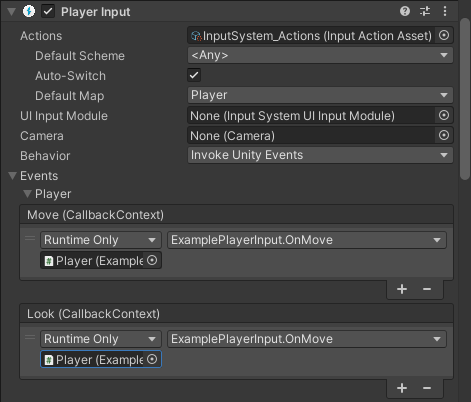 |
InvokeUnityEvents |
| Invoke CSharp Events | Similar to Invoke Unity Events, but uses plain C# events exposed by the PlayerInput API. You can't configure these events in the Inspector. Instead, register callbacks for the events in your scripts.The following events are available:
|
InvokeCSharpEvents |
In addition to per-action notifications, PlayerInput sends the following general notifications:
| Notification | Description |
|---|---|
DeviceLostMessage |
The player has lost one of the Devices assigned to it. This can happen, for example, if a wireless device runs out of battery. |
DeviceRegainedMessage |
Notification that triggers when the player recovers from Device loss and is good to go again. |
ControlsChangedMessage |
The controls bound to the player's actions have changed. This can happen when the player's control scheme or paired devices change, or after rebinding or a change to the keyboard layout. Use this event to refresh binding labels. |
Respond to C# events
When Behavior is set to Invoke CSharp Events, subscribe to the events on the PlayerInput component from your own script. The following example subscribes in OnEnable and unsubscribes in OnDisable, so the events stop calling the script when it's disabled. Because onActionTriggered is called for every action on the player, in every phase, the example checks the action name and phase:
using UnityEngine;
using UnityEngine.InputSystem;

/// <summary>
/// Example script that responds to a PlayerInput component whose Behavior is set to
/// Invoke C# Events.
/// </summary>
[RequireComponent(typeof(PlayerInput))]
public class PlayerInputCSharpEventsExample : MonoBehaviour
{
    PlayerInput m_PlayerInput;
    Vector2 m_Move;

    void Awake()
    {
        m_PlayerInput = GetComponent<PlayerInput>();
    }

    void OnEnable()
    {
        // Subscribe to the events when the component is enabled.
        m_PlayerInput.onActionTriggered += OnActionTriggered;
        m_PlayerInput.onDeviceLost += OnDeviceLost;
    }

    void OnDisable()
    {
        // Unsubscribe when the component is disabled, so the events don't call a disabled script.
        m_PlayerInput.onActionTriggered -= OnActionTriggered;
        m_PlayerInput.onDeviceLost -= OnDeviceLost;
    }

    // onActionTriggered is called for every action on the player, in every phase
    // (started, performed, and canceled), so check the action name and the phase.
    void OnActionTriggered(InputAction.CallbackContext context)
    {
        switch (context.action.name)
        {
            case "Move":
                // Move triggers in every phase, so log the value only when it changes.
                var move = context.ReadValue<Vector2>();
                if (move != m_Move)
                {
                    m_Move = move;
                    Debug.Log("Move: " + m_Move);
                }
                break;
            case "Jump":
                if (context.performed)
                    Debug.Log("Jump");
                break;
        }
    }

    void OnDeviceLost(PlayerInput playerInput)
    {
        Debug.Log("A device was disconnected from " + playerInput.name);
    }
}