Get started with the Player Input component
Add a Player Input component to a GameObject, and choose how it notifies your scripts about input.
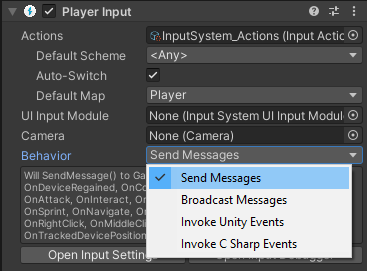
Set up a Player Input component
To set up a Player Input component:
Add a Player Input component to a GameObject. This is usually the GameObject that represents the player in your game. For more information, refer to how to add components to GameObjects.
Assign your action asset to the Actions field.
If you assign the default project-wide action asset, named
InputSystem_Actions, the Inspector window displays a warning. The Input System enables all the action maps in the project-wide asset by default, so more maps are active than the one that the Player Input component uses. When you assign the project-wide asset, disable the action maps that the Player Input component doesn't use inStart(). If a UI Input Module also uses the project-wide asset, keep its UI action map enabled.In Default Map, select the action map for gameplay, such as Player. The component enables this map and switches away from it when you call
SwitchCurrentActionMap.In Behavior, select how the component notifies your scripts when actions are triggered.
The behavior you select determines how you implement the methods that respond to your actions. For more information, refer to Select a notification behavior.