Entity world view in Hierarchy window
Entity worlds are visible in the Hierarchy window. Each entity world node contains the converted subscenes and entities that belong to that world.
World nodes always appear below all Scene nodes in the Hierarchy.
World node overview
A World node contains the following child nodes:
- Subscene nodes display the subscene asset name and use the Unity scene icon. Entities that belong to a subscene are displayed as children of the corresponding subscene node.
- Entity nodes display the entity name and use the entity icon. Entities with a Parent component appear nested under their parent entity, which reflects the ECS transform hierarchy. Entities that don't belong to any subscene appear directly under the world node.
All entity-related nodes (world, subscene, and entity nodes) are read-only in the Hierarchy window. You can't rename, cut, copy, paste, duplicate, delete, or drag-and-drop these nodes.
In Edit mode, the entity world node has the name Editor World, and in Play mode, Default World.
When the authoring subscene is open, the Hierarchy window displays converted entities with names that match the authoring GameObjects. When the subscene is closed, those entities have the name Entity followed by the index and version in brackets.
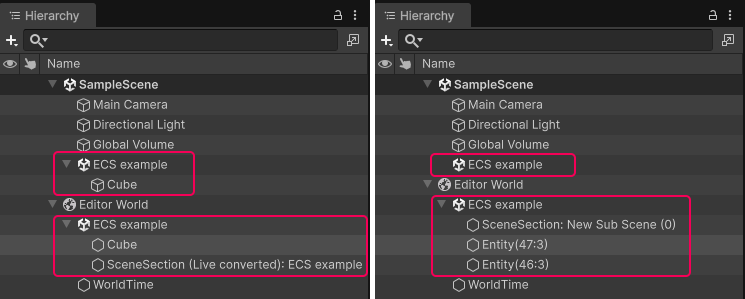
Hierarchy view when the subscene is open (left), and closed (right)
To view information about an entity, select it in the Hierarchy. The Inspector displays the entity's data.
Entity prefabs
Entity prefab root nodes display an entity prefab icon and a blue name. Entity prefab part nodes (children within a prefab) also display blue names but use the standard entity icon. For more information about entity prefabs, refer to Entity prefabs.
Hidden entities
Some entities exist to handle internal Unity states and don't appear in the Hierarchy window. Unity adds the HideInHierarchy tag component to such entities. To display them, enable Show Hidden Entities in Preferences > Entities > Hierarchy Window.
Search for entities
The search field in the Hierarchy window toolbar filters entity nodes as well as GameObjects. Text that you type matches the names of both.
To filter entities by the ECS components they have, use the t: filter token, followed by a component type name:
| Filter | Result |
|---|---|
t:LocalTransform |
Entities that have a LocalTransform component. |
t:Unity.Transforms.LocalTransform |
The same result, written as a full type name. Use the full name to distinguish between component types that share a short name. |
t:LocalTransform t:LocalToWorld |
Entities that have both components. Every token you add narrows the result further. |
t:LocalTransform Cube |
Entities that have a LocalTransform component and whose name contains Cube. |
The token matches components, shared components, and dynamic buffers. Short type names aren't case-sensitive, and you can write the token with either : or =, so t=localtransform gives the same result as t:LocalTransform. If you enter a type name that no component matches, the Hierarchy window displays no results.
To select a component type instead of typing its name, select the filter dropdown at the left of the search field, or press Tab while the search field has focus, and then select a type under Components. This dropdown is available when Enable Query Builder is on in Edit > Preferences > General.
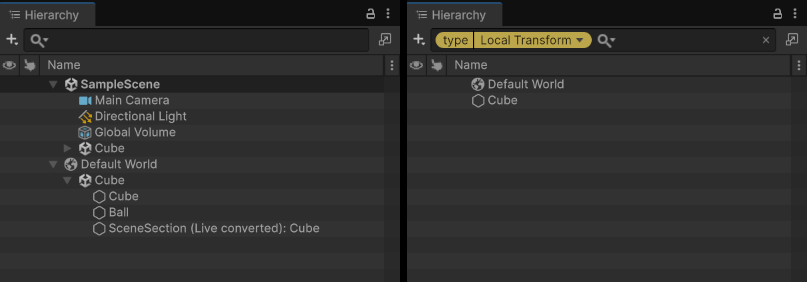
Hierarchy view with no filter (left), and with the t:LocalTransform filter (right)
Selecting See all in the System Inspector also creates a query in this search field, which then displays the entities that a system's query matches.
Open and close a subscene
To open or close a subscene from the Hierarchy window, right-click the subscene node under its scene and select Open or Close, or double-click the node to switch between the two states. For more information, refer to Subscene component.
Entity world display preferences
To configure how entities appear in the Hierarchy, go to Preferences > Entities > Hierarchy Window. For more information, refer to Entities Preferences reference.