Systems window reference
The Systems window displays information about the system update order of each world in your project. The window displays a hierarchy of systems, shown inside their system groups, and updates when the systems in your application run and update.
To open the Systems window, go to Window > Entities > Systems.
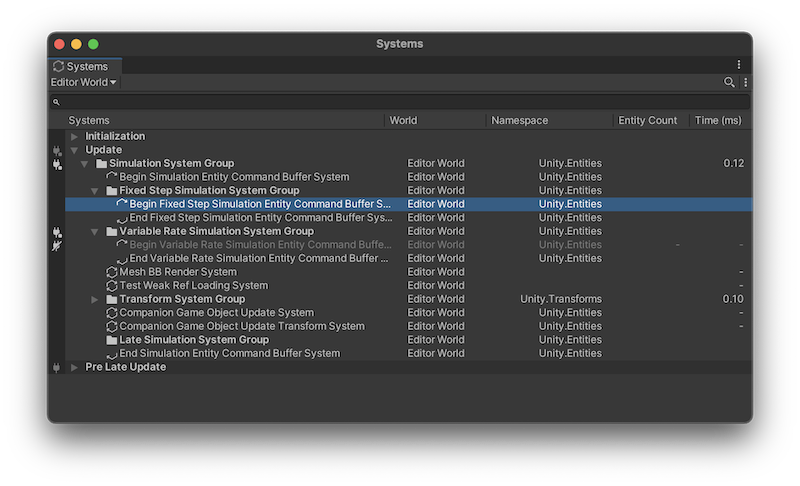
Systems window with some systems temporarily disabled
The Systems window displays a tree view of systems in the selected world. When you select a system, the System Inspector on the right displays more information about the selected system.
System tree view
The tree view has the following columns.
| Column | Description |
|---|---|
| Systems | A list of the systems in your application. When you select a system, its details appear in the System Inspector on the right side of the window. There are several icons that represent the system types:
|
| World | The world where the system operates. Note: The world that calls Update on a system, and the world that this system operates on, might be different. This is because the ECS framework only automatically ticks the Main World (in Play mode), and the Editor World (in Edit mode). This means that it doesn't automatically run any worlds that you've created. If you want your systems to run automatically, you must add them to the Main World, even though they still run against the entities in your custom world. |
| Namespace | The namespace that the system type belongs to. |
| Entity Count | The number of entities that match the system's queries at the end of the frame. |
| Time (ms) | The amount of time in milliseconds that the system took during this frame. |
 A system group
 A system
 An
An  An
An To hide a column, right-click the column header bar and disable any of the columns you want to hide.
To help debug your application, you might want to temporarily disable a system. To do this, click the left-most column, which is darker than the other columns, next to the system you want to disable. This change doesn't persist across Editor sessions.
To see all the low-level methods that form part of the Unity player loop, including non Entities-related methods, in the More menu (⋮) enable the Show Full Player Loop setting. When you enable this setting, any non Entities-related methods are displayed in the window, but are grayed out.
Systems search field
The Systems window toolbar contains a search field. Use it to filter the systems displayed in the tree view.
You can use the following filter tokens:
| Token | Description | Example |
|---|---|---|
c= |
Filters systems by the component types used in their queries. | c=Translation |
sd= |
Filters systems by their direct dependencies (systems that update before or after them). | sd=TransformSystemGroup |
ns= |
Filters systems by namespace. | ns=Unity.Transforms |
You can combine filters and plain text in the search field. For example, c=Translation ns=Unity.Transforms filters systems that use the Translation component and belong to the Unity.Transforms namespace.