Use case | Manage workspaces
This use case outlines how to set up your project to access and manage workspaces.
Prerequisites
Set up a Unity scene
To set up a Unity scene, follow these steps:
- In your Unity project window, go to Assets > Scenes.
- Right-click the
Assets/Scenesfolder. - Select Create > Scene.
- Name your scene
StorageTest.
Set up PlatformServices and login to Unity Cloud
To set up PlatformServices, follow these steps:
- Implement the platform services pattern. Refer to Best practices: dependency injection page of the Identity package documentation for more information.
- Update the
PlatformServicesclass in yourPlatformServicesfile to look like the following:using System.Threading.Tasks; using Unity.Cloud.Common; using Unity.Cloud.Common.Runtime; using Unity.Cloud.Identity; using Unity.Cloud.Identity.Runtime; public static class PlatformServices { // Makes HTTP requests static UnityHttpClient s_HttpClient; // Makes authenticated HTTP requests using your PAT public static ServiceHttpClient ServiceHttpClient { get; private set; } // Required for user login public static ICompositeAuthenticator CompositeAuthenticator { get; private set; } // Required for fetching service communication configuration public static IServiceHostResolver ServiceHostResolver { get; private set; } // Required for getting information about organization that the user has access to public static IUserInfoProvider UserInfoProvider { get; private set; } public static void Create() { ServiceHostResolver = UnityRuntimeServiceHostResolverFactory.Create(); var playerSettings = UnityCloudPlayerSettings.Instance; s_HttpClient = new UnityHttpClient(); var compositeAuthenticatorSettings = new CompositeAuthenticatorSettingsBuilder(s_HttpClient, PlatformSupportFactory.GetAuthenticationPlatformSupport(), ServiceHostResolver) .AddDefaultBrowserAuthenticatedAccessTokenProvider() .AddDefaultPersonalAccessTokenProvider() .AddDefaultPkceAuthenticator(playerSettings) .Build(); CompositeAuthenticator = new CompositeAuthenticator(compositeAuthenticatorSettings); ServiceHttpClient = new ServiceHttpClient(s_HttpClient, CompositeAuthenticator, playerSettings); UserInfoProvider = new UserInfoProvider(ServiceHttpClient, ServiceHostResolver); } public static async Task InitializeAsync() { await CompositeAuthenticator.InitializeAsync(); } public static void Shutdown() { ServiceHttpClient = null; CompositeAuthenticator = null; s_HttpClient = null; } }
Create a MonoBehaviour
- In your Unity project window, go to Assets > Scripts.
- If the folder doesn't already exist, create an
Assets/Scriptsfolder. - Right-click the
Assets/Scriptsfolder. - Select Create > C# Script.
- Name your script
StorageBehaviour. - In the
StorageTestscene you created earlier, right-click the hierarchy and select Create Empty. - Name your new object
StorageExample. - Select the
StorageExampleobject and add theStorageBehaviourscript you created earlier.
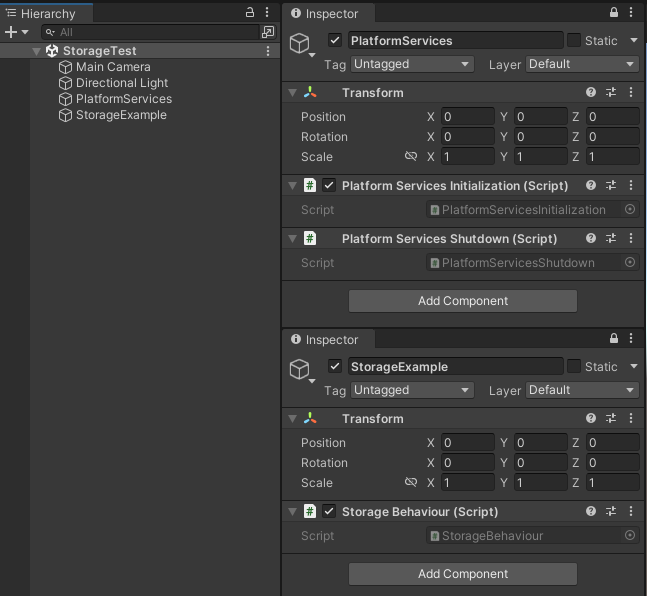
- Update the
StorageBehaviourclass to look like the following:using System; using System.Threading.Tasks; using Unity.Cloud.Identity; using UnityEngine; public class StorageBehaviour : MonoBehaviour { // The authenticator responsible for user login ICompositeAuthenticator m_CompositeAuthenticator; bool m_HasAttemptedLogin; void Start() { // Register to get notified of the login state after the authenticator has initialized m_CompositeAuthenticator = PlatformServices.CompositeAuthenticator; m_CompositeAuthenticator.AuthenticationStateChanged += ApplyAuthenticationState; // Apply the initial state for the authenticator ApplyAuthenticationState(m_CompositeAuthenticator.AuthenticationState); } void ApplyAuthenticationState(AuthenticationState newAuthenticationState) { switch (newAuthenticationState) { case AuthenticationState.LoggedIn: // If the user is logged in, initialize the repository m_CompositeAuthenticator.AuthenticationStateChanged -= ApplyAuthenticationState; _ = RunExamples(); break; case AuthenticationState.LoggedOut: // If the user is logged out, attempt to automatically login // Set a flag to ensure we only attempt an auto-login once if (!m_HasAttemptedLogin) { m_HasAttemptedLogin = true; _ = m_CompositeAuthenticator.LoginAsync(); } else { // Unregister if login attempt failed m_CompositeAuthenticator.AuthenticationStateChanged -= ApplyAuthenticationState; } break; } } async Task RunExamples() { // Logs you out after running the examples if (PlatformServices.CompositeAuthenticator.RequiresGUI) await PlatformServices.CompositeAuthenticator.LogoutAsync(); } }
Note: The code sample above automatically logs you in. You can associate the login call with the UI for a better user experience. See the Storage sample page for a UI-driven login and scene selection.
Manage workspaces
Create a CloudWorkspaceRepository
To create a CloudWorkspaceRepository, update the StorageBehaviour class to look like the following:
using System;
using System.Threading.Tasks;
using Unity.Cloud.Identity;
using UnityEngine;

public class StorageBehaviour : MonoBehaviour
{
    // The workspace repository retrieves, creates, edits, and removes workspaces from storage
    IWorkspaceRepository m_WorkspaceRepository;

    // The authenticator responsible for user login
    ICompositeAuthenticator m_CompositeAuthenticator;
    bool m_HasAttemptedLogin;

    void Start()
    {
        // Get the reference to workspace repository
        m_WorkspaceRepository = new CloudWorkspaceRepository(PlatformServices.ServiceHttpClient, PlatformServices.ServiceHostResolver);

        // Register to get notified of the login state after the authenticator has initialized
        m_CompositeAuthenticator = PlatformServices.CompositeAuthenticator;
        m_CompositeAuthenticator.AuthenticationStateChanged += ApplyAuthenticationState;

        // Apply the initial state for the authenticator
        ApplyAuthenticationState(m_CompositeAuthenticator.AuthenticationState);
    }

    void ApplyAuthenticationState(AuthenticationState newAuthenticationState)
    {
        switch (newAuthenticationState)
        {
            case AuthenticationState.LoggedIn:
                // If the user is logged in, initialize the repository
                m_CompositeAuthenticator.AuthenticationStateChanged -= ApplyAuthenticationState;
                _ = RunExamples();
                break;
            case AuthenticationState.LoggedOut:
                // If the user is logged out, attempt to automatically login
                // Set a flag to ensure we only attempt an auto-login once
                if (!m_HasAttemptedLogin)
                {
                    m_HasAttemptedLogin = true;
                    _ = m_CompositeAuthenticator.LoginAsync();
                }
                else
                {
                    // Unregister if login attempt failed
                    m_CompositeAuthenticator.AuthenticationStateChanged -= ApplyAuthenticationState;
                }
                break;
        }
    }

    async Task RunExamples()
    {
        // Logs you out after running the examples
        if (PlatformServices.CompositeAuthenticator.RequiresGUI)
            await PlatformServices.CompositeAuthenticator.LogoutAsync();
    }
}
Create WorkspaceExamples script
- In your Unity project window, go to Assets > Scripts.
- If the folder doesn't already exist, create an
Assets/Scriptsfolder. - Right-click the
Assets/Scriptsfolder and go to Create > C# Script. Name your scriptWorkspaceExamples.
"Create workspace" example
- Update the
WorkspaceExamplesclass to look like the following:using System; using System.Threading.Tasks; using Unity.Cloud.Common; using Unity.Cloud.Identity; using UnityEngine; class WorkspaceExamples { //Required to create and filter workspaces readonly OrganizationInfo m_Organization; // The workspace repository retrieves, creates, edits, and removes workspaces from storage readonly IWorkspaceRepository m_WorkspaceRepository; public WorkspaceExamples(IWorkspaceRepository workspaceRepository, OrganizationInfo organization) { m_Organization = organization; m_WorkspaceRepository = workspaceRepository; } public async Task RunWorkspacesExamples() { await CreateWorkspaceExample(); } async Task CreateWorkspaceExample() { Debug.Log($"Create workspace example:"); // Creates a workspace in the repository and waits for the created workspace. var createdWorkspace = await CreateWorkspace("CreateWorkspaceExample"); if (createdWorkspace != null) { // Outputs the created workspace information Debug.Log($"Created Workspace ID: {createdWorkspace.Id}, Created Workspace Name: {createdWorkspace.Name}"); // Fetches an existing workspace using that existing workspace's ID var fetchedWorkspace = await m_WorkspaceRepository.GetWorkspaceAsync(createdWorkspace.Id); // Outputs the created workspace information Debug.Log($"Fetched Workspace ID: {fetchedWorkspace.Id}, Fetched Workspace Name: {fetchedWorkspace.Name}"); } } async Task<IWorkspace> CreateWorkspace(string name) { IWorkspace createdWorkspace = null; if (m_Organization != null) { var workspaceCreation = new WorkspaceCreation() { Name = name, OrgId = m_Organization.Id }; // Sends the request to the repository and waits for the created workspace. try { createdWorkspace = await m_WorkspaceRepository.CreateWorkspaceAsync(workspaceCreation); } catch (ServiceException exception) { var message = exception.StatusCode switch { System.Net.HttpStatusCode.Conflict => $"A workspace {name} already exists in Organization {m_Organization.Name}.", _ =>$"Request was rejected by the service: {exception.StatusCode}" }; Debug.LogWarning(message); } } return createdWorkspace; } } - Update the
StorageBehaviourclass to look like the following:using System; using System.Threading.Tasks; using Unity.Cloud.Identity; using UnityEngine; public class StorageBehaviour : MonoBehaviour { const string k_OrganizationName = "<enter-organization-name-here>"; // The workspace repository retrieves, creates, edits, and removes workspaces from storage IWorkspaceRepository m_WorkspaceRepository; // The authenticator responsible for user login ICompositeAuthenticator m_CompositeAuthenticator; bool m_HasAttemptedLogin; void Start() { // Get the reference to workspace repository m_WorkspaceRepository = new CloudWorkspaceRepository(PlatformServices.ServiceHttpClient, PlatformServices.ServiceHostResolver); // Register to get notified of the login state after the authenticator has initialized m_CompositeAuthenticator = PlatformServices.CompositeAuthenticator; m_CompositeAuthenticator.AuthenticationStateChanged += ApplyAuthenticationState; // Apply the initial state for the authenticator ApplyAuthenticationState(m_CompositeAuthenticator.AuthenticationState); } void ApplyAuthenticationState(AuthenticationState newAuthenticationState) { switch (newAuthenticationState) { case AuthenticationState.LoggedIn: // If the user is logged in, initialize the repository m_CompositeAuthenticator.AuthenticationStateChanged -= ApplyAuthenticationState; _ = RunExamples(); break; case AuthenticationState.LoggedOut: // If the user is logged out, attempt to automatically login // Set a flag to ensure we only attempt an auto-login once if (!m_HasAttemptedLogin) { m_HasAttemptedLogin = true; _ = m_CompositeAuthenticator.LoginAsync(); } else { // Unregister if login attempt failed m_CompositeAuthenticator.AuthenticationStateChanged -= ApplyAuthenticationState; } break; } } async Task RunExamples() { var userProvider = PlatformServices.UserInfoProvider; var user = await userProvider.GetUserInfoAsync(); var organization = user.Organizations.Find(x => x.Name == k_OrganizationName); if (organization != null) { var workspaceExamples = new WorkspaceExamples(m_WorkspaceRepository, organization); await workspaceExamples.RunWorkspacesExamples(); } else { Debug.Log($"Organization {k_OrganizationName} was not found. Try different organization name"); } // Logs you out after running the examples if (PlatformServices.CompositeAuthenticator.RequiresGUI) await PlatformServices.CompositeAuthenticator.LogoutAsync(); } } - Paste your organization name into the
stringnamedk_OrganizationName. You can find your organization name in Digital Twin Dashboard (See Get started).
"List workspaces" example
To add List workspaces example, add following code to your WorkspaceExamples class:
async Task ListWorkspacesExample()
{
    Debug.Log($"<color=green>List workspaces example:</color>");
    // Requests the specified range of workspaces in a form of asynchronious collection.
    // For example, Range.All will return all workspaces available, while Range(0, 10) will return the first 10, if exist.
    var workspaces = m_WorkspaceRepository.ListWorkspacesAsync(Range.All);

    // Outputs the fetched workspaces information
    Debug.Log($"Fetched workspaces:");
    await foreach (var workspace in workspaces)
    {
        Debug.Log($"Workspace ID: {workspace.Id}, workspace Name: {workspace.Name}");
    }
}
"Delete workspace" example
To add Delete workspace example, add following code to your WorkspaceExamples class:
async Task DeleteWorkspaceExample()
{
    Debug.Log($"<color=green>Delete workspace example:</color>");

    var workspace = await GetOrCreateWorkspace("Delete Workspace Example");

    // Outputs the count of available workspaces in the repository
    Debug.Log($"Workspaces count: {await m_WorkspaceRepository.GetWorkspacesCountAsync()}");
    await m_WorkspaceRepository.DeleteWorkspaceAsync(workspace.Id);
    Debug.Log($"Workspace {workspace.Name} was deleted!");
    Debug.Log($"Workspaces count: {await m_WorkspaceRepository.GetWorkspacesCountAsync()}");
}

public async Task<IWorkspace> GetOrCreateWorkspace(string name)
{
    IWorkspace result = null;
    if (m_Organization != null)
    {
        var workspaces = m_WorkspaceRepository.ListWorkspacesAsync(Range.All);
        await foreach (var workspace in workspaces)
        {
            if (workspace.OrgId == m_Organization.Id && workspace.Name == name)
            {
                result = workspace;
                break;
            }
        }

        //If the workspace does not exist
        if (result == null)
            result = await CreateWorkspace(name);
    }
    return result;
}
"Workspace metadata" example
To add Workspace metadata example, add following code to your WorkspaceExamples class:
[Serializable]
class WorkspaceMetadata
{
    public int Value;
    public string String;
}

async Task WorkspaceMetadataExample()
{
    Debug.Log($"<color=green>Workspace metadata example:</color>");

    var workspace = await GetOrCreateWorkspace("Workspace Metadata Example");

    // Creates an instance of metadata
    var metadataObject = new WorkspaceMetadata()
    {
        Value = 10,
        String = "metadata string"
    };

    //It is recommended to have a metadata set per application, rather than a plain list of <key-value> pairs.
    //The metadata can be a single string or a Json-serializable object.
    var metadataKey = "StorageExamples";
    await workspace.AddOrUpdateMetadataAsync(metadataKey, metadataObject);

    // Outputs the created workspace information
    var readMetadataObject = workspace.Metadata[metadataKey].GetAs<WorkspaceMetadata>();
    Debug.Log($"Metadata of the Workspace {workspace.Name}: Value: {readMetadataObject.Value}, String: {readMetadataObject.String}");

    await workspace.DeleteMetadataAsync(metadataKey);
    if (!workspace.Metadata.ContainsKey(metadataKey))
    {
        Debug.Log($"Metadata '{metadataKey}' was successfully deleted from the workspace {workspace.Name}");
    }
}
Run examples
- Replace
RunWorkspacesExamples()method in yourWorkspaceExamplesclass with following code:public async Task RunWorkspacesExamples() { await CreateWorkspaceExample(); await ListWorkspacesExample(); await DeleteWorkspaceExample(); await WorkspaceMetadataExample(); } - In Unity Editor, select Play.
- Check your console to confirm that you have successfully created, listed, and deleted workspaces as well as added, changed, and deleted metadata.