Get started
This section explains how to start using the Storage package.
The Storage package supports the following:
- Unity Editor
- Windows standalone
- WebGL
- Android
- Linux
- macOS
- iOS
To use the Storage package, do the following:
- Set up an application identifier in your project.
- Create a Unity Cloud scene from the portal.
Set up an application identifier in your project
Refer to the Get Started page of the Identity package documentation to set up an application identifier in your project.
Create a Unity Cloud scene from the portal
To create a Unity Cloud scene, follow these steps:
- Log into the Digital Twin Dashboard. A workspace is automatically created using your organization name.
- Select New to create.
- Add a name and select Create.
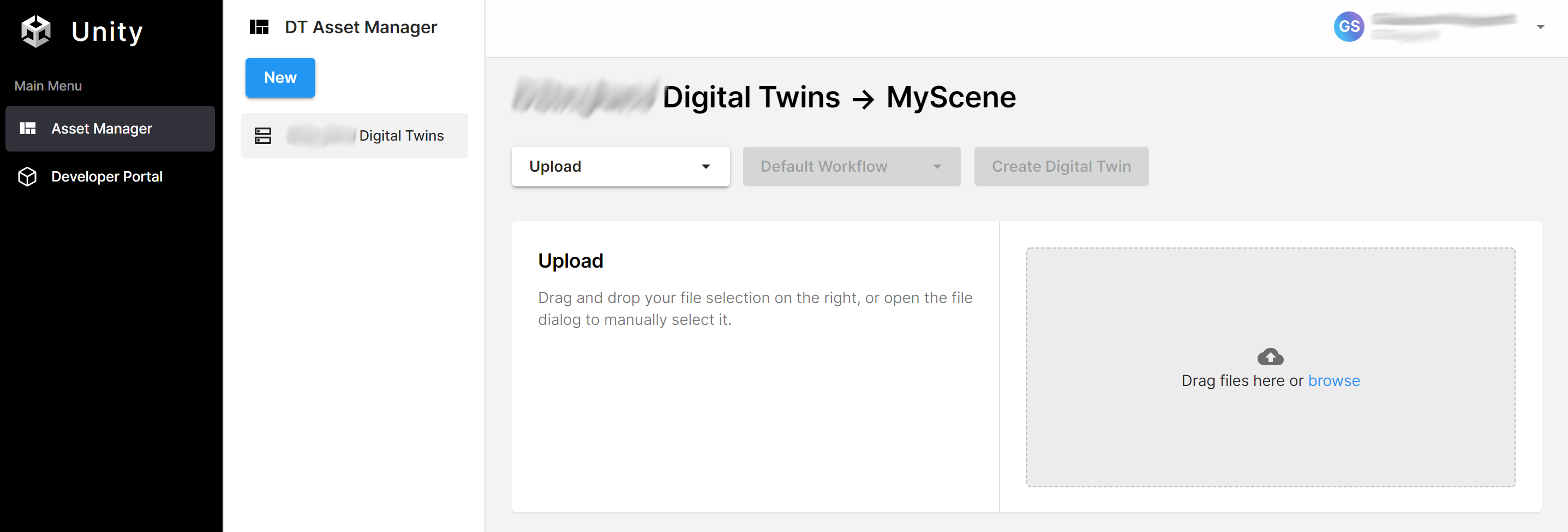
Upload a model file and select Create Digital Twin.
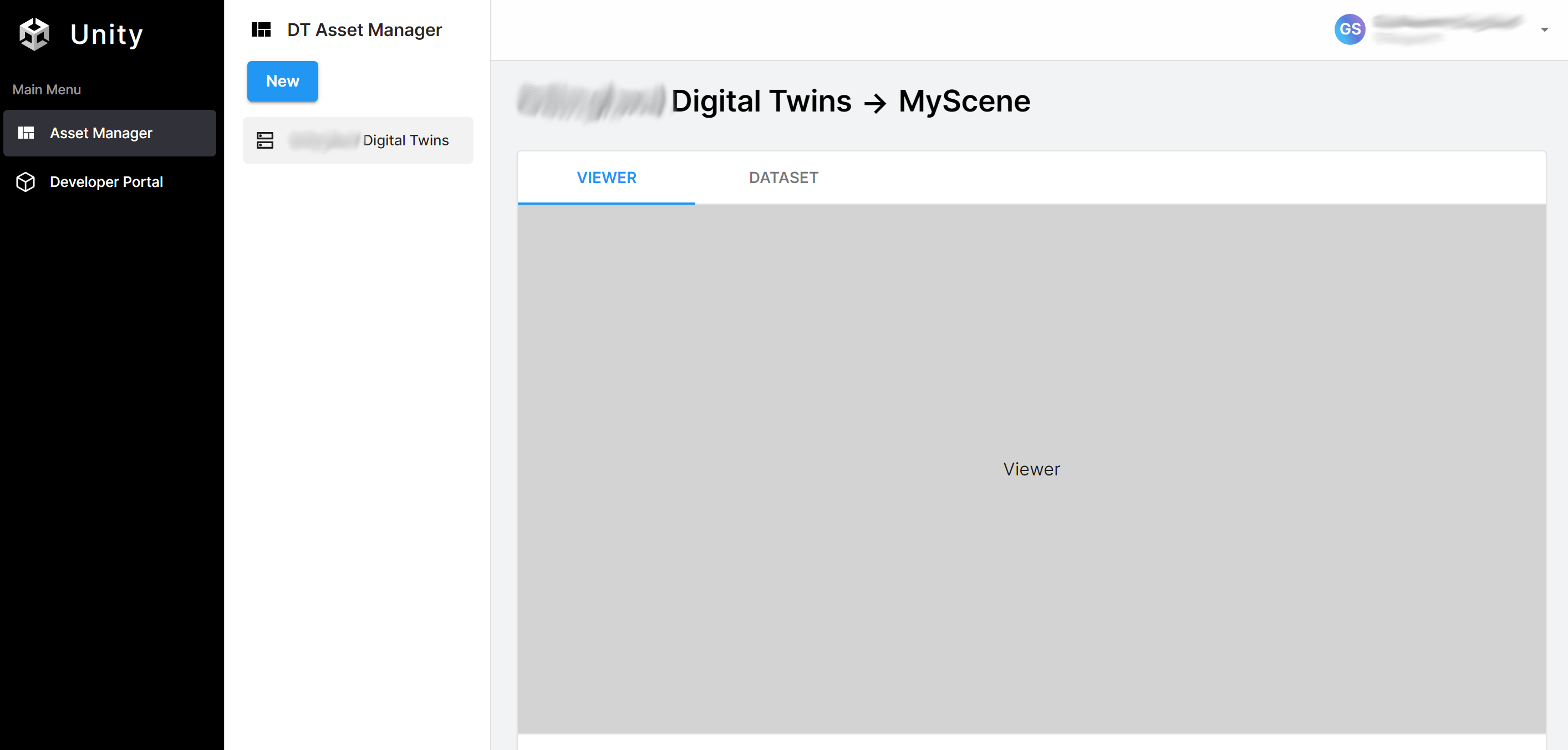
After the cloud processes the model, you are automatically moved to the scene's page. You can now access your workspace and scene from the Storage package.
Manage the package stripping level
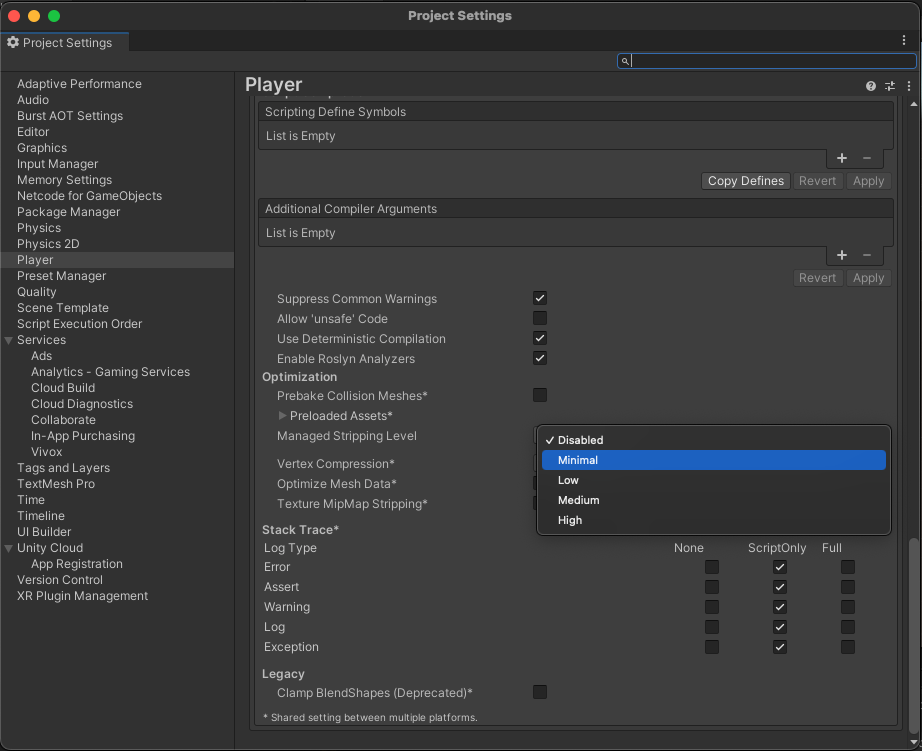
To avoid runtime errors when building with this package, follow these steps:
- In your Unity project window, go to Edit > Project settings.
The Project setting window opens. - Select the Player option.
- Scroll to the Additional Compiler Arguments section.
- Set the Managed stripping level option to:
- Disabled
or - Minimal (if the Disabled option isn't available)