Query Builder sample
The sample available as part of the Unity Metadata SDK demonstrates how to query entity/geometric metadata inside scenes.
A typical example of audience for this guide is the developers who will use raycasting/object selection to select object to get the entity metadata. This can be valuable on its own, or a step towards enabling a visibility filter based off metadata.
Prerequisites
To use the Query Builder sample, you need the following:
- An installed Common package
- An installed Identity package
- An installed Storage package
- An installed Data-Streaming package
- A valid Unity ID
- At least one scene (associated to your Unity ID) that contains metadata. Refer to Publishing metadata section for more information.
Installation
To install the sample, follow these steps:
- In your Unity project, go to Window > Package Manager > Metadata.
- Expand Samples and select Import beside the Query Builder sample.
After the import process completes, you can view the imported assets under the Assets/Samples/Cloud Metadata folder.
Run the sample
To run the sample, follow these steps:
- In your Unity project, go to File > Open Scene.
- Go to
Assets/Samples/Cloud Metadata/<package-version>/Query Builder Sample Scene/QueryBuilderSample.unityand run the scene. - In the Game view, select Login if you are logged out. > Note: If you've previously logged in, the sample automatically logs you in so you can proceed to step 6.
- Log into the browser window that launches with your Unity ID account.
- Return to the sample scene to confirm that you are logged in. The Workspace field lists the workspaces associated with your account.
- Select a workspace from the Workspace field.
- Select a scene from the Scene field.
- Select Launch Scene to download and view the associated scene. You can now query the metadata attached to the scene.
Selection
In this section, choose what to select and return in the query result.
You have three choices:
- Everything: Every owner returned will have its whole metadata content attached.
- Only Id: There will be no metadata content, only the owner's id will be in the result.
- Specific Key(s): The metadata will only have the keys you have selected in the following section.
Keys
When you select Specific Key(s) from the previous section, this section will appear and start loading all possible root keys in your scene. You can then select every keys you want in the query result.
Note: When proceeding with specific keys, if an owner doesn't contain the key, it will appear as empty in the result.
In
In this section, you choose in what entities the query will fetch the metadata from.
You have two choices:
- Every Scene's Instances: The query applies on every instances in the scene. > Note: Be careful when selecting this option when your scene contains a lot of geometric entities as this can cause performance issues.
- Specific Id(s): The query applies only on a selected subset of the scene instances.
Ids
When you select Specific Id(s) from the previous section, the section appears and starts loading the instances ids in the current scene. You can then select the wanted subset of instances you want the metadata from.
Note: As of now, the amount of ids in this section is limited to 200 to prevent memory and performance issues.
Where
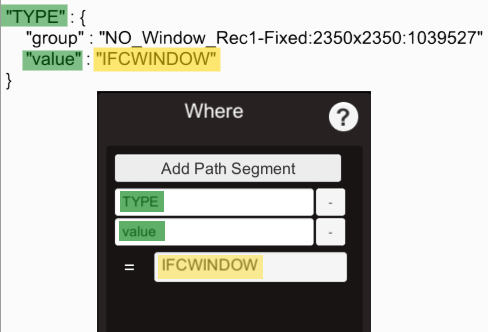
This section allows you to filter the instances, and list the ones that follow a specific condition. Leave all fields empty if you want no condition applied.
If you want to apply a "Where" condition, follow these steps:
- Use the Add Path Segment button to add as many segment there is in the JSON path toward the wanted value.
- In the last input, add the value that must be respected in the condition.
Note: All fields are case sensitive.
Fetching metadata
When all your choices for the query are made, select the Fetch Metadata button. The result of the query displays in the output section.
Publishing metadata
The metadata feature being quite new, most of your "old" scenes will not contain metadata by default. The dashboard is properly set up to populate metadata to all the new files that you will send through the dashboard.
To upload your file, see Unity Storage documentation for more information.
Troubleshooting
No metadata attached to the scene
If there's no metadata attached to your scene, it could be because the file was uploaded before the metadata feature was introduced in the default workflow. Make sure to re-upload your file into the dashboard.
Refer to Publishing metadata section for more information.