Runtime Loading
You can load a glTF™ asset from an URL or a file path.
Note
By default glTFs are loaded via UnityWebRequests. File paths thus have to be prefixed with file:// in the Unity Editor and on certain platforms (e.g. iOS).
Runtime Loading via Component
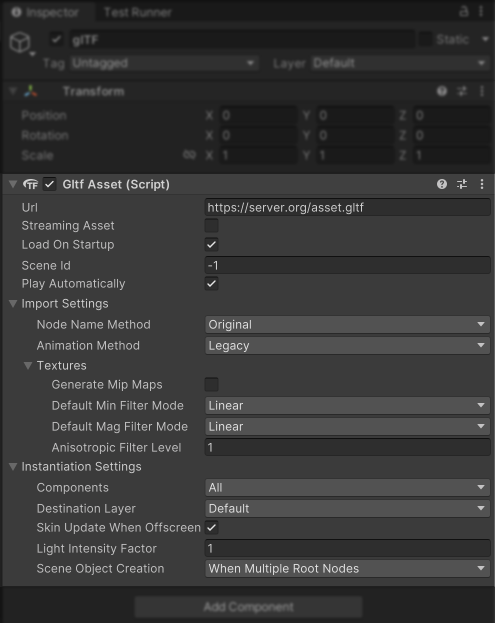
Add a GltfAsset component to a GameObject. It offers a lot of settings for import and instantiation.
Runtime Loading via Script
Conveniently you can re-use the GltfAsset component to load from script:
var gltf = gameObject.AddComponent<GltfAsset>();
gltf.Url = "https://raw.githubusercontent.com/KhronosGroup/glTF-Sample-Assets/main/Models/Duck/glTF/Duck.gltf";
To load from sources other than a URI or for advanced customization, loading is performed with these generalized steps:
- Create a GltfImport instance.
- Call one of the instance's loading methods, depending on your source.
- From URI, LoadAsync(Uri,…) or LoadAsync(string,…)
- From a buffer LoadAsync(NativeArray<byte>.ReadOnly,…)
- From a managed buffer LoadAsync(byte[],…)
- From a file path LoadFileAsync(string,…)
- From a glTF JSON string LoadGltfJsonAsync(string,…)
- From a Stream LoadStreamAsync(Stream,…)
- Instantiate one ore more scenes however often you need.
- The main scene InstantiateMainSceneAsync
- Or select one by index InstantiateSceneAsync
- Destroy your scene instances after they're no longer needed.
- Call Dispose on your GltfImport instance.
Both the loading and instantiation methods return a boolean value indicating if the procedure was successful.
Important
Loading/instantiation methods returning true merely indicates that no critical error occurred. That includes partially loaded scenes (e.g. a texture failed to load). To enforce stricter behavior one has to consider the log items in addition (see Logging).
Example: Load from byte array
public async Task LoadGltfFile(string filePath)
{
    var gltfDataAsByteArray = await File.ReadAllBytesAsync(filePath);
    var gltf = new GltfImport();
    var success = await gltf.LoadAsync(
        gltfDataAsByteArray,
        // The URI of the original data is important for resolving relative URIs within the glTF
        new Uri(filePath)
        );
    if (success)
    {
        await gltf.InstantiateMainSceneAsync(transform);
    }
}
Tip
Provide the original URI of glTF-binary file as uri parameter to LoadAsync, so that it is able to resolve relative URIs in non-self-contained glTFs.
Example: Load from NativeArray
Important
The buffer you pass to LoadAsync is not copied. It has to stay allocated and unmodified until the returned Task completed, because glTFast reads from it throughout loading, potentially from worker threads. When loading from a NativeArray<byte>.ReadOnly, you keep ownership of the underlying NativeArray<byte> and thus have to dispose of it after awaiting.
var data = new NativeArray<byte>(await File.ReadAllBytesAsync(filePath), Allocator.Persistent);
var gltf = new GltfImport();
var success = await gltf.LoadAsync(data.AsReadOnly(), new Uri(filePath));

// Loading completed, so the data is not accessed anymore and can be disposed of.
data.Dispose();

if (success)
{
    await gltf.InstantiateMainSceneAsync(transform);
}
Disposing of the data earlier results in undefined behavior (a safety check exception in the Unity Editor, invalid reads otherwise). Do not do this:
var data = new NativeArray<byte>(await File.ReadAllBytesAsync(filePath), Allocator.Persistent);
var gltf = new GltfImport();
var loadTask = gltf.LoadAsync(data.AsReadOnly(), new Uri(filePath));

// Invalid: Loading is still in progress and reads from the data.
data.Dispose();

await loadTask;
Customize loading behavior
Loading via script allows you to:
- Custom download or file loading behavior (see
IDownloadProvider) - Customize loading behavior (like texture settings) via
ImportSettings - Custom material generation (see
IMaterialGenerator]) - Customize instantiation
- Load glTF once and instantiate its scenes many times (see example below)
- Access data of glTF scene (for example get material; see example below)
- Logging allows reacting to and communicating incidents during loading and instantiation
- Tweak and optimize loading performance
Import Settings
All GltfImport.LoadAsync overloads accept an optional instance of ImportSettings as parameter. Have a look at this class to see all options available. Here's an example usage:
var gltf = new GltfImport();

// Create a settings object and configure it accordingly
var settings = new ImportSettings
{
    GenerateMipMaps = true,
    AnisotropicFilterLevel = 3,
    NodeNameMethod = NameImportMethod.OriginalUnique
};
// Load the glTF and pass along the settings
var success = await gltf.LoadAsync(filePath, settings);

if (success)
{
    var gameObject = new GameObject("glTF");
    await gltf.InstantiateMainSceneAsync(gameObject.transform);
}
else
{
    Debug.LogError("Loading glTF failed!");
}
Custom Post-Loading Behavior
The async LoadAsync method can be awaited and followed up by custom behavior.
// First step: load glTF
var gltf = new Unity.Cloud.Gltfast.GltfImport();
var success = await gltf.LoadAsync(filePath);

if (success)
{
    // Here you can customize the post-loading behavior

    // Get the first material
    var material = gltf.GetMaterial();
    Debug.LogFormat("The first material is called {0}", material.name);

    // Instantiate the glTF's main scene
    await gltf.InstantiateMainSceneAsync(new GameObject("Instance 1").transform);
    // Instantiate the glTF's main scene
    await gltf.InstantiateMainSceneAsync(new GameObject("Instance 2").transform);

    // Instantiate each of the glTF's scenes
    for (var sceneId = 0; sceneId < gltf.SceneCount; sceneId++)
    {
        await gltf.InstantiateSceneAsync(transform, sceneId);
    }
}
else
{
    Debug.LogError("Loading glTF failed!");
}
Reading Buffer Data
IGltfBufferData provides read access to a glTF asset's buffer view and accessor data, for example to run your own analysis or feed a Burst job.
Buffer data comes with a lease: the import keeps its buffers alive until every lease is disposed. Buffer data only exists while an import is running, so the entry point is the IBufferDataConsumer add-on hook, which is called once every buffer is loaded and before the import converts that data into Unity resources.
/// <summary>
/// Sums up every vertex position of a glTF asset, straight from its buffers.
/// </summary>
class PositionSumAddon : ImportAddonInstance, IBufferDataConsumer
{
    GltfImport m_GltfImport;

    public Vector3 Sum { get; private set; }

    public Task<bool> ConsumeBufferDataAsync(IGltfBufferData bufferData, CancellationToken cancellationToken)
    {
        var root = m_GltfImport.Root;
        if (root.Accessors == null)
        {
            return Task.FromResult(true);
        }

        var sum = Vector3.zero;
        for (var accessorIndex = 0; accessorIndex < root.Accessors.Count; accessorIndex++)
        {
            var accessor = root.Accessors[accessorIndex];

            // The accessor describes the data; the buffer data provides it. Only ask for a type
            // that matches, otherwise the request reports a TypeMismatch.
            if (accessor.ComponentType != AccessorDataType.Float
                || accessor.Type != AccessorType.Vector3)
            {
                continue;
            }

            // Vertex data is usually interleaved, so ask for a strided view. It serves tightly
            // packed data just as well, whereas GetAccessorData reports StridedUnsupported for
            // anything interleaved.
            var status = bufferData.GetStridedAccessorData<Vector3>(accessorIndex, out var values);
            if (status != BufferAccessStatus.Success)
            {
                // For example SparseUnsupported, or IndexOutOfRange for a malformed asset.
                Debug.LogWarning($"Accessor {accessorIndex} is unavailable: {status}");
                continue;
            }

            for (var i = 0; i < values.Length; i++)
            {
                // Values are in glTF's coordinate system. No conversion was applied.
                sum += values[i];
            }
        }

        Sum = sum;

        // Returning false here would abort the import.
        return Task.FromResult(true);
    }

    public override void Inject(GltfImport gltfImport)
    {
        m_GltfImport = gltfImport;
        gltfImport.AddImportAddonInstance(this);
    }

    public override bool SupportsGltfExtension(string extensionName) => false;
    public override void Inject(IInstantiator instantiator) { }
    public override void Dispose() { }
}
Inject the add-on before loading:
public static async Task<Vector3> SumPositionsAsync(string filePath)
{
    using var gltf = new GltfImport();

    // Buffer data only exists while the import is running, so read it from an add-on.
    var addon = new PositionSumAddon();
    addon.Inject(gltf);

    return await gltf.LoadAsync(filePath)
        ? addon.Sum
        : Vector3.zero;
}
The lease handed to the hook is disposed as soon as the hook returns. To keep reading after the import finished, lease your own via GltfImport.LeaseBufferData and dispose it when done:
/// <summary>
/// Keeps a glTF asset's buffer data readable after the import completed, by holding a
/// lease of its own.
/// </summary>
class BufferRetainingAddon : ImportAddonInstance, IBufferDataConsumer
{
    GltfImport m_GltfImport;

    public IGltfBufferData Lease { get; private set; }

    public Task<bool> ConsumeBufferDataAsync(
        IGltfBufferData bufferData,
        CancellationToken cancellationToken
        )
    {
        // The lease passed in is disposed once this returns. Leasing another one keeps
        // the buffer memory alive until that one is disposed.
        Lease = m_GltfImport.LeaseBufferData();
        return Task.FromResult(true);
    }

    public override void Inject(GltfImport gltfImport)
    {
        m_GltfImport = gltfImport;
        gltfImport.AddImportAddonInstance(this);
    }

    public override bool SupportsGltfExtension(string extensionName) => false;
    public override void Inject(IInstantiator instantiator) { }
    public override void Dispose() => Lease?.Dispose();
}

public static async Task<int> BufferViewSizeAfterImportAsync(string filePath, int bufferViewIndex)
{
    using var gltf = new GltfImport();
    var addon = new BufferRetainingAddon();
    addon.Inject(gltf);

    if (!await gltf.LoadAsync(filePath))
    {
        return 0;
    }

    // The import is done, but the retained lease still provides the data. Without it,
    // this would report BufferUnavailable.
    using var bufferData = addon.Lease;
    return bufferData.GetBufferView(bufferViewIndex, out var data, out _) == BufferAccessStatus.Success
        ? data.Length
        : 0;
}
Data is provided in glTF's own coordinate system and value range. No conversion, normalization or coordinate flip is applied — use ComponentType, Type and Normalized on the Accessor to interpret it. Sparse accessors are not provided.
Use it from the main thread. The containers it provides may be read from C# jobs and from threads of your own, for as long as the lease has not been disposed. The hook is called on the main thread and has to return on it, so schedule jobs or start threads in between when the work is heavy.
Add-ons implementing the hook are invoked in unspecified order and potentially concurrently, so do not assume yours is the only one running, or that it runs before or after another. The glTF asset is read-only there: allocate and create resources of your own freely, but do not modify the Root, any glTF object or any buffer data.
Instantiation
Creating actual GameObjects (or Entities) from the imported data (nodes, meshes, materials) is called instantiation.
You can customize it by providing an implementation of IInstantiator (see source and the reference implementation GameObjectInstantiator for details).
Inject your custom instantiation like so
public class YourCustomInstantiator : Unity.Cloud.Gltfast.IInstantiator {
  // Your code here
}
…

  // In your custom post-loading script, use it like this
  bool success = await gltfAsset.InstantiateMainSceneAsync( new YourCustomInstantiator() );
GameObjectInstantiator Setup
The GameObjectInstantiator accepts InstantiationSettings) via the constructor's settings parameter.
SkinUpdateWhenOffscreen
Meshes that are skinned or have morph targets and are animated might move way outside their initial bounding box and thus break the culling. To prevent this the SkinnedMeshRenderer's Update When Offscreen property is enabled by default. This comes at a runtime performance cost (see Determining a GameObject’s visibility from the documentation).
You can disable this by setting SkinUpdateWhenOffscreen to false.
Layer
Instantiated GameObjects will be assigned to this layer.
Mask
Allows you to filter components based on types (e.g. Meshes, Animation, Cameras or Lights).
LightIntensityFactor
Whenever glTF lights appear too bright or dim, you can use this setting to adjust their intensity, which are multiplied by this factor.
Two common use-cases are
- Scale-down (physically correct) intensities to compensate for the missing exposure control (or high sensitivity) of a render pipeline (e.g. Universal or Built-in Render Pipeline)
- Boost implausibly low light intensities
See Physical Light Units in glTF for a detailed explanation.
SceneObjectCreation
Determines whether a dedicated GameObject/Entity representing the scene should get created (or the provided root Transform is used as scene root; see SceneObjectCreation).
Always: Create a dedicated scene root GameObject/EntityNever: Always use the providedTransformas scene root.WhenMultipleRootNodes: Create a scene object only if there is more than one root level node.
Instance Access
After a glTF scene was instanced, you can access selected components for further adjustments. Some of those are:
- Animation
- Cameras
- Lights
GameObjectInstantiator provides a SceneInstance for that purpose. Here's some code that demonstrates how to access it
var gltfImport = new GltfImport();
await gltfImport.LoadAsync(filePath);
var instantiator = new GameObjectInstantiator(gltfImport, transform);
var success = await gltfImport.InstantiateMainSceneAsync(instantiator);
if (success)
{
    // Get the SceneInstance to access the instance's properties
    var sceneInstance = instantiator.SceneInstance;

    // Enable the first imported camera (which are disabled by default)
    if (sceneInstance.Cameras is { Count: > 0 })
    {
        sceneInstance.Cameras[0].enabled = true;
    }

    // Decrease lights' ranges
    if (sceneInstance.Lights != null)
    {
        foreach (var gltfLight in sceneInstance.Lights)
        {
            gltfLight.range *= 0.1f;
        }
    }

    // Play the default (i.e. the first) animation clip
    var legacyAnimation = instantiator.SceneInstance.LegacyAnimation;
    if (legacyAnimation is not null)
    {
        legacyAnimation.Play();
    }
}
Logging
When loading a glTF file, Unity glTFast logs messages of varying severity (errors, warnings or infos). Developers can choose what to make of those log messages. Examples:
- Log to console in readable form
- React to non-critical errors (like an image texture failed to load) in a nuanced way
- Feed the information into an analytics framework
- Display details to the users
The GltfAsset component logs all of those messages to the console by default.
You can customize logging by providing an implementation of ICodeLogger to the constructors of GltfImport or GameObjectInstantiator.
Important
Not providing an ICodeLogger will disable logging altogether, which makes finding the cause of problems hard! Always use a logger like the ConsoleLogger during development.
There are two common implementations bundled. The ConsoleLogger, which logs straight to console and CollectingLogger, which stores messages in a list for users to process.
Look into ICodeLogger and LogMessages for details.
Tune loading performance
When loading glTFs, Unity glTFast let's you optimize towards one of two diametrical goals
- A stable frame rate
- Fastest loading time
By default each GltfAsset instance tries not to block the main thread for longer than a certain time budget and defer the remaining loading process to the next frame / game loop iteration.
If you load many glTF files at once, by default they won't be aware of each other and collectively might block the main game loop for too long.
You can solve this by using a common "defer agent". It decides if work should continue right now or at the next game loop iteration. Unity glTFast comes with two defer agents
TimeBudgetPerFrameDeferAgentfor stable frame rateUninterruptedDeferAgentfor fastest, uninterrupted loading
The recommended way is to set a global default defer agent. The easiest way to do this is to add the prefab Runtime/Prefabs/glTF-StableFramerate.prefab to your entrance scene. You can change the FrameBudget value of its TimeBudgetPerFrameDeferAgent component to tweak performance to your needs. An alternative for fastest loading is the prefab in Runtime/Prefabs/glTF-FastestLoading.prefab.
You can accomplish the same from script by calling GltfImport.SetDefaultDeferAgent (and UnsetDefaultDeferAgent, respectively).
For most granular control, you can pass a custom defer agent to each individual GltfImport instance:
// Recommended: Use a common defer agent across multiple GltfImport instances!
// TimeBudgetPerFrameDeferAgent for a stable frame rate:
IDeferAgent deferAgent = gameObject.AddComponent<TimeBudgetPerFrameDeferAgent>();
// Or alternatively, UninterruptedDeferAgent for low latency loading:
deferAgent = new UninterruptedDeferAgent();

var tasks = new List<Task>();

foreach (var url in manyUrls)
{
    var gltf = new GltfImport(null, deferAgent);
    var task = gltf.LoadAsync(url).ContinueWith(
        async t =>
        {
            if (t.Result)
            {
                await gltf.InstantiateMainSceneAsync(transform);
            }
        },
        TaskScheduler.FromCurrentSynchronizationContext()
    );
    tasks.Add(task);
}

await Task.WhenAll(tasks);
Note
Depending on your glTF scene, using the UninterruptedDeferAgent may block the main thread for up to multiple seconds. Be sure to not do this during critical game play action.
Using the TimeBudgetPerFrameDeferAgent does not guarantee a stutter free frame rate. This is because some sub tasks of the loading routine (like uploading a texture to the GPU) may take too long, cannot be interrupted and have to be done on the main thread.
Disposing Resources
When you no longer need a loaded instance of a glTF scene you might want to remove it and free up all its resources (mainly memory). For that purpose GltfImport implements IDisposable. Calling GltfImport.Dispose will destroy all its resources, regardless whether there's still an instance that might references them.
Trademarks
Unity® is a registered trademark of Unity Technologies.
Khronos® is a registered trademark and glTF™ is a trademark of The Khronos Group Inc.