Test and validate skills
Confirm that Assistant discovers skills, parses them correctly, and activates them in conversations.
After you create a local skill, you can inspect it in the Unity Editor to verify that Assistant found it and parsed it successfully.
You can also confirm whether a skill activates during a conversation. When Assistant invokes a skill as part of its reasoning and actions, the Assistant conversation area shows the activation in the Thoughts section. This confirms that a skill is both loaded and used.
Prerequisites
Before you start, make sure you meet the following prerequisites:
- Install and set up Assistant.
- Create a local skill in a scanned location.
Open the skills settings
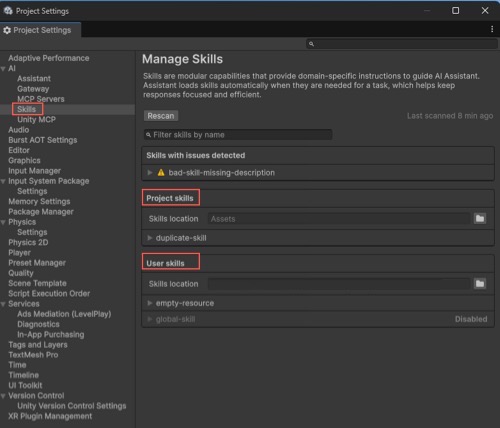
To access the skills settings, in the Unity Editor, select Edit > Project Settings > AI > Skills.
For more information on the Manage Skills page, refer to Manage Skills page reference.
Review loaded skill information
Use the Manage Skills page in Project Settings to verify that Assistant discovered your skills in the expected locations and reported their current status correctly.
The Manage Skills page groups the discovered skills into Project skills and User skills, and also lists skills with parsing or validation problems under Skills with issues detected.
Review discovered skills
To review discovered skills:
On the Manage Skills page, review the following groups:
Project skills for skills discovered in your current project.
User skills for skills stored in the user-level skills location on your device. You can share these skills across projects but they're only available on the device where they're stored.
If the user-level skills folder doesn't exist yet, in the User skills section, select Create user skills folder to create an empty folder for user-level skills.
Confirm that the Skills location field matches the folder you expect Assistant to scan.
Expand a skill entry to review it.
Check whether the skill is active or is marked as Disabled.
Review skills with issues
To review skills that failed validation or parsing:
Review the Skills with issues detected group.
Expand the affected skill entry to read the issue message.
Check the File location field to find the skill file that needs correction.
Correct the skill file and select Rescan.
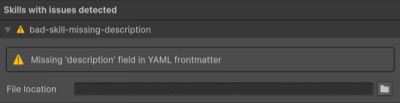
Issues can include:
- Empty skill files.
- Missing mandatory fields in the YAML frontmatter header, such as
nameordescription. - Incorrect YAML frontmatter formatting, such as missing
---.
Filter or rescan skills
To refresh or narrow the list of displayed skills:
- Use Filter skills by name to search for a specific skill.
- Select Rescan to scan the configured locations again and refresh the results.
- Review the Last scanned information to confirm when the most recent scan occurred.
If a skill appears on the Manage Skills page, it confirms that Assistant discovered it in a scanned location. If the skill appears under Skills with issues detected, Assistant found the file but might not use it successfully until you correct the reported problem.
Confirm skill activation in Assistant
Skill activation means that Assistant invokes a skill as part of its reasoning and actions.
To confirm that a skill activates:
Enter a prompt in Assistant to trigger the skill. For example, ask about the skill's content or referenced resources.
Check that the Assistant conversation area shows Activate Skill and a
skill_nameparameter with your skill's name.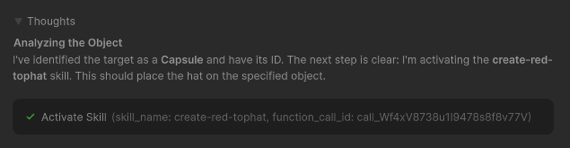
This confirms that Assistant selected the skill during the conversation.
Important
If you add or modify a skill, start a new Assistant conversation before you test it. Assistant sends the full skill definition to the model only when you submit the first prompt in a new conversation, so changes to a skill will not take effect in an existing conversation.
After you verify that the skill loads and activates, you can refine the instructions, supporting files, or static utility function references that the skill uses.