Use third‑party agents in Assistant
Change agents, choose models, and run provider‑specific commands in the Assistant conversation.
After you install and authenticate third-party agents, you can change agents, select a model exposed by an agent, and use its slash commands within the Unity Editor.
For initial setup and credentials, refer to Get started with AI Gateway.
Prerequisites
Before you start, make sure you meet the following prerequisites:
- Install or detect at least one agent through Assistant.
- Add the agent's API key in the Gateway window.
To work with agents in Assistant, follow these steps:
Open the Assistant window.
Select the agent selector and choose the agent you want to use.
The default agent is Unity.
If the agent isn’t installed or credentials are missing, use the banner link to install the agent or enter your API key.
Select the forward slash (/) button to open the model picker and slash menu.
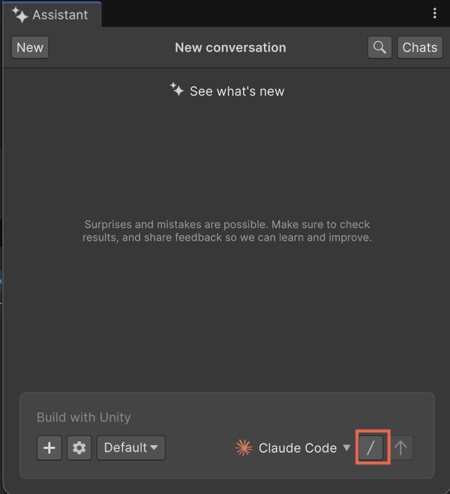
Select a model provided by the agent.
Available models vary by agent.
(Optional) From the slash (
/) menu, select a command. For example, /review or /init.You can also type the command directly in the text field. For example,
/review.Command availability and behavior vary by agent.
Submit your query.
When you send a message, Assistant routes it to the selected agent and displays the results in the same conversation.