Get started with AI Gateway
Set up a third-party agent and add credentials so Assistant can route prompts to your preferred provider.
After you connect an agent and add its API key, you can change agents in the Assistant window and use provider-specific models and commands.
Prerequisites
Before you start, make sure you meet the following prerequisites:
- Install the Assistant package and open your project in the Unity Editor.
- Decide which agent you want to use. For example, Claude Code, Gemini, or Codex.
- Check the agent prerequisites on your operating system (OS). For example, Claude Code on Windows requires Git Bash.
- Get an API key from the provider’s account portal.
Supported agent versions
AI Gateway supports the following agents and versions:
- Claude Code: 2.1.45 or later
- Cursor CLI: 2026.02.13 or later
- Codex CLI and Gemini CLI: Unity provides bundled versions. You can't choose which version AI Gateway uses.
Onboard an agent from Assistant
Use the agent selector in Assistant to detect or install an agent.
To select and install an agent, follow these steps:
Open the Assistant window in the Unity Editor.
From the agent selector list, select the agent you want to use. For example, Claude Code.
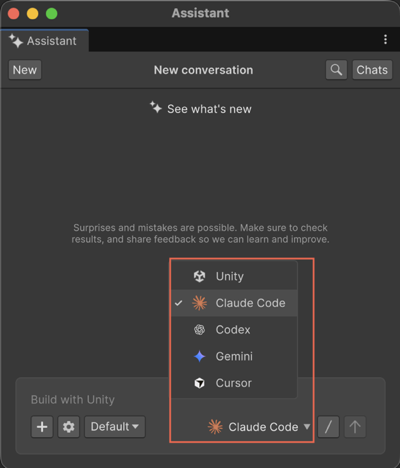
If the agent isn't found, Assistant displays a banner with a link to install the agent from internet.
Follow the instructions to install the agent.
After the agent is installed, do one of the following:
Add your API key in the AI Gateway installer window and select Save.
After the installer finishes, the agent is available in the Assistant agent selector. To choose models or use provider‑specific commands, refer to Use third‑party agents in Assistant.
Add the API key
Follow the instructions in this section to provide credentials after you install an agent, or when you change to an agent with missing credentials.
To add the API key, follow these steps:
When Assistant prompts you for missing credentials, select the link to open the Gateway window.
In the Unity Editor, you can also select Unity > Settings > Preferences > AI > Gateway.
The Gateway page opens.
From the Agent Type list, select the agent you want to use for your project. For example, Claude Code.
(Optional) If CLI Path is empty, select Browse and locate the agent’s executable on your machine.
To add environment variables, follow these steps:
- Expand Environment Variables.
- Select Add Variable.
- Enter the variables your agent needs. For example:
- Claude Code:
ANTHROPIC_API_KEY - Gemini CLI:
GEMINI_API_KEY
- Claude Code:
- Use the user interface (UI) controls to enable, disable, or delete a variable.
Assistant reloads the agent and resumes your session.
After you complete these steps, Assistant routes new prompts to the selected agent. If a banner appears stating that credentials are missing, return to the Gateway window to verify your settings.