Package dependency and resolution
When you work in the Package Manager window, you can install a package from several sources (a registry, a local folder or tarball, a Git URL, and by name). However, while the Package Manager installs packages from these sources seamlessly, it first has to make a series of calculations to decide which version to install. It also has to decide which other packages and versions to install to support the package you selected.
Direct dependencies
When you select a package version to install through the Package Manager window, you are adding a “dependency” to your project manifestEach Unity project has a project manifest, which acts as an entry point for the Package Manager. This file must be available in the <project>/Packages directory. The Package Manager uses it to configure many things, including a list of dependencies for that project, as well as any package repository to query for packages. More info
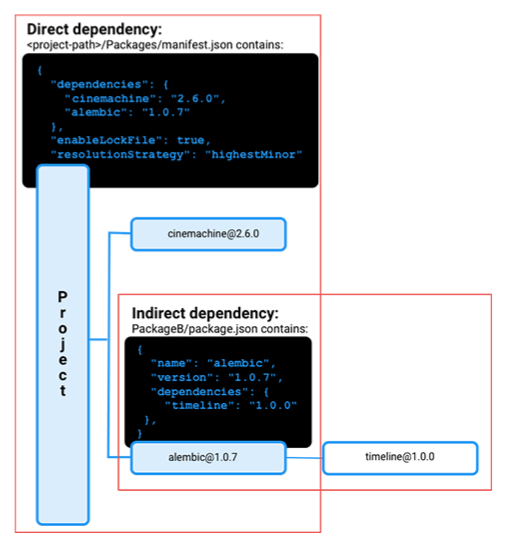
See in Glossary. This is a declaration that you need a specific version of a particular package in order for the project to work. To add a dependency to your project, you add a reference to the package and version in the form package-name@package-version to the dependencies property of the <project-root>/Packages/manifest.json file. These are called “direct” dependencies because your project directly depends on them.
Indirect dependencies
Packages can also require other packages to work. These are called “indirect” (or transitive) dependencies. The package developer adds these to the dependencies property of the package manifest file during development (<package-root>/package.json). For example, in the diagram below, the alembic@1.0.7 package has a dependency on the timeline@1.0.0 package, so the timeline package is an “indirect” dependency. Conversely, the project has dependencies on the cinemachine@2.6.0 and alembic@1.0.7 packages, so those are both “direct” dependencies.
Version overrides
When you add a package version as a dependency, that version isn’t necessarily the version that the Package Manager installs. The reason is because the Package Manager has to consider all dependencies in your project, whether direct or indirect. In the following example, the XR Plugin Management package requested was version 4.0.3. However, the Package Manager installed version 4.0.6 because another package depended on the higher version, as indicated in the information message (B):
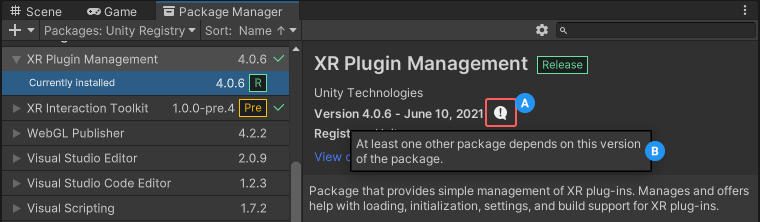
To force the Package Manager to use a specific version of a package of a direct dependency, you can set the pinnedPackages property in the project manifest file.
Dependency graph
The Package Manager can install only one package version at a time, so it has to construct a dependency graph. This graph is a list of every direct and indirect dependency for the project. The dependency graph determines which version of each package to install.
Lock file
When the Package Manager resolves all version conflicts, it saves the resolution in a lock file for two reasons:
- Determinism, to make sure that the same packages are reliably installed every time.
- Efficiency, to reduce the amount of time and resources it takes to compute the dependency graph again.
Package security settings and dependencies
Starting with Unity 6.7, Package Manager evaluates the signature status of every package in the dependency graph against the project’s Package security settings. The evaluation includes both direct and indirect dependencies. Package Manager evaluates each package independently based on its own signature status and signing organization. A package that’s an indirect dependency might be signed by a different organization than the package that requires it, and Package Manager evaluates the indirect dependency against the threshold separately.
Atomic installation and package security settings
Package Manager treats each installation operation as a single unit. If any package in the dependency graph (direct or indirect) doesn’t meet the project’s security threshold, Package Manager cancels the entire operation and installs nothing. For example, if you install 2 packages that depend on 3 other packages, and one of those packages fails the security check, Package Manager blocks all 5 packages from installing. Package Manager identifies which packages didn’t meet the threshold so you can decide how to proceed.
For more information, refer to Package security settings.