Introduction to scripting back ends
Scripting back end is the Unity term for the runtime technology that compiles and executes your C# scripts. It determines how your code is turned into executable instructions and what runtime manages it on target platforms.
The choice of a scripting back end can impact various aspects of your project, including:
- Build times and iteration speed.
- Runtime performance and memory.
- Platform support and requirements.
- Support for some .NET features such as reflection and dynamic code generation.
- Debugging and profiling experience.
Unity supports the following scripting back ends:
- CoreCLR: CoreCLR is the open-source, cross-platform .NET runtime maintained by the .NET Foundation as part of the modern .NET platform (the successor to .NET Core). It provides the execution engine, garbage collector, and Just-In-Time (JIT) compiler that power .NET applications across Windows, macOS, and Linux.
- IL2CPPA Unity-developed scripting back-end which you can use as an alternative to Mono when building projects for some platforms. More info
See in Glossary: A Unity-developed scripting back end that converts your C# code and assemblies into C++ code, which is then compiled using a platform-native C++ compiler to produce a binary file for the target platform. IL2CPP uses ahead-of-time (AOT) compilation to convert your code before runtime.
Platform support
CoreCLR is supported on the following platforms:
- Windows x86/x64/Arm64
- macOS Arm64
- Linux x64
IL2CPP is supported on all platforms.
Any platform not mentioned in the previous list of CoreCLR platforms is IL2CPP-only. On platforms that support multiple back ends, CoreCLR is the default.
Note: Scripting back end support can change between releases. For the latest information, refer to the platform-specific Player settings for your target platform and Unity version.
Changing the scripting back end
You can change the scripting back end Unity uses to build your application in one of two ways:
-
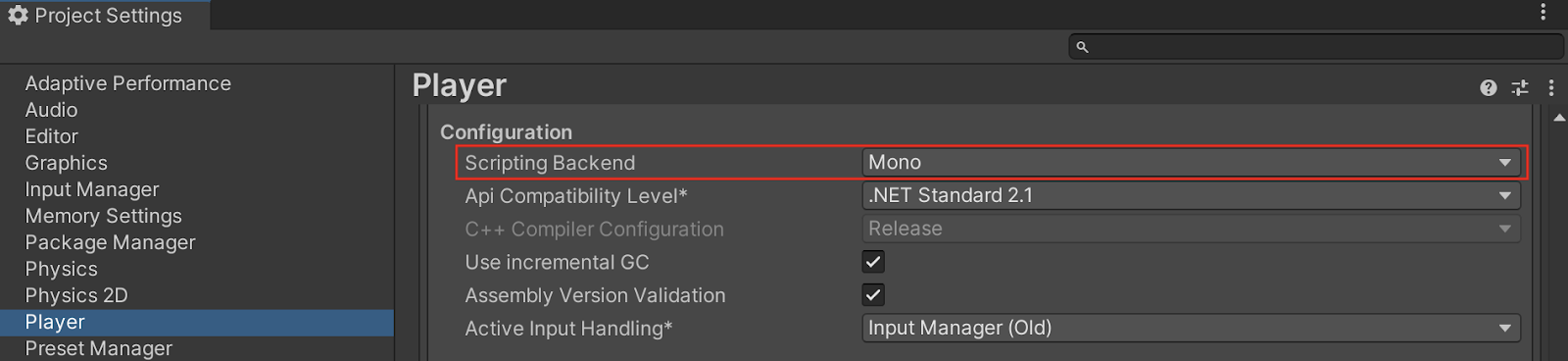
Through the Player Settings menu in the Editor. Perform the following steps to change the scripting back end through the Player Settings menu:
- Go to Edit > Project Settings.
- Click on the Player Settings button to open the Player settings for the current platform in the Inspector.
- Navigate to the Configuration section heading under the Other Settings sub-menu.
- Click on the Scripting Backend dropdown menu, then select IL2CPP, or CoreCLR.
You can also open the Player Settings menu from the Build Profiles window; go to File > Build Profiles and click on the Player Settings tab.
Through the Editor scripting API. Use the
PlayerSettings.SetScriptingBackendproperty to change the scripting back end that Unity uses.
Scripting backends comparison
CoreCLR uses its own base class library and garbage collector and only supports the .NET Standard API Compatibility level. IL2CPP shares CoreCLR’s base class library and supports the available API compatibility levels, though some restrictions specific to IL2CPP and certain AOT platforms apply. For more information, refer to IL2CPP restrictions.
The following table provides a side‑by‑side comparison of CoreCLR and IL2CPP scripting back ends across key features:
| Feature | CoreCLR | IL2CPP |
|---|---|---|
| Execution model | Just-in-time (JIT) with tiered compilation via RyuJIT. | Ahead-of-time (AOT): C# to IL to C++ to native code |
| Platforms | Windows, macOS, and Linux desktop platforms only. | Widest support and required for iOS and most consoles. |
| Cross‑compilation toolchain | Minimal; JIT compiles managed assemblies as needed. | Requires C++ toolchain (Clang/MSVC), platform SDKs; longer build/link times. For more information, refer to Linux IL2CPP cross-compiler. |
| Build time | Faster iteration, smaller linking steps. | Slower (C++ codegen, compiling, and linking), larger generated codebases. |
| Startup time | Typically slower with JIT (warmup, tiered JIT cost). | Typically faster (fully native, no JIT warmup). |
| Memory usage | Smaller code size with JIT; uses a modern, generational garbage collector. | Larger native binaries; additional generated C++ and metadata |
| Exception handling | Managed exceptions via the CoreCLR runtime. | Managed semantics mapped to native via IL2CPP runtime support. |
| Reflection | Full reflection works, dynamic codegen supported. | Reflection works for existing metadata, but dynamic codegen has limits. System.Reflection.Emit and dynamic methods not supported. |
| Generics | Full support, JIT can specialize at runtime. | AOT uses ahead‑of‑time generic sharing and IL2CPP might need additional AOT hints to avoid missing method or type errors at runtime. For more information, refer to Generic types and methods. |
| Code stripping/linker | Managed linker, easier to keep symbols due to JIT. | More aggressive stripping, must annotate or configure to preserve reflected or dynamically loaded members. Use a link.xml file or [Preserve] attribute to keep types and methods alive. For more information, refer to Managed code stripping. |
Interop (P/Invoke) |
Standard P/Invoke, runtime resolves at load. |
Standard P/Invoke, names must match because AOT/native binary linkage is stricter. For more information, refer to Calling managed methods from native code. |
| Debugging (C#) | Supports both mixed-mode (managed and native) and pure C# managed debugging with Visual Studio or Rider. For more information, refer to Debugging C# code in Unity. | Supported managed debugging, stack traces can be optionally enhanced. For more information, refer to IL2CPP managed stack traces. |
Note: Mono is not included in the previous table as it has been removed as a scripting backend in Unity 7
On platforms where you have a choice between IL2CPP and CoreCLR, prefer IL2CPP if Player builds need faster startup, stricter platform compliance, and more predictable performance. CoreCLR offers faster iteration in Editor and desktop development, faster build times, and is the only option if you need to use APIs not supported by IL2CPP.
Tip: Whichever scripting back end you choose, you can supplement it with the Burst compiler to compile select parts of your code to highly optimized native code. For more information, refer to Burst compilation.