Web native plug-ins for Emscripten
Unity uses the Emscripten compiler toolchain to cross-compile the Unity runtime code written in C and C++ into WebAssembly (also called Wasm). Emscripten generates small code, is load-time and memory efficient, and aims to deliver close to native speed execution.
Unity uses IL2CPPA Unity-developed scripting back-end which you can use as an alternative to Mono when building projects for some platforms. More info
See in Glossary to convert the .NET game code in your C# scripts to Wasm. IL2CPP takes .NET bytecode and converts it to corresponding C++ source files, which is then compiled using Emscripten to convert your scripts to Wasm.
Targeted versions
Unity bundles the Emscripten compiler with the Web platform package, so that you don’t have to manually download it. The version of Emscripten that the Unity Editor uses varies by Editor version:
| Unity Version | Emscripten version | Supported native plug-in file formats |
|---|---|---|
| Unity 6000.5 and later | Emscripten 4.0.19-unity | .a, .bc |
| Unity 2023.2 and later | Emscripten 3.1.38-unity | .a, .bc |
| Unity 2022.2 and later | Emscripten 3.1.8-unity | .a, .bc |
| Unity 2021.2 and later | Emscripten 2.0.19.6-unity | .a, .bc |
| Unity 2019.2 to 2021.1 | 1.38.11-unity | .bc |
| Unity 2018.4 up until Unity 2019.2 | 1.37.40-unity | .bc |
| Unity 2018.2 up until Unity 2018.4 | 1.37.33-unity | .bc |
Notes:
-
The following list provides expansion for the acronyms of file formats listed in the table:
- GNU archive file format (
.a) - WebAssembly Object Files (
.o) - LLVM Bitcode file format (
.bc)
- GNU archive file format (
With Emscripten versions before Emscripten 2.0, Unity recommends building
Bitcodeplug-ins (files of type.bc). From Emscripten 2.0 onwards, Unity recommends to buildWasm Object Fileplug-ins that are Wasm object files of type.o, bundled into GNU archive files of type.a.
You can determine the path to the exact version of Emscripten toolchain from the emscripten-version.txt located at:
C:\Program Files\Unity\Hub\Editor\<Editor version>\Editor\Data\PlaybackEngines\WebGLSupport\BuildTools\Emscripten\emscripten\emscripten-version.txt
Compile native plug-ins with Emscripten
If you’re creating native C/C++ plug-ins for your Unity application, you can either bundle the C/C++ code with your project (refer to Native plug-insA platform-specific native code library that is created outside of Unity for use in Unity. Allows you can access features like OS calls and third-party code libraries that would otherwise not be available to Unity. More info
See in Glossary) or build the native code to a plug-in archive ahead-of-time with the Emscripten compiler toolchain.
If you choose to build plug-in code in advance, use the Emscripten compiler toolchain. To ensure LLVM binary format compatibility, the version of Emscripten that’s used to compile the plug-ins must match the version of Emscripten that Unity uses.
Typically, plug-ins are compiled to a static library archive format. For versions before Unity 2021.2 (Emscripten 2.0), LLVM Bitcode file format (.bc) is the preferred plug-in format.
From Unity 2021.2, the preferred plug-in format is GNU archive file format (.a) that contain WebAssembly Object Files (.o). Although, earlier LLVM Bitcode .bc plug-in files are still supported, using them might have a negative impact to compilation times.
Note: When migrating a native plug-in from one Unity version to a version that uses a different version of Emscripten, the recommended best practice is to recompile the Unity plug-in from source, because the LLVM compiler project doesn’t guarantee binary compatibility of build artifact files across compiler versions.
Emscripten build flags
When you compile your C/C++ code, include specific build flags to ensure compatibility with certain Player Settings (menu: Edit > Project Settings > Player).
Without these flags, the plug-in might not link correctly with the code generated by Unity.
| Unity Player Setting | Required Emscripten build flags |
|---|---|
| Enable Exceptions set to None | -fno-exceptions |
| Target WebAssembly 2023 enabled |
-msimd128 -fwasm-exceptions -mbulk-memory -mnontrapping-fptoint -msse4.2 -sSUPPORT_LONGJMP=wasm
|
| Enable C/C++ Native Multithreading enabled | -pthread |
| Maximum Memory Size set to more than 4 GB | Same flags as Target WebAssembly 2023, plus -sMEMORY64=1
|
Note: Setting Maximum Memory Size to more than 4 GB enables WebAssembly 64-bit support, which also enables Target WebAssembly 2023.
Support different Player Settings in a native plug-in
To support different Player Settings in a native plug-in, compile multiple versions of the plug-in using the Emscripten build flags and add them to your project.
You can then use the InspectorA Unity window that displays information about the currently selected GameObject, asset or project settings, allowing you to inspect and edit the values. More info
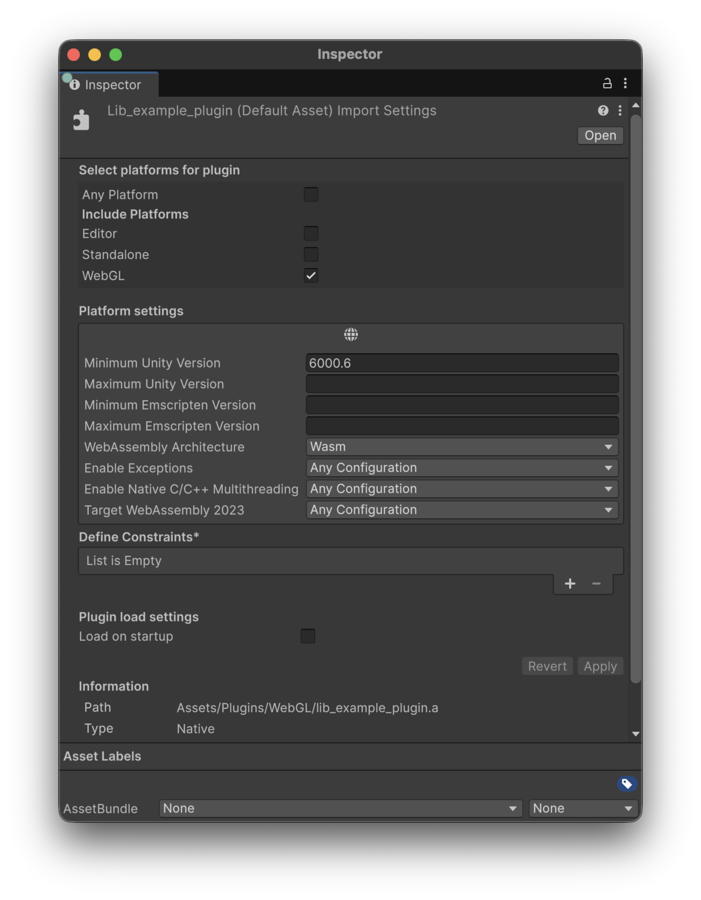
See in Glossary to configure which plug-in version Unity includes in the build, depending on the active Player Settings. For each native plug-in, the Inspector provides the following Web platform settings:
| Setting | Description |
|---|---|
| Minimum Unity Version and Maximum Unity Version | Specify the range of Unity versions the plug-in is compatible with. This is useful when you need to support multiple Unity versions that have breaking changes in browser interaction code. Add a separate version of the plug-in for each compatible range, and Unity selects the correct one at build time. Leave empty if the plug-in is compatible with all Unity versions. |
| Minimum Emscripten Version and Maximum Emscripten Version | Specify the range of Emscripten versions the plug-in is compatible with. Because different Unity versions bundle different Emscripten versions, use this setting to ensure binary compatibility. Leave empty if the plug-in is compatible with all Emscripten versions. For a list of Emscripten versions used in each Unity version, refer to Targeted versions. |
| WebAssembly Architecture | Select whether the plug-in targets Wasm (32-bit) or Wasm64 (64-bit). Unity includes the plug-in only when the selected architecture matches the project’s Maximum Memory Size setting. Projects with a maximum memory size greater than 4 GB use the 64-bit architecture. |
| Enable Exceptions | Select whether the plug-in requires exception support to be enabled or disabled. For example, a plug-in compiled with -fno-exceptions is incompatible with exception support. Select Any Configuration if the plug-in works with both settings. |
| Enable Native C/C++ Multithreading | Select whether the plug-in requires native C/C++ multithreading to be enabled or disabled. For example, a plug-in compiled with -pthread requires multithreading to be enabled. Select Any Configuration if the plug-in works with both settings. |
| Target WebAssembly 2023 | Select whether the plug-in requires WebAssembly 2023 features to be enabled or disabled. For example, a plug-in compiled with -msimd128 and -fwasm-exceptions requires WebAssembly 2023 to be enabled. Select Any Configuration if the plug-in works with both settings. |
Unity automatically selects the correct plug-in variant at build time based on the active Player Settings. If multiple plug-ins match the same configuration, or no plug-in matches, Unity reports an error.