Set 3D GameObjects to interact with Sprite masks
To allow a 3D GameObject to interact with Sprite masks, set the Mask Interaction property of the mesh renderer.
Prerequisites
Your project must be a 2D URP Project for the Mesh Renderer component to show the additional 2D > Mask Interaction property setting.
Enable Sprite mask interaction
To enable Sprite mask interaction in a Mesh RendererA mesh component that takes the geometry from the Mesh Filter and renders it at the position defined by the object’s Transform component. More info
See in Glossary or Skinned Mesh Renderer component of a 3D GameObject, follow these steps:
- Select the 3D GameObject.
- In the Inspector window, in the Mesh Renderer or Skinned Mesh Renderer component, go to the 2D > Mask Interaction section.
- Select either Visible Inside Mask or Visible Outside Mask to have the mesh renderer interact with a Sprite mask. Refer to the following table for the effect of each option.
Mask Interaction dropdown
| Option | Description |
|---|---|
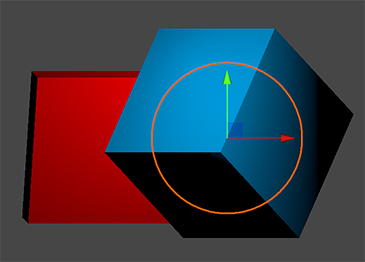
| None | Renders without interacting with Sprite masks. |
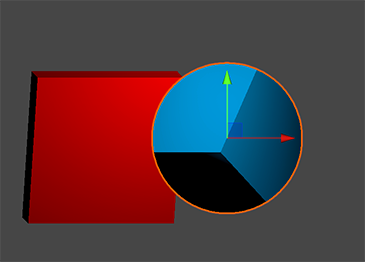
| Visible Inside Mask | Renders only the parts of the mesh that overlap the Sprite mask. |
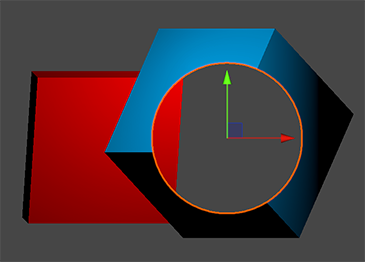
| Visible Outside Mask | Renders only the parts of the mesh that don’t overlap the Sprite mask. |
Examples
The following are examples of the visual effect that each option has when Unity renders the meshes with Sprite masks.
Additional resources
- Sprite masksA texture which defines which areas of an underlying image to reveal or hide. More info
See in Glossary - Sprite mask reference