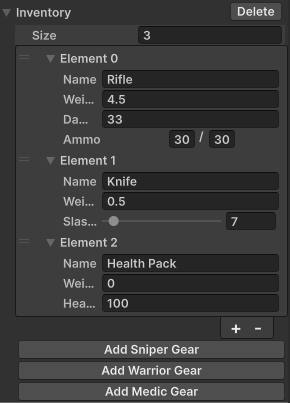
Create a custom inventory property drawer
Create custom property drawers to customize the appearance and behavior of UXML attributes of a custom control in the Inspector.
UxmlSerializedData supports custom property drawers, similar to ScriptableObject or MonoBehaviour. You can apply a custom property drawer to either the type or the field.
Example overview
This example creates an inventory system that includes an Item class, a variety of items, and an Inventory class. The Inventory class manages inventory items inside a visual element. The example uses custom property drawers to manage the inventory system.
The example demonstrates four approaches to creating inspector fields for UxmlSerializedData properties across its custom drawers:
| Approach | Drawer | Example field |
|---|---|---|
UxmlAttributeField with binding-path in UXML |
InventoryPropertyDrawer, GunPropertyDrawer
|
maxSlots, name, damage
|
UxmlAttributeFieldDecorator wrapping a field in UXML |
InventoryPropertyDrawer, GunPropertyDrawer
|
maxWeight, fireRate
|
UxmlAttributeField constructor in C# |
InventoryPropertyDrawer, SwordPropertyDrawer
|
description, name
|
UxmlAttributeFieldDecorator wrapping a field in C# |
InventoryPropertyDrawer, SwordPropertyDrawer
|
items ListView, slashDamage Slider |
AmmoPropertyDrawer inherits from PropertyDrawer (not UxmlSerializedDataPropertyDrawer) because Ammo is a plain [Serializable] struct. There is no UxmlSerializedDataPropertyView binding context, so its UI is built in C# with absolute binding paths and includes a ProgressBar for ammo fill level.
You can find the completed files that this example creates in this GitHub repository.
Prerequisites
This guide is for developers familiar with the Unity Editor, UI Toolkit, and C# scripting. Before you start, get familiar with the following:
- UXML
CustomPropertyDrawerUxmlObjectUxmlAttributeUxmlSerializedDataCreator.CreateUxmlSerializedDataUxmlSerializedDataPropertyDrawerUxmlAttributeFieldUxmlAttributeFieldDecorator
Create an item and a variety of items
First, create an Item class. This class is abstract and serves as a blueprint for all types of objects, encompassing their shared properties. Next, create a variety of items, including a health pack and different types of weapons.
Create a project in Unity with any template.
In your Project window, create a folder named
inventory-property-drawersto store your files.In the
inventory-property-drawersfolder, create a subfolder namedScriptsto store your C# scripts.-
In the
Scriptsfolder, create a C# script namedItem.cswith the following content:using UnityEngine.UIElements; using UnityEngine; [UxmlObject] public abstract partial class Item { [UxmlAttribute, HideInInspector] public int id; [UxmlAttribute] public string name; [UxmlAttribute] public float weight; } -
In the
Scriptsfolder, create a C# script namedHealthPack.cswith the following content:using System; using UnityEngine; using UnityEngine.UIElements; [UxmlObject] public partial class HealthPack : Item { [UxmlAttribute] public float healAmount = 100; public HealthPack() { name = "Health Pack"; } } [UxmlObject] public partial class Sword : Item { [UxmlAttribute, Range(1, 100)] public float slashDamage; } [Serializable] public class Ammo { public int count; public int maxCount; } [UxmlObject] public partial class Gun : Item { [UxmlAttribute] public float damage; [UxmlAttribute] public float fireRate = 1; [UxmlAttribute] public Ammo ammo = new Ammo { count = 10, maxCount = 10 }; }
Create an attribute converter and an inventory
This example uses a custom attribute named Ammo, so you must define an attribute converter for it. You also need an Inventory class to store all items, and a Character custom control that exposes the inventory as a UXML attribute.
The Inventory class includes three fields that the InventoryPropertyDrawer renders using different approaches: description (C# UxmlAttributeField), maxSlots (UXML UxmlAttributeField), and maxWeight (UXML UxmlAttributeFieldDecorator).
-
In the
Scriptsfolder, create a C# script namedAmmoConverter.cswith the following content:using UnityEditor.UIElements; public class AmmoConverter : UxmlAttributeConverter<Ammo> { public override Ammo FromString(string value) { var ammo = new Ammo(); var values = value.Split('/'); if (values.Length == 2) { int.TryParse(values[0], out ammo.count); int.TryParse(values[1], out ammo.maxCount); } return ammo; } public override string ToString(Ammo value) { return $"{value.count}/{value.maxCount}"; } } -
In the
Scriptsfolder, create a C# script namedInventory.cswith the following content:using System.Collections.Generic; using UnityEngine.UIElements; [UxmlObject] public partial class Inventory { List<Item> m_Items = new List<Item>(); Dictionary<int, Item> m_ItemDictionary = new Dictionary<int, Item>(); [UxmlAttribute] public string description; [UxmlAttribute] public int maxSlots = 10; [UxmlAttribute] public float maxWeight = 50; [UxmlAttribute] int nextItemId = 1; [UxmlObjectReference("Items")] public List<Item> items { get => m_Items; set { m_Items = value; m_ItemDictionary.Clear(); foreach (var item in m_Items) { m_ItemDictionary[item.id] = item; } } } public Item GetItem(int id) => m_ItemDictionary.TryGetValue(id, out var item) ? item : null; }
Create a UXML template for the inventory drawer
UXML templates let you define the Inspector layout declaratively. When you use UxmlAttributeField or UxmlAttributeFieldDecorator in a UXML template loaded inside a UxmlSerializedDataPropertyDrawer, the binding-path attributes resolve relative to the UxmlSerializedData property. This works because UxmlSerializedDataPropertyView intercepts the SerializedPropertyBindEvent and sets up a relative binding context. For plain PropertyDrawer subclasses, this context is not available, so building the UI in C# and using absolute SerializedProperty.propertyPath values is the simpler and more reliable approach.
In the inventory-property-drawers folder, create a subfolder named UI to store your UXML files.
The inventory drawer template uses two approaches to display the maxSlots and maxWeight fields:
-
UxmlAttributeFieldwithbinding-pathautomatically generates anIntegerFieldformaxSlots, complete with override indicator bar and binding affordances. -
UxmlAttributeFieldDecoratorwrapping aSliderdisplaysmaxWeightwith an explicit field type. The decorator provides the same override and binding affordances, but theSliderlets the user set values within a defined range without typing.
In the UI folder, create a UXML file named InventoryDrawer.uxml with the following content:
<ui:UXML xmlns:ui="UnityEngine.UIElements" xmlns:uitke="Unity.UIToolkit.Editor">
    <!-- UxmlAttributeField with binding-path auto-generates an IntegerField with override/binding affordances. -->
    <uitke:UxmlAttributeField binding-path="maxSlots" label="Max Slots" />

    <!-- UxmlAttributeFieldDecorator wraps an explicit Slider, letting you choose the field type
         while still getting the override indicator bar and context menu. -->
    <uitke:UxmlAttributeFieldDecorator>
        <ui:Slider label="Max Weight" binding-path="maxWeight"
                   low-value="0" high-value="200" show-input-field="true"
                   class="unity-base-field__aligned" />
    </uitke:UxmlAttributeFieldDecorator>
</ui:UXML>
Create custom property drawers
When you add the Character element to a UXML document and select it in the Hierarchy window, you can manage its inventory items in the Inspector, but the ID value isn’t assigned automatically. To fix this, add an InventoryPropertyDrawer to the Inventory class.
InventoryPropertyDrawer
InventoryPropertyDrawer inherits from UxmlSerializedDataPropertyDrawer and is applied to Inventory.UxmlSerializedData. This base class handles serialized object binding automatically, so you override CreateChildPropertiesGUI instead of CreatePropertyGUI.
CreateChildPropertiesGUI demonstrates all four approaches to rendering UxmlSerializedData properties:
Load a UXML template that uses
UxmlAttributeFieldandUxmlAttributeFieldDecoratorwithbinding-pathformaxSlotsandmaxWeight. The binding context set byUxmlSerializedDataPropertyViewmakes the relativebinding-pathvalues resolve correctly.Create
UxmlAttributeFieldin C# for thedescriptionproperty by passing aSerializedPropertyto the constructor.Create
UxmlAttributeFieldDecoratorin C# to wrap the itemsListView, giving it the override indicator bar and context menu.-
In the
Scriptsfolder, create a C# script namedInventoryPropertyDrawer.cswith the following content:// This drawer showcases four ways to create inspector fields for `UxmlSerializedData` properties: // // 1. `UxmlAttributeField` in UXML – `binding-path` resolves relative to the `UxmlSerializedData` // property because `UxmlSerializedDataPropertyView` sets up // the binding context. // 2. `UxmlAttributeFieldDecorator` in UXML – wraps an explicit field type in UXML while keeping // the override indicator bar and context menu. // 3. `UxmlAttributeField` in C# – creates a field programmatically from a `SerializedProperty`. // 4. `UxmlAttributeFieldDecorator` in C# – wraps any `IBindable` element in code. using System.IO; using Unity.UIToolkit.Editor; using UnityEditor; using UnityEngine.UIElements; using UnityEngine; using UnityEditor.UIElements; [CustomPropertyDrawer(typeof(Inventory.UxmlSerializedData))] public class InventoryPropertyDrawer : UxmlSerializedDataPropertyDrawer { // Cached to avoid a disk lookup on every drawer instantiation. static VisualTreeAsset s_Template; // Found by asset name, so the example works wherever you put the UI folder. static VisualTreeAsset LoadTemplate(string templateName) { foreach (string guid in AssetDatabase.FindAssets($"{templateName} t:VisualTreeAsset")) { string path = AssetDatabase.GUIDToAssetPath(guid); if (Path.GetFileNameWithoutExtension(path) == templateName) return AssetDatabase.LoadAssetAtPath<VisualTreeAsset>(path); } return null; } protected override void CreateChildPropertiesGUI(VisualElement container, SerializedProperty property) { // Pattern 1 & 2: load a UXML template that uses UxmlAttributeField and // UxmlAttributeFieldDecorator with binding-path to render maxSlots and maxWeight. // The binding paths resolve relative to this UxmlSerializedData property automatically. if (s_Template == null) s_Template = LoadTemplate("InventoryDrawer"); if (s_Template != null) container.Add(s_Template.Instantiate()); // Pattern 3: create a UxmlAttributeField in C# for the description property. container.Add(new UxmlAttributeField(property.FindPropertyRelative("description"))); // The drawing loop recycles this property, so the buttons below capture an independent copy // instead. Without it they act on whatever the iterator points at when you click. SerializedProperty inventory = property.Copy(); // Pattern 4: create a UxmlAttributeFieldDecorator in C# to wrap the items ListView. SerializedProperty itemsProperty = property.FindPropertyRelative("items"); ListView items = new ListView { showAddRemoveFooter = true, showBorder = true, showFoldoutHeader = false, reorderable = true, virtualizationMethod = CollectionVirtualizationMethod.DynamicHeight, reorderMode = ListViewReorderMode.Animated, bindingPath = itemsProperty.propertyPath, overridingAddButtonBehavior = (baseListView, button) => OnAddItem(inventory, baseListView, button) }; UxmlAttributeFieldDecorator listViewDecorator = new UxmlAttributeFieldDecorator(); listViewDecorator.Add(items); container.Add(listViewDecorator); container.Add(new Button(() => { AddGun(inventory, "Rifle", 4.5f, 33, 2.5f, 30, 30); AddSword(inventory, "Knife", 0.5f, 7); AddHealthPack(inventory); inventory.serializedObject.ApplyModifiedProperties(); }) { text = "Add Sniper Gear" }); container.Add(new Button(() => { AddGun(inventory, "Rifle", 4.5f, 33, 2.5f, 30, 30); AddHealthPack(inventory); AddSword(inventory, "Machete", 1, 11); inventory.serializedObject.ApplyModifiedProperties(); }) { text = "Add Warrior Gear" }); container.Add(new Button(() => { AddGun(inventory, "Pistol", 1.5f, 10, 1f, 15, 15); AddHealthPack(inventory); AddHealthPack(inventory); AddHealthPack(inventory); inventory.serializedObject.ApplyModifiedProperties(); }) { text = "Add Medic Gear" }); } // Appends a new item of the given type to the items array and assigns its ID. // Returns the SerializedProperty for the new element so callers can set type-specific fields. SerializedProperty AppendItem(SerializedProperty property, System.Type itemType) { SerializedProperty itemsProperty = property.FindPropertyRelative("items"); itemsProperty.arraySize++; SerializedProperty newItem = itemsProperty.GetArrayElementAtIndex(itemsProperty.arraySize - 1); newItem.managedReferenceValue = UxmlSerializedDataCreator.CreateUxmlSerializedData(itemType); newItem.FindPropertyRelative("id").intValue = NextItemId(property); return newItem; } void AddGun(SerializedProperty property, string name, float weight, float damage, float fireRate, int ammo, int maxAmmo) { SerializedProperty newItem = AppendItem(property, typeof(Gun)); newItem.FindPropertyRelative("name").stringValue = name; newItem.FindPropertyRelative("weight").floatValue = weight; newItem.FindPropertyRelative("damage").floatValue = damage; newItem.FindPropertyRelative("fireRate").floatValue = fireRate; var ammoInstance = newItem.FindPropertyRelative("ammo"); ammoInstance.FindPropertyRelative("count").intValue = ammo; ammoInstance.FindPropertyRelative("maxCount").intValue = maxAmmo; } void AddSword(SerializedProperty property, string name, float weight, float damage) { SerializedProperty newItem = AppendItem(property, typeof(Sword)); newItem.FindPropertyRelative("name").stringValue = name; newItem.FindPropertyRelative("weight").floatValue = weight; newItem.FindPropertyRelative("slashDamage").floatValue = damage; } void AddHealthPack(SerializedProperty property) => AppendItem(property, typeof(HealthPack)); int NextItemId(SerializedProperty property) => property.FindPropertyRelative("nextItemId").intValue++; void OnAddItem(SerializedProperty property, BaseListView baseListView, Button button) { GenericMenu menu = new GenericMenu(); TypeCache.TypeCollection items = TypeCache.GetTypesDerivedFrom<Item>(); foreach (var item in items) { if (item.IsAbstract) continue; menu.AddItem(new GUIContent(item.Name), false, () => { AppendItem(property, item); property.serializedObject.ApplyModifiedProperties(); }); } menu.DropDown(button.worldBound); } }
GunPropertyDrawer
GunPropertyDrawer is applied to Gun.UxmlSerializedData and overrides CreateChildPropertiesGUI. It loads GunDrawer.uxml, which uses UxmlAttributeField with binding-path for name, weight, and damage, and a UxmlAttributeFieldDecorator wrapping a Slider for fireRate. It then calls CreateChildPropertyGUI for the ammo field, which creates a UxmlAttributeField that wraps a PropertyField. The PropertyField delegates to AmmoPropertyDrawer, so the ProgressBar appears inside the field with the override indicator bar.
In the UI folder, create a UXML file named GunDrawer.uxml with the following content:
<ui:UXML xmlns:ui="UnityEngine.UIElements" xmlns:uitke="Unity.UIToolkit.Editor">
    <!-- UxmlAttributeField auto-generates the appropriate field type with override/binding affordances. -->
    <uitke:UxmlAttributeField binding-path="name" />
    <uitke:UxmlAttributeField binding-path="weight" />
    <uitke:UxmlAttributeField binding-path="damage" />

    <!-- UxmlAttributeFieldDecorator wraps an explicit Slider instead of the default FloatField,
         letting the user set fire rate within a defined range. -->
    <uitke:UxmlAttributeFieldDecorator>
        <ui:Slider label="Fire Rate" binding-path="fireRate"
                   low-value="0.5" high-value="10" show-input-field="true"
                   class="unity-base-field__aligned" />
    </uitke:UxmlAttributeFieldDecorator>
</ui:UXML>
In the Scripts folder, create a C# script named GunPropertyDrawer.cs with the following content:
// `GunPropertyDrawer` showcases loading a UXML template inside a `UxmlSerializedDataPropertyDrawer`.
// The template uses `UxmlAttributeField` (pattern 1) and `UxmlAttributeFieldDecorator` (pattern 2)
// with `binding-path`. Because this is a `UxmlSerializedDataPropertyDrawer`, the binding context
// set by `UxmlSerializedDataPropertyView` makes those relative `binding-path` values resolve correctly.
//
// The ammo field is rendered by calling `CreateChildPropertyGUI`, which creates a `UxmlAttributeField`.
// `UxmlAttributeField` internally uses a `PropertyField`, which invokes `AmmoPropertyDrawer` and
// preserves the override indicator bar alongside the ammo count/max row and `ProgressBar`.
using System.IO;
using Unity.UIToolkit.Editor;
using UnityEditor;
using UnityEngine;
using UnityEngine.UIElements;

[CustomPropertyDrawer(typeof(Gun.UxmlSerializedData))]
public class GunPropertyDrawer : UxmlSerializedDataPropertyDrawer
{
    // Cached to avoid a disk lookup on every drawer instantiation.
    static VisualTreeAsset s_Template;

    // Found by asset name, so the example works wherever you put the UI folder.
    static VisualTreeAsset LoadTemplate(string templateName)
    {
        foreach (string guid in AssetDatabase.FindAssets($"{templateName} t:VisualTreeAsset"))
        {
            string path = AssetDatabase.GUIDToAssetPath(guid);
            if (Path.GetFileNameWithoutExtension(path) == templateName)
                return AssetDatabase.LoadAssetAtPath<VisualTreeAsset>(path);
        }

        return null;
    }

    protected override void CreateChildPropertiesGUI(VisualElement container, SerializedProperty property)
    {
        container.Add(ItemTypeLabel("Gun"));

        // Pattern 1 & 2: load a UXML template that uses UxmlAttributeField and
        // UxmlAttributeFieldDecorator with binding-path for name, weight, damage, and fireRate.
        if (s_Template == null)
            s_Template = LoadTemplate("GunDrawer");
        if (s_Template != null)
            container.Add(s_Template.Instantiate());

        // Render the ammo property via CreateChildPropertyGUI. The base implementation creates a
        // UxmlAttributeField, which wraps a PropertyField that delegates to AmmoPropertyDrawer.
        SerializedProperty ammoProperty = property.FindPropertyRelative("ammo");
        if (ammoProperty != null)
            CreateChildPropertyGUI(container, property, ammoProperty);
    }

    static Label ItemTypeLabel(string typeName) => new Label(typeName)
    {
        style =
        {
            unityFontStyleAndWeight = FontStyle.Bold,
            paddingLeft = 2,
            paddingBottom = 2,
            marginBottom = 2,
            borderBottomWidth = 1,
            borderBottomColor = new Color(0.5f, 0.5f, 0.5f, 0.3f),
        }
    };
}
SwordPropertyDrawer
SwordPropertyDrawer is applied to Sword.UxmlSerializedData and overrides both CreateChildPropertiesGUI and CreateChildPropertyGUI. CreateChildPropertiesGUI prepends an item type label, then calls base.CreateChildPropertiesGUI which iterates over all child properties and calls CreateChildPropertyGUI for each one. CreateChildPropertyGUI handles slashDamage with a UxmlAttributeFieldDecorator in C# wrapping an explicit Slider, and delegates all other properties (name, weight) to base.CreateChildPropertyGUI, which creates a UxmlAttributeField. This shows both C# patterns in a single drawer.
In the Scripts folder, create a C# script named SwordPropertyDrawer.cs with the following content:
// SwordPropertyDrawer showcases the C# approach to UxmlAttributeField and UxmlAttributeFieldDecorator.
// It overrides CreateChildPropertiesGUI to prepend a type label, then delegates to CreateChildPropertyGUI
// for each property. CreateChildPropertyGUI customizes slashDamage while letting the base class handle
// all other properties (name, weight) with the default UxmlAttributeField.
using Unity.UIToolkit.Editor;
using UnityEditor;
using UnityEngine;
using UnityEngine.UIElements;

[CustomPropertyDrawer(typeof(Sword.UxmlSerializedData))]
public class SwordPropertyDrawer : UxmlSerializedDataPropertyDrawer
{
    protected override void CreateChildPropertiesGUI(VisualElement container, SerializedProperty property)
    {
        container.Add(ItemTypeLabel("Sword"));
        base.CreateChildPropertiesGUI(container, property);
    }

    protected override void CreateChildPropertyGUI(VisualElement container, SerializedProperty property,
        SerializedProperty childProperty)
    {
        if (childProperty.name == "slashDamage")
        {
            // Pattern 3 & 4 in C#: UxmlAttributeFieldDecorator wrapping an explicit Slider.
            // This uses the same control type as the Slider in InventoryDrawer.uxml, but created
            // in code rather than UXML.
            UxmlAttributeFieldDecorator decorator = new UxmlAttributeFieldDecorator();
            Slider slider = new Slider(childProperty.displayName, 1, 100)
            {
                showInputField = true,
                bindingPath = childProperty.propertyPath
            };
            slider.AddToClassList(Slider.alignedFieldUssClassName);
            decorator.Add(slider);
            container.Add(decorator);
        }
        else
        {
            // Pattern 3: let the base class create a UxmlAttributeField for name and weight.
            base.CreateChildPropertyGUI(container, property, childProperty);
        }
    }

    static Label ItemTypeLabel(string typeName) => new Label(typeName)
    {
        style =
        {
            unityFontStyleAndWeight = FontStyle.Bold,
            paddingLeft = 2,
            paddingBottom = 2,
            marginBottom = 2,
            borderBottomWidth = 1,
            borderBottomColor = new Color(0.5f, 0.5f, 0.5f, 0.3f),
        }
    };
}
AmmoPropertyDrawer
To ensure the Ammo class clamps the count value to be less than maxCount, create an AmmoPropertyDrawer for the Ammo class. Because Ammo is a plain [Serializable] struct rather than a UxmlObject, AmmoPropertyDrawer inherits from PropertyDrawer.
AmmoPropertyDrawer builds its UI in C#: an IntegerField row for count and max, plus a ProgressBar that updates via TrackPropertyValue whenever either value changes. Binding paths use the absolute SerializedProperty.propertyPath because there is no UxmlSerializedDataPropertyView binding context.
In the Scripts folder, create a C# script named AmmoPropertyDrawer.cs with the following content:
// `AmmoPropertyDrawer` inherits from `PropertyDrawer` because `Ammo` is a plain `[Serializable]` struct,
// not a `UxmlObject`. There is no `UxmlSerializedDataPropertyView` to establish a relative binding
// context, so the UI is built in C# and binding paths use absolute `SerializedProperty.propertyPath`
// values. A `ProgressBar` provides visual feedback for the current ammo fill level.
using UnityEditor;
using UnityEditor.UIElements;
using UnityEngine;
using UnityEngine.UIElements;

[CustomPropertyDrawer(typeof(Ammo))]
public class AmmoPropertyDrawer : PropertyDrawer
{
    public override VisualElement CreatePropertyGUI(SerializedProperty property)
    {
        VisualElement root = new VisualElement();

        SerializedProperty count = property.FindPropertyRelative("count");
        SerializedProperty maxCount = property.FindPropertyRelative("maxCount");

        VisualElement row = new VisualElement { style = { flexDirection = FlexDirection.Row } };

        IntegerField countField = new IntegerField("Ammo")
        {
            isDelayed = true,
            bindingPath = count.propertyPath
        };
        countField.AddToClassList(IntegerField.alignedFieldUssClassName);
        row.Add(countField);
        row.Add(new Label("/") { style = { marginLeft = 2, marginRight = 2 } });

        IntegerField maxCountField = new IntegerField
        {
            isDelayed = true,
            bindingPath = maxCount.propertyPath,
            style = { width = 50 }
        };
        row.Add(maxCountField);
        root.Add(row);

        ProgressBar ammoBar = new ProgressBar();
        root.Add(ammoBar);

        void UpdateBar()
        {
            ammoBar.highValue = Mathf.Max(maxCount.intValue, 1);
            ammoBar.value = count.intValue;
            ammoBar.title = $"{count.intValue}/{maxCount.intValue}";
        }

        countField.TrackPropertyValue(count, p =>
        {
            count.intValue = Mathf.Min(p.intValue, maxCount.intValue);
            property.serializedObject.ApplyModifiedProperties();
            UpdateBar();
        });

        maxCountField.TrackPropertyValue(maxCount, p =>
        {
            count.intValue = Mathf.Min(count.intValue, p.intValue);
            property.serializedObject.ApplyModifiedProperties();
            UpdateBar();
        });

        root.Bind(property.serializedObject);
        UpdateBar();

        return root;
    }
}
Test the inventory system
To test the inventory system in your scene:
- Create a UXML document asset in your project.
- In your scene, create a GameObject with a Panel Renderer component and assign the UXML asset to it. The Hierarchy window displays the visual element hierarchy of the assigned UXML.
- Enter staging mode to edit the UXML document in context. Use one of the following methods:
- In the Hierarchy window, click the arrow button next to the element associated with the UXML asset. This works similarly to entering prefab editing mode.
- Right-click the element in the Hierarchy window and select Open in Context from the context menu.
- In the Inspector with the UXML asset element selected, click one of the available Open in Context buttons.
- In the Library window, select the Project > Custom Controls tab.
- Drag the
Characterelement from the Library window into the Hierarchy window. - Select the
Characterelement in the Hierarchy window. - In the Inspector, add items to the inventory. The ID value is automatically assigned, and you can add pre-configured sets of items.
After completing these steps, the Character element displays your custom inventory drawer in the Inspector. The Max Slots field and Max Weight slider appear at the top from the UXML template, followed by the Description field created in C#. The items list follows with its preset gear buttons. Each Gun item in the list shows name, weight, damage, and a Fire Rate slider from the UXML template, followed by the Ammo field rendered by AmmoPropertyDrawer with its progress bar. Each Sword item shows a Slash Damage slider from the C# decorator.
If the ID value is not assigned, verify that InventoryPropertyDrawer is applied to Inventory.UxmlSerializedData and that the scripts have compiled without errors. If the UXML template fields don’t appear, verify that InventoryDrawer.uxml and GunDrawer.uxml are somewhere under Assets. The drawers find them by asset name, so the UI folder can live anywhere in your project.