Dictionary serialization
Unity serializes fields declared as Dictionary<TKey, TValue> directly, so you can author dictionary data in scripts and edit it in the Inspector window without writing custom serialization code. The declared field type must be exactly Dictionary<TKey, TValue>.
Dictionary serialization is opt-in: you must apply [SerializeField] to each dictionary field that you want Unity to serialize. Unity only supports certain types as dictionary keys and values. The serialization rules analyzer detects unsupported key and value types at compile time and points to the rule that explains the limitation. The Inspector renders a two-column key/value editor with sort, duplicate-key detection, and column resizing.
Unity serializes a dictionary as a sequence of key/value pairs in insertion order. The order shown in the Inspector is independent of the serialized order. Refer to Sort order in the Inspector.
If your project already serializes a dictionary through an ISerializationCallbackReceiver implementation or a third-party package, that solution keeps working and Unity doesn’t convert its data. Refer to Migrate a custom dictionary solution to built-in dictionary serialization.
Declare a serialized dictionary field
You can serialize a dictionary field on a MonoBehaviour, a ScriptableObject, or any nested [Serializable] class or struct. Apply [SerializeField] to a private or a public dictionary field, to make Unity serialize the dictionary:
using System.Collections.Generic;
using UnityEngine;

public class Inventory : MonoBehaviour
{
    [SerializeField]
    private Dictionary<string, int> itemCounts = new Dictionary<string, int>();
}
Public dictionary fields aren’t serialized automatically. Without [SerializeField], Unity skips the field, and the dictionary doesn’t persist across domain reloads, scene saves, or Play mode transitions. The analyzer reports UAC1015 when a public dictionary field is missing [SerializeField], so you can decide whether to opt in or to mark the field [NonSerialized].
[SerializeReference] isn’t valid on dictionary fields, because Unity serializes a dictionary as an inline collection of entries rather than as a polymorphic single reference. The analyzer reports UAC1014 if you apply [SerializeReference] to a dictionary field.
Supported key and value types
Both TKey and TValue must be types that Unity can serialize:
- Primitive types (
int,float,double,bool,string). - Enum types (32 bits or smaller).
- Unity built-in types, such as
Vector2,Vector3,Color. - Custom classes and structs marked
[Serializable]. - References to types derived from
UnityEngine.Object.
As a key or a value, you can’t use an interface or an abstract type (other than a UnityEngine.Object hierarchy), or a type that isn’t marked [Serializable]. The analyzer reports UAC1012 and UAC1016 respectively.
Collections are valid as values but not as keys:
- As a value, you can use any supported type, or a collection of supported types such as a
List<T>, an array, or anotherDictionary<TKey, TValue>. For example,Dictionary<int, List<int>>andDictionary<int, Dictionary<string, int>>are both valid. - As a key, you can’t use a type that implements
IEnumerable- the interface that collection types such asList<T>and arrays implement. Thestringtype is an exception, even though it implementsIEnumerable. For example, Unity can’t serialize aDictionary<List<int>, int>field, because its key typeList<int>implementsIEnumerable. The analyzer reports UAC1013.
Unity also doesn’t serialize a dictionary that’s nested directly inside another collection. For example, List<Dictionary<string, int>> and Dictionary<string, int>[] aren’t supported. Wrap the dictionary in a [Serializable] class or struct that you can use as the element type. The analyzer reports this case as UAC1009.
Structs and classes that contain a [SerializeReference] field — directly or anywhere in their field graph or inheritance chain — can be used as either a key or a value in a serialized dictionary.
For the full set of analyzer rules and usage examples, refer to the serialization rules analyzer.
Custom struct and class keys
If you use a custom struct or class as a dictionary key, override GetHashCode and Equals so the dictionary can place and find entries correctly:
- Custom classes without overrides use reference equality. Two instances with identical field values are treated as different keys, which breaks dictionary lookups.
- Custom structs without overrides fall back to reflection-based hashing and equality. The dictionary works correctly but is slow. Add overrides for better performance.
- Primitives,
string, enums, Unity built-in types such asVector3andColor, andUnityEngine.Objectsubclasses already implementGetHashCodeandEqualscorrectly. You don’t need to override them.
For value-type keys, also implement IEquatable<T> to avoid boxing allocations during key comparisons. IEquatable<T> isn’t required, but it improves runtime performance.
If a custom GetHashCode or Equals implementation throws an exception while Unity loads a serialized dictionary, Unity skips the affected entries and logs one console warning.
Custom key comparers
To control how a serialized dictionary compares and hashes its keys, pass an implementation of the IEqualityComparer<TKey> interface to the dictionary constructor in the field declaration:
using System;
using System.Collections.Generic;
using UnityEngine;

public class Inventory : MonoBehaviour
{
    [SerializeField]
    private Dictionary<string, int> itemCounts = new Dictionary<string, int>(StringComparer.OrdinalIgnoreCase);
}
Unity doesn’t write the comparer to a scene, a prefab, or an asset. A comparer still applies after a load only if you pass it to the constructor in the field declaration. This is because Unity reuses the dictionary that the field already contains instead of creating a new one: it calls the Clear method on that dictionary and then adds the entries it reads. The Clear method doesn’t reset the comparer.
Which dictionary the field contains depends on the operation:
- An operation that creates the object that contains the dictionary runs the field declaration first, so the dictionary uses the comparer you declared. This includes the following operations: domain reloads, scene loads, prefab loads, asset loads, and calls to the
Object.Instantiatemethod. - An operation that deserializes into an object that already exists reuses whichever dictionary the field contains at that moment, and doesn’t run the field declaration again. This includes the following operations: undo, redo, prefab revert, and calls to the
SerializedObject.ApplyModifiedPropertiesmethod. The declared comparer still applies, unless a script replaced the dictionary or set the field tonullafter Unity loaded the object. If the field isnull, Unity creates a new dictionary with the default comparer, and doesn’t apply the declared comparer again until it next creates the object.
Set the comparer in the field declaration
The serialized data doesn’t include the comparer, so Unity can’t restore a comparer that exists only on a dictionary that a script assigns at runtime. For more information, refer to Comparers that Unity can’t preserve.
For example, the following script loses its comparer the next time Unity creates the object, such as after a domain reload. The SetValues method replaces the field with a dictionary that has a comparer, but the field declaration doesn’t set one, so the reloaded asset compares keys case-sensitively:
using System;
using System.Collections.Generic;
using UnityEngine;

public class ItemLookup : ScriptableObject
{
    [SerializeField]
    private Dictionary<string, int> values = new Dictionary<string, int>();

    public Dictionary<string, int> Values => values;

    // A caller supplies the comparer, for example:
    // lookup.SetValues(new Dictionary<string, int>(StringComparer.OrdinalIgnoreCase));
    public void SetValues(Dictionary<string, int> newValues)
    {
        values = newValues;
    }
}
To keep the comparer, pass it to the constructor in the field declaration:
[SerializeField]
private Dictionary<string, int> values = new Dictionary<string, int>(StringComparer.OrdinalIgnoreCase);
With this declaration, the dictionary uses the declared comparer again the next time Unity creates the object, even if a script replaced the dictionary at runtime.
Until Unity creates the object again, the field contains the dictionary assigned at runtime, and an in-place operation such as undo uses that dictionary’s comparer instead of the declared one. To get the same behavior in both cases, give any dictionary that you assign at runtime the same comparer as the field declaration.
Don’t replace the dictionary in Awake or OnEnable
Don’t assign a new dictionary to the field in a MonoBehaviour method that Unity calls after it deserializes the object, such as Awake, OnEnable, or Start. A new dictionary discards the entries that Unity loaded. To set a comparer, pass it to the constructor in the field declaration, which runs before deserialization.
Duplicate keys caused by a comparer
A comparer can make two different serialized keys equal. For example, the keys Alpha and alpha are different strings in the serialized data, but the StringComparer.OrdinalIgnoreCase comparer treats them as the same key.
Unity reports this as a duplicate key: it adds the first entry to the runtime dictionary, excludes the later entries, and marks each excluded row in the Inspector so you can correct or remove it. This is the same behavior as any other duplicate key. For more information, refer to Duplicate keys.
Comparers that Unity can’t preserve
Unity can’t restore a comparer that a script set on the dictionary in the following cases:
- A comparer selected at runtime. A field declaration is fixed at compile time, so it can’t specify a comparer that a script chooses while it runs, for example from a loaded value, a project setting, or a method argument. Unity can’t read the comparer back from the serialized data, so nothing restores the choice.
- A dictionary inside a struct. C# doesn’t allow field initializers on struct fields, so a struct declaration can’t create the dictionary or set a comparer on it. Unity reads the fields of a serialized struct in place, inside the object that contains the struct.
-
A dictionary used as a value. In a
Dictionary<string, Dictionary<string, int>>field, Unity creates each inner dictionary as it reads the entries, so an inner dictionary has no field declaration that could set a comparer. The outer dictionary is a field, so it keeps the comparer that you set on it.
In each of these cases, the dictionary uses the comparer from the field declaration, or, if the field declaration doesn’t set one, a comparer that behaves the same as the one that the EqualityComparer<TKey>.Default property returns.
The limitation on a dictionary used as a value applies only when the value is itself a dictionary. If the value is a [Serializable] class that has a dictionary field, that dictionary keeps the comparer from its field declaration, as long as the class has a parameterless constructor. Unity creates the class with that constructor, so the field declarations of the class run. If the class declares only constructors that take parameters, Unity creates the class without running a constructor, the field declarations don’t run, and the dictionary uses the default comparer.
If you need a custom comparer in one of these cases, restructure the data so that the dictionary is a field whose declaration can create it. For example, move the dictionary out of the struct and into a [Serializable] class that has a parameterless constructor, then set the comparer in that class’s dictionary field declaration.
Edit a dictionary in the Inspector
When you select a GameObject or an asset that contains a serialized dictionary, the Inspector renders the dictionary as a two-column list with the keys on the left and the values on the right.
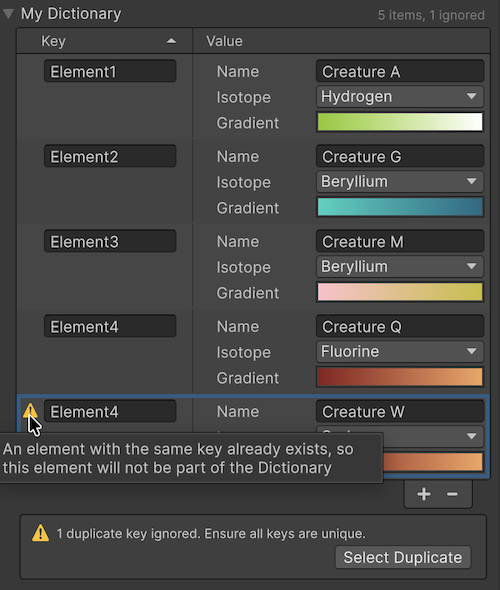
The Inspector provides the following features:
- Add or remove an entry with the + and - buttons at the bottom of the list.
- Change the width of columns. The width persists per property path and per Inspector window.
- Right-click the column header to change the layout. Refer to Customize the dictionary display.
- Right-click the column header and select Reset Layout to restore the default layout, column split, and sort direction.
- Toggle the sort direction by clicking the Key column header.
- Right-click the column header and select Show Serialized Order (Global) to display entries in their serialized order instead of sorted by key. This setting applies to every dictionary and persists for the current Editor session. It’s useful for debugging prefab overrides. Refer to Dictionaries in prefabs.
Dictionary fields don’t support multi-object editing. When you select more than one GameObject or asset, the Inspector displays a help box in place of the dictionary editor.
Sort order in the Inspector
The Inspector sorts entries by key for display only. Sorting doesn’t change the serialized order, which always reflects the order in which entries were added. Click the Key column header to toggle between ascending and descending order.
The Inspector reads each key directly from the serialized data and compares fields based on their property type. It doesn’t call the comparison interface IComparable<T> or its CompareTo method on the key type, so you don’t need to implement them for sorting in the Inspector.
The following table describes the sort behavior for each supported key type:
| Key type | Sort behavior |
|---|---|
int, long, short, byte, and other integer types |
Numeric order. |
float, double
|
Numeric order. NaN values sort last. |
string |
Case-insensitive natural order: digit runs are compared as numbers, so item2 appears before item10. |
bool |
false before true. |
| Enum types | Sorted by enum value index, which matches the order in which you declared the enum members. |
References to UnityEngine.Object subclasses |
Sorted by internal entity identifier. |
| Structs and classes | Sorted field by field, in declaration order. Refer to Complex key sort order. |
Complex key sort order
When a dictionary key is a struct or serializable class, the Inspector compares entries one field at a time, in the order the fields are declared in your script. It compares the first field of each key. If those values are equal, it moves to the second field, and so on. To change the sort priority, reorder the field declarations in your class.
Only fields visible in the Inspector contribute to the comparison. Fields marked [HideInInspector] are skipped. The comparison recurses into nested structs and classes up to eight levels deep. Beyond that, remaining nested fields are treated as equal and Unity logs a one-time console warning.
When sort order updates
The Inspector re-sorts the displayed entries in the following situations:
- When you add or remove an entry.
- When a key field changes, after you commit the edit (for example, by leaving the field or pressing Enter).
- When external code modifies the serialized property.
While you’re actively typing in a key field or dragging a slider, the Inspector defers the re-sort to avoid moving the row out from under you. Duplicate-key markers update in real time so you still see immediate feedback. When you complete the edit, the Inspector re-sorts and your current selection is preserved across the new order.
Customize the dictionary display
Apply the [DictionaryDisplay] attribute to a dictionary field to set the column layout, the column labels, and the initial column split:
using System.Collections.Generic;
using UnityEngine;

public class LootTable : MonoBehaviour
{
    [SerializeField]
    [DictionaryDisplay(keyLabel = "Item", valueLabel = "Drop chance", keyColumnFraction = 0.6f)]
    private Dictionary<string, float> drops = new Dictionary<string, float>();
}
[DictionaryDisplay] has the following parameters, all of which are optional:
-
keyLabelandvalueLabelset the labels for the key and value columns. If you leave one empty, Unity uses a default label (Key or Value). -
keyColumnFractionsets the fraction of the available width assigned to the key column. Valid values are between0.01and0.99. The default value is0.5. -
layoutsets the column layout. For more information, refer to Choose a layout.
The parameters set only the initial presentation. If you change the presentation in the Inspector (for example, by dragging the column divider or changing the layout from the header context menu), Unity saves your choice and ignores the initial parameters on later draws. To return to the values set by the attribute, right-click the column header and select Reset Layout.
Choose a layout
To determine how the Inspector arranges keys and values, set the layout parameter to one of the following DictionaryLayout values:
| Layout | Description |
|---|---|
TwoColumns |
Shows keys and values side by side in two resizable columns. This is the default value. |
OneColumnWithValueVisible |
Stacks each value under its key in a single column, with every value shown inline. |
OneColumnWithValueFoldout |
Stacks each value under its key in a single column, with every value behind a collapsible foldout. |
You can also change the layout from the column header’s context menu, which overrides the layout set by the attribute.
Customize a dictionary by type
The [DictionaryDisplay] attribute is a field attribute, so it configures only the single field you attach it to. Apply [DictionaryDisplayForType] as an assembly-level attribute instead when you want to:
- Configure a dictionary that has no field to decorate, such as the inner dictionary of a
Dictionary<int, Dictionary<string, SkillLevel>>, which is a value rather than a field. - Apply one consistent presentation to every field of the same dictionary type from a single declaration, instead of repeating
[DictionaryDisplay]on each field.
Name the exact dictionary type with typeof. The attribute applies to every dictionary of that exact type, wherever it appears:
using System.Collections.Generic;
using UnityEngine;

// One declaration configures every Dictionary<string, SkillLevel> in the assembly: the nested
// dictionary in Character and the field in AbilityBook, without repeating [DictionaryDisplay].
// This assembly defines SkillLevel, which the attribute requires.
[assembly: DictionaryDisplayForType(typeof(Dictionary<string, SkillLevel>),
    layout = DictionaryLayout.OneColumnWithValueVisible,
    keyLabel = "Skill", valueLabel = "Level")]

[System.Serializable]
public struct SkillLevel
{
    public int rank;
    public float bonus;
}

public class Character : MonoBehaviour
{
    // Nested inner dictionary: a value, so it has no field to decorate.
    [SerializeField]
    private Dictionary<int, Dictionary<string, SkillLevel>> skillsPerTier = new();
}

public class AbilityBook : MonoBehaviour
{
    // A direct field of the same type, styled by the same declaration.
    [SerializeField]
    private Dictionary<string, SkillLevel> learnedSkills = new();
}
[DictionaryDisplayForType] accepts the same parameters as [DictionaryDisplay] and applies all of them. The type you pass to typeof has two requirements:
- It must be a fully specified
Dictionary<TKey, TValue>, such asDictionary<string, SkillLevel>. Unity ignores a target that isn’t a fully specified dictionary type. The analyzer reports UAC1021. - It must use a type defined in the same assembly as the attribute: its key type, its value type, or a type nested inside either. For example, an assembly that defines
SkillLevelcan targetDictionary<string, SkillLevel>,Dictionary<int, SkillLevel[]>, orDictionary<int, List<SkillLevel>>. This prevents a rule in one assembly from changing a dictionary built only from types it doesn’t define, such asDictionary<int, int>. If the target uses no type from the attribute’s assembly, Unity ignores the rule and logs a warning in the console. The analyzer reports UAC1022.
When a dictionary is nested as the value of another dictionary, the Inspector uses Dictionary as the label for the inner dictionary’s foldout, because a dictionary value has no field name.
Resolution order
When more than one source can set a dictionary’s presentation, Unity uses the first source that applies, from highest precedence to lowest:
- The user’s own in-editor choices: the layout from the header context menu and the column width from dragging the divider. Unity persists these choices per property path until the user selects Reset Layout.
- A field-level
[DictionaryDisplay]on the dictionary field sets the layout, labels, and width. - An assembly-level
[DictionaryDisplayForType]on the exactDictionary<TKey, TValue>sets the layout, labels, and width. - The built-in defaults:
TwoColumnslayout, Key and Value labels, and a 0.5 key-column fraction.
Duplicate keys
A dictionary can contain only one value for each key at runtime, but the Inspector lets you create duplicate keys temporarily so you can resolve them incrementally. Unity marks each duplicate row with an icon and a tooltip, and preserves the duplicate entries in the asset until you correct or remove them. Duplicate entries are tracked per host object only in the Editor; the Player runtime always enforces unique keys.
When Unity loads a scene, prefab, or asset that contains a serialized dictionary with duplicate keys, or when you instantiate an object that contains such a dictionary, the Editor writes a warning in the console. Unity adds only the first occurrence of each duplicate key to the runtime dictionary.
If you need to read the duplicate indices from a custom Inspector or other tooling, use SerializedProperty.GetDictionaryIgnoredEntries and read its duplicateEntryIndices array.
Null keys
A dictionary can’t contain a null key at runtime, but the Inspector keeps a row whose key is null so you can assign a valid key to it. A row has a null key when you add an entry with the + button and haven’t set the key yet, or when a UnityEngine.Object key is unassigned or refers to an object that no longer exists. Unity marks each null-key row with an icon and a tooltip, and preserves the row in the serialized data so you don’t lose it or its value.
When Unity loads a scene, prefab, or asset that contains a serialized dictionary with null-key rows, or when you instantiate an object that contains such a dictionary, the Editor writes a warning in the console and excludes those rows from the runtime dictionary. Unity keeps each null-key row as a separate placeholder rather than merging rows that share a null key, so no value is lost.
If a dictionary contains both duplicate keys and null keys, Unity reports them in a single console warning rather than one warning for each problem.
If you need to read the null-key indices from a custom Inspector or other tooling, use SerializedProperty.GetDictionaryIgnoredEntries and read its nullKeyEntryIndices array.
Dictionaries in prefabs
You can override individual entries of a serialized dictionary on a prefab instance. The Inspector indicates each overridden key or value the same way it indicates other property overrides, and you can apply or revert each overridden key or value independently.
Unity records dictionary overrides using the serialized position of the entry, the same way it records overrides on array and list fields.
Dictionaries add extra complexity for prefab overrides. The Inspector displays entries in sorted order rather than in the order they were added or stored, so the row position you see doesn’t correspond to the entry’s storage position. After you delete or add an entry on the prefab asset, review the instance overrides to confirm they still apply to the entries you intended.
To make overrides easier to reason about, right-click the column header and select Show Serialized Order (Global). The Inspector then displays entries in their serialized order, so each row’s position matches the storage index that Unity records the override against.
For the logic behind this behavior and an example, refer to Overrides on arrays, lists, and dictionaries.
Limitations
- Multi-object editing isn’t supported. The Inspector shows a help box when more than one target is selected.
- Since Unity records dictionary overrides using the serialized array index, editing a dictionary on a prefab asset can leave existing instance overrides applied to a different entry. For more information, refer to Overrides on arrays, lists, and dictionaries.
- The Inspector sort order doesn’t change the serialized order, which always reflects insertion order.
- Unity doesn’t serialize a dictionary’s key comparer. A comparer applies after a reload only if you pass it to the constructor in the dictionary field declaration. Refer to Custom key comparers.