Install Unity using Download Assistant
You can download the Unity Editor and other components with the help of the Unity Download Assistant. You can also use the Download Assistant to produce the installer files you need to install the Unity Editor on another computer. For more information, refer to Install Unity from the command line and Install Unity on offline computers.
To install Unity using the Download Assistant, follow these steps:
Access the Unity download archive website.
In the Downloads column, select See all for the version of Unity you want to install.
Under Manual installs > Other installs, select Download Assistant for the operating system of your computer.
This starts the download process of the Download Assistant executable file. If prompted, save the file, and note the download location.-
Use your file manager application to go to the location where you downloaded the Download Assistant (
.exefor Windows and.dmgfor macOS) and open it.Note: On macOS, the
.dmgfile opens a new Finder window. From that window, openUnity Download Assistant.app. -
Follow the instructions in the wizard to customize the install process. If you want to produce installer files, do the following:
Open your file manager application and create a folder to store the installer files.
- On macOS:
- On the Destination Select panel, select Advanced.
- In the dropdown, change Default to Custom.
- Select the folder icon and choose the folder you created previously to set a location to store the installer files.
On Windows, select Download to and choose the folder you created previously.
Important: Don’t save the installation files at the default location. Selecting the default location might result in incomplete file sets, or complete removal of the files you’ll need to run the setup on other computers.
- On macOS:
When the process completes, the installer deploys the Unity Editor to the following default locations:
- On macOS,
/Applications/Unity. - On Windows,
C:\Program Files\Unity <version>.
Verify installation files
If you want to install Unity Editor on an offline computer, you need an install.sh or install.bat file.
To check that the Download Assistant installed these files correctly, do the following:
Open your file manager application.
Go to the folder you specified as the location to store the installation files during the Download Assistant setup.
-
Confirm that an
install.shorinstall.batfile is inside that folder.If this folder is empty, or missing an
install.shorinstall.batfile, repeat the main procedure. -
Check the contents of the
install.shorinstall.batfile to make sure they resemble the following example: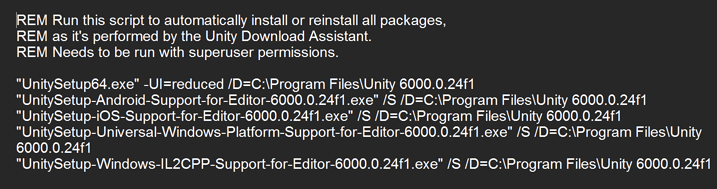
Sample contents of an install.bat file (Windows)