Adaptive Performance Device Simulator plug-in reference
Explore the Adaptive Performance settings and controls that simulate thermal and bottleneck conditions in the Device Simulator.
Find these settings in the Simulator view, under Control Panel > Adaptive Performance.
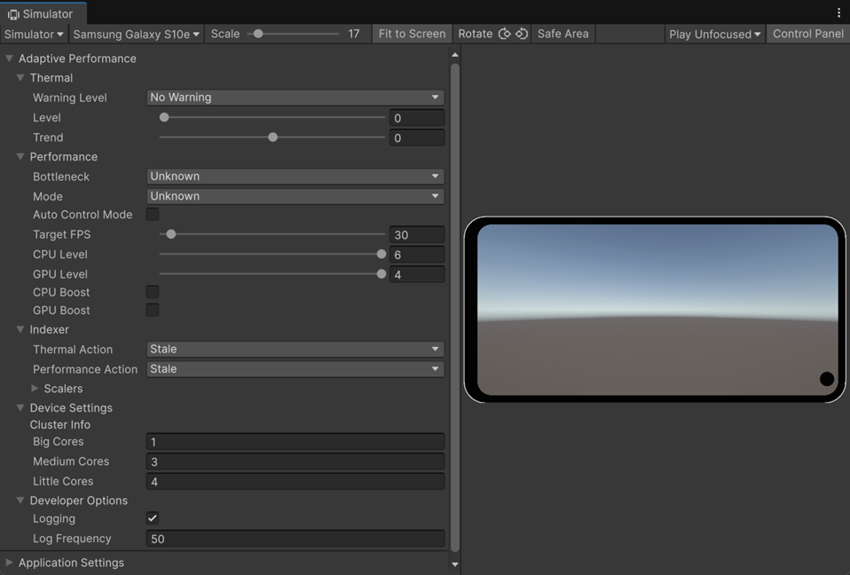
Adaptive Performance plug-in settings
The Adaptive Performance plug-in contains the following settings.
Thermal
The Thermal section contains the following settings:
| Property | Description |
|---|---|
| Warning Level | Simulates a thermal warning level.
|
| Level | Simulates the skin temperature level of a device. Options range between nominal temperature (0) and critical throttling temperature (maximum level of 1.0). |
| Trend | Simulates a temperature trend. Values less than 0 simulate a temperature drop. Values higher than 0 simulate a temperature increase. |
Performance
The Performance section contains the following settings:
| Property | Description |
|---|---|
| Bottleneck | Simulates the device bottleneck.
|
| Mode | Simulates the device performance mode.
|
| Auto Control Mode | Sets the CPU and GPU level automatically. When the device is throttling, the system’s own thermal management takes control and ignores Auto Control Mode. |
| Target FPS | Simulates the application target frame rate in frames per second. |
| CPU Level | Simulates the frequency cap of the CPU in discrete levels. |
| GPU Level | Simulates the frequency cap of the GPU in discrete levels. |
| CPU Boost | Boosts CPU performance for 10 s. Enabling CPU Boost disables CPU levels until the boost is over. If the system is throttling, the CPU boost has no effect. For more information, refer to Temporary performance boosts. |
| GPU Boost | Boosts GPU performance for 10 s. Enabling GPU boost disables GPU levels until the boost is over. If the system is throttling, the GPU boost has no effect. For more information, refer to Temporary performance boosts. |
Indexer
The Indexer monitors the device’s thermal and performance state to decide when to adjust quality levels using scalers.
The Indexer section contains settings that override the Indexer’s automatic behavior:
| Property | Description |
|---|---|
| Thermal Action | The action that the Indexer takes to adjust the visual quality level to regulate the device temperature. For more information about the individual scalers, refer to Modifying asset quality with scalers.
|
| Performance Action | The action that the Indexer takes to adjust the visual quality level to regulate the application’s performance.
|
Scalers
Use this section to configure scalers for the Device Simulator. The settings are identical to those in the Adaptive Performance provider settings.
Device Settings
The Device Settings section contains the following settings:
Cluster Info
The following settings simulate a device’s CPU clusters, which group different types of cores (big, medium, and little) to balance performance and power. For information about CPU clusters, refer to Track timing and thermal data.
| Property | Description |
|---|---|
| Big Cores | Simulates the number of big CPU cores available on the device. |
| Medium Cores | Simulates the number of medium CPU cores available on the device. |
| Little Cores | Simulates the number of little CPU cores available on the device. |
Energy usage
The following settings simulate the energy consumed by a device’s hardware components, which the application reads through the energy usage API. To receive these values at runtime, start energy tracking as described in Track energy usage. The Device Simulator reports the simulated values through the API in microwatt-seconds and milliseconds.
| Property | Description |
|---|---|
| Interval (s) | Simulates the measurement interval in seconds, over which the device measures energy. |
| CPU Energy (mWs) | Simulates the energy the CPU consumes in milliwatt-seconds over the interval. |
| CPU Available | Simulates whether the CPU reports energy usage. When disabled, the CPU reading isn’t available and its energy value has no meaning. |
| GPU Energy (mWs) | Simulates the energy the GPU consumes, in milliwatt-seconds, over the interval. |
| GPU Available | Simulates whether the GPU reports energy usage. When disabled, the GPU reading isn’t available and its energy value has no meaning. |
| TPU Energy (mWs) | Simulates the energy the TPU consumes, in milliwatt-seconds, over the interval. |
| TPU Available | Simulates whether the TPU reports energy usage. When disabled, the TPU reading isn’t available and its energy value has no meaning. |
| Display Energy (mWs) | Simulates the energy the display consumes, in milliwatt-seconds, over the interval. |
| Display Available | Simulates whether the display reports energy usage. When disabled, the display reading isn’t available and its energy value has no meaning. |
| Memory Energy (mWs) | Simulates the energy the memory consumes, in milliwatt-seconds, over the interval. |
| Memory Available | Simulates whether the memory reports energy usage. When disabled, the memory reading isn’t available and its energy value has no meaning. |
Use the Available settings to test how an application behaves on a device that reports energy usage for only some hardware components. A device can report any combination of components, so check the availability of each reading before using it.
Developer Options
Use this section to configure developer settings for the Device Simulator. These settings are identical to the Development Settings in the Adaptive Performance provider settings.