The architecture and performance of the Accessibility module
The Accessibility module bridges your application with platform accessibility APIs. It helps you translate your application’s interfaces into hierarchical data structures that screen readers understand and identify the user’s accessibility preferences so that you can adapt your user experience accordingly.
The Accessibility module consists of the following core components:
-
AssistiveSupport: Main interface to the screen reader support APIs -
AccessibilityHierarchy: Hierarchical data model describing visual elements to screen readers -
AccessibilityNode: Data structure representing an individual visual element that needs to be accessible to screen reader users -
IAccessibilityNotificationDispatcher: Methods for sending notifications to screen readers (implemented inAssistiveSupport) -
AccessibilitySettings: Access point to system accessibility settings on the user’s device -
VisionUtility: Palette of colors distinguishable for colorblind users
Key architectural concepts
These are the key concepts to understand when working with the Accessibility module:
Separate accessibility hierarchy
Think of the accessibility hierarchy as a parallel structure that mirrors your scene hierarchy in terms that screen readers understand. Your visual elements exist in Unity’s scene hierarchy. The accessibility hierarchy describes that content in screen reader terms.
Accessibility nodes
Each visual element in your application’s UI or game world that needs to be accessible to screen readers must have a corresponding accessibility node.
Node state and properties
Accessibility nodes have properties like label, role, value, state, and relationships to other nodes. When you update the properties of a visual element, also update its corresponding accessibility node.
Hierarchy and navigation
Screen readers traverse the accessibility hierarchy. Parent-child relationships affect focus order and element grouping. Flatten hierarchies where possible. Deeply nested structures make navigation difficult for screen reader users.
Accessibility notifications
Notify the screen reader of significant changes via accessibility notifications. This keeps the screen reader in sync with your application’s interface.
Platform abstraction
You write against Unity’s Accessibility API once. The module handles platform variations. Avoid platform-specific workarounds unless necessary.
Module lifecycle stages
- Application start: Registration to application lifecycle events and platform accessibility events
-
Update: Batch processing of accessibility events received from the operating system -
LateUpdate: Automatic refresh of accessibility node frames if the application window was previously moved or resized - Application quit: Deregistration from application lifecycle events and platform accessibility events
Performance considerations
The Accessibility module does not impact performance for users without a screen reader enabled, as most of its operations only function when a screen reader is detected.
The module triggers platform updates only when the user activates a screen reader or when you modify accessibility nodes or send accessibility notifications while a screen reader is active.
For typical UIs, accessibility hierarchy updates have minimal performance impact.
The following factors affect performance:
- Your application’s method of creating and managing the accessibility hierarchy
- The size of your accessibility hierarchy
- The frequency of accessibility hierarchy updates
- The frequency of accessibility notifications you send to the screen reader
Follow these best practices to minimize performance impact:
- Create accessibility nodes only for key interactive or informative elements.
- Create accessibility nodes only for elements that are visible on the screen.
- Avoid making accessibility updates every frame.
- Avoid sending accessibility notifications every frame.
- Send accessibility notifications only when strictly necessary.
- Test with screen readers on target devices.
Accessibility Hierarchy Viewer
Unity’s Accessibility Hierarchy Viewer (Window > Accessibility > Hierarchy Viewer) helps you visualize your active accessibility hierarchy.
While in Play mode, the Accessibility Hierarchy Viewer shows:
- The current structure of the active accessibility hierarchy
- The current properties of your accessibility nodes
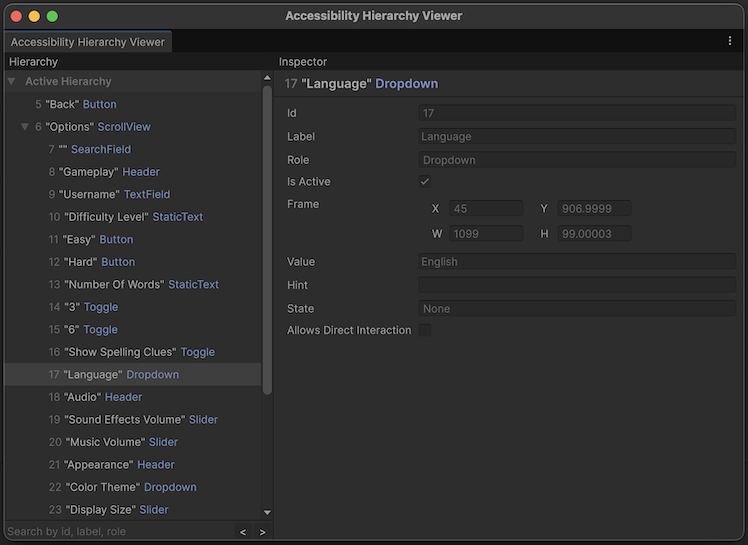
Use the Accessibility Hierarchy Viewer during development to verify your accessibility implementation. Compare the accessibility hierarchy to your application’s interface. Every interactive or informative element must have a corresponding accessibility node in the hierarchy with appropriate properties. When your UI or game world updates, the accessibility hierarchy must reflect those changes.
Test your accessibility implementation in the Unity Editor in Play mode, then build to a device and test with the target screen reader.
Additional resources
- Accessibility module API documentation
- Video: Reach new audiences with Accessibility and Localization in Unity 6 (Unite 2025)
- Sample project: LetterSpell: example of an accessible Unity application
- Community: Unity Discussions: Accessibility