Manage USS variables in UI Builder
USS variables define values that you can reuse in other USS rules. USS variables are primarily used for themes, with the default Unity themes exposing a long list of standard variables to make your UI more consistent with standard controls.
Create a USS variable
You can create USS variables in the Inspector window, either on a selector or on an individual element. You can also use a text editor to create variables directly in a USS file.
Define a variable on a selector
To create a USS variable on a selector:
-
In the Style Sheets window, do the following:
- If no selector exists, select Add new selector.
- To make the variable available to all selectors, select the :root selector.
- To make the variable available to a specific selector only, select that selector.
In the Variables section of the Inspector window, select +. A dropdown list displays the available variable types, such as Color, Number, Dimension, String, Enum, and Resource.
Select the variable type. The type determines the type of value you can assign to the variable. A default name and value are set based on the variable type.
To rename the variable, in the first column field, enter the name. The name can contain only letters, numbers, and hyphens.
-
To set the value of the variable, in the second column field, enter the value. You can use any valid USS value, including other variables.
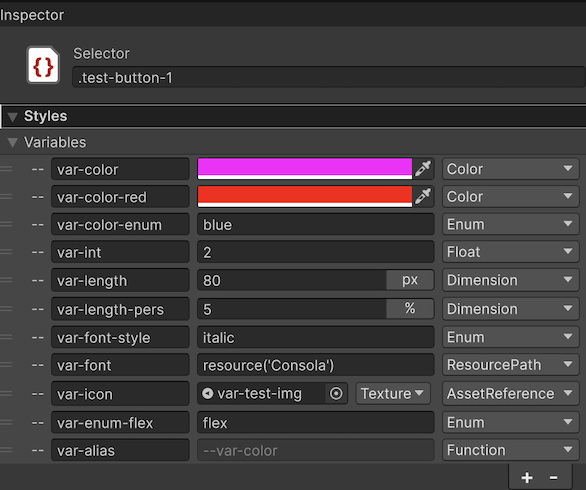
create USS variables
Define a variable on an element
You can also define a variable directly on an element. A variable that you define on an element overrides a variable of the same name that comes from a style rule or selector.
To define a variable on an element:
- In the Hierarchy window, select the element.
- In the Variables section of the Inspector window, create the variable the same way as you do for a selector.
Unity stores a variable that you define on an element in the element’s inline styles in the UXML file, not in a style sheet.
Note: A variable that you define on an element applies to the inline styles of that element only. It doesn’t apply to the element’s child elements, or to the properties that a selector applies to the element.
Manage USS variables
To reorder the variables, drag the variable to a new position. The order of the variables determines the order in which they’re applied. If you have two variables with the same name, the variable that’s defined last is used.
To delete a variable, select the variable and then select -. You can delete multiple variables at once.
To save the variable, from the menu, select File > Save. This saves the variables to the USS file.
Tip: When editing a USS variable, you can click outside the field to finish the edit, or press Enter. To cancel the edit, press Escape.
Assign a USS variable to a style property
You can assign a USS variable from the current theme or any assigned style sheets to a style property.
To assign a variable:
In the Style Sheets window, select the selector.
In the Inspector window, right-click a style field.
Select Set Variable. This converts the style field into a text field.
-
Enter the name of the USS variable. As you type the name of the variable, a dropdown list displays the available variables.
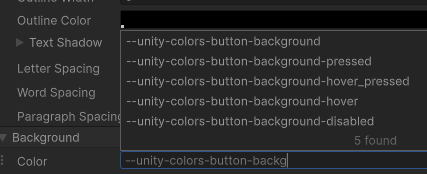
USSVariablesSearch You can also select a variable from the dropdown list, and check its current value and the style sheet it comes from. Press Enter to set the variable and revert the style field to its original type.
Tip: For style fields that are already text fields, you can also assign a variable by starting to type
--instead of a number.
Style fields with a variable assigned display a chain icon on the left of the label.
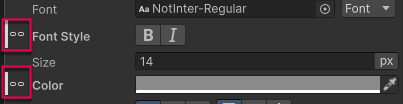
To remove a variable assignment, right-click a style field and select Remove Variable.
Note: Inline styles always override USS variables.
Tip: To see all available Editor variables when working on Editor UI, enable Editor Extension Authoring.