Reducing the file size of a build
Keeping the file size of your built application to a minimum is important to ensure that it doesn’t take up too much space on the end device, or to meet size requirements when submitting your application to online stores.
Suggestions for reducing build size
The following settings and features impact the size of a build:
| Feature | Resolution |
|---|---|
| Compressed texture formats | Refer to Choose a GPU texture format by platform. |
| Compressed meshes | Refer to Configure mesh compression. |
| Compressed animation clips | Refer to Animation properties. |
| Strip unreferenced code | Refer to Configure managed code stripping. |
| .NET library size | Using .NET Standard as the API Compatibility Level restricts you to a smaller subset of the .NET API, which can help keep size down. |
| Built-in physics modules | Disable com.unity.modules.physics and com.unity.modules.physics2d in the Package Manager window if your project doesn’t use them.Note: If you use local volumes in your project, keep the com.unity.modules.physics module enabled for these volumes to work. |
Tools to analyze build size
Unity has the following tools for analyzing the size of a build.
Editor logs
You can inspect the Editor log after you perform a build to determine which assets were the largest in the build. To open the log:
- Open the Console window (Window > General > ConsoleAbbreviation of game console
See in Glossary). - Select the More menu (⋮) and select Open Editor Log.
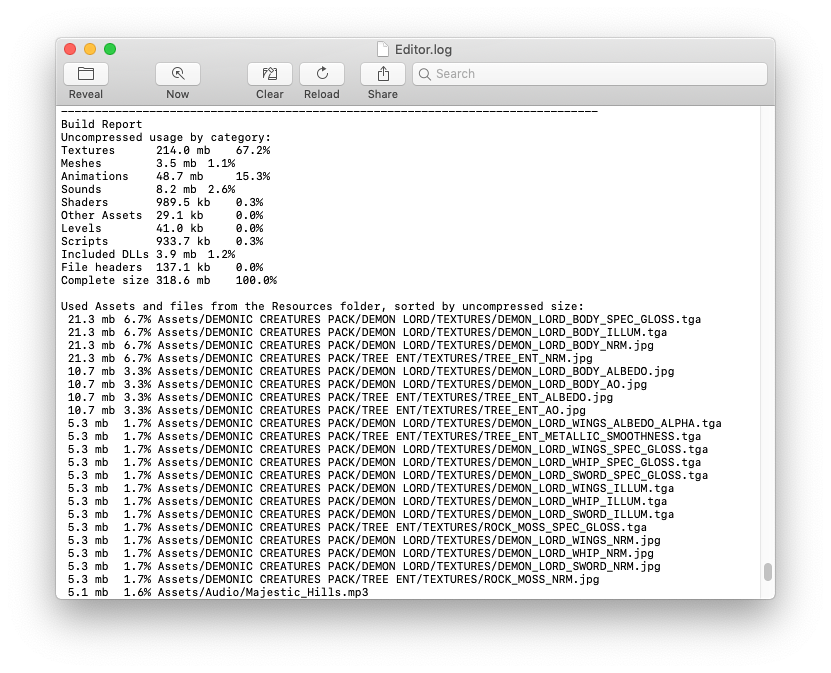
The Editor log provides a summary of assets broken down by type, and then lists all the individual assets in order of size contribution. Typically, assets like textures, sounds, and animations take up the most storage. Scripts, scenes, and shaders usually have the smallest impact. The File headers in the list are extra data added to asset files to store references and settings. The headers normally make very little difference to asset size, but the value might be large if you have many large assets in the Resources folder.
The Editor Log helps you to identify assets that you might want to remove or optimize, but consider the following before you start:
- Unity re-codes imported assets into its own internal formats, so the choice of source asset type isn’t relevant. For example, if you have a multi-layer texture
.psdfile in the project, Unity flattens and compresses it before building. Exporting the texture as a.pngfile doesn’t make any difference to build size. - Unity includes assets that are referenced in your project and strips any unused assets during the build process, so you don’t need to manually remove assets from the project. The only assets that aren’t removed are assets in the
Resourcesfolder. Unity includes all assets in theResourcesfolder in a build, so it’s important to ensure that all assets in theResourcesfolder are ones used in your application.