Fix broken animation field paths with YAML
Unity stores animation clipsAnimation data that can be used for animated characters or simple animations. It is a simple “unit” piece of motion, such as (one specific instance of) “Idle”, “Walk” or “Run”. More info
See in Glossary in .anim files, which use the same YAML format as scene and prefab files.
Note: This technique applies to animations stored as text, which is the case with the default Force Text asset serialization mode. It doesn’t apply to animations inside an imported model file, such as FBX. For more information, refer to Animation from external sources.
An animation clip identifies the target of each animation curve using a path field. The path field consists of GameObject names separated by a forward slash (/). The path is relative to the GameObject that has the Animator component. For example:
  - curve:
      serializedVersion: 2
    ...
    path: Hips/Spine/Shoulder/Arm
For more information about how Unity serializes data in a Scene with YAML, refer to Format of text serialized files.
When you rename a GameObject in the Hierarchy window or move it to a different parent, every curve that uses that path stops resolving. Unity doesn’t raise a warning or an error in this case, neither in Edit mode, nor after you reimport the clip, nor in Play mode while the clip runs. The Animation window is the only place that reports it: the affected animation property turns yellow with (Missing!) appended to its name. The issue can go unnoticed because parts of the animation that don’t use the renamed GameObject work as usual.
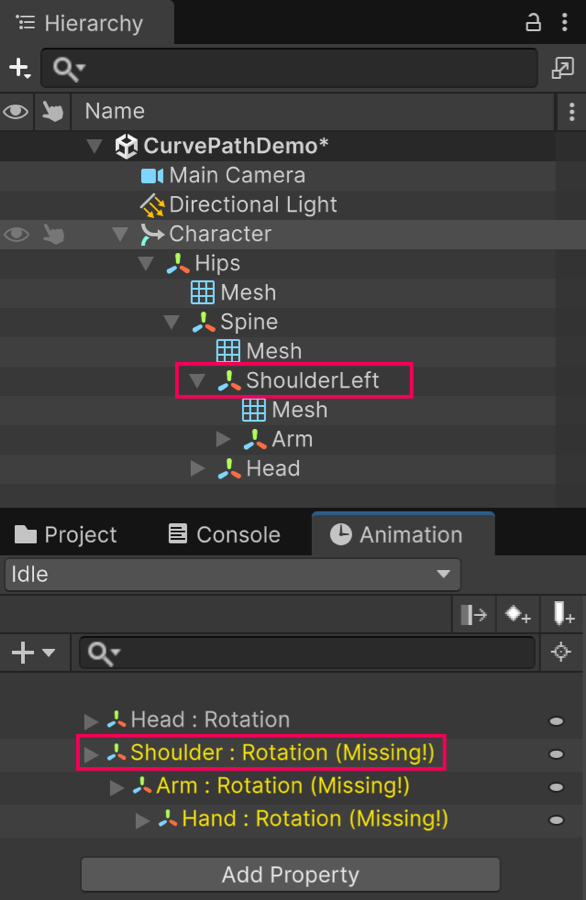
Fix paths to GameObjects in YAML
A manual way to fix the paths is to edit them from the Animation window by selecting an animation property and pressing F2. Because the paths are stored separately for each animation and for each animated property within animations, you have to repeat this operation many times, and such process is error prone.
A more efficient way to update the paths in this case is to edit them in serialized YAML .anim files.
Use a text search-and-replace method in the affected .anim files to edit the necessary paths.
Note: Generally, avoid generating or editing Unity YAML files directly. Consider using existing Unity API to update relevant YAML fields. In this scenario where you’re renaming paths, editing YAML files directly is a possible option.